Red Hat Developer Hub documentation
Complete documentation for Red Hat Developer Hub.
Abstract
- Preface
- 1. Discover
- 2. Get started
- 3. Plan
- 4. Install
- 5. Upgrade
- 6. Migrate
- 7. Administer
- 8. Develop
- 8.1. Develop
- 8.2. Register and update software components to maintain a unified service inventory
- 8.3. Project standardization with software templates
- 8.3.1. Project standardization with software templates
- 8.3.2. Create new Software Templates
- 8.3.3. Use sample templates
- 8.3.4. Publish template definitions to the catalog
- 8.3.5. Extend templates using conditional logic and external fetch capabilities
- 8.3.6. Version Software Templates to track template updates and dependencies
- 8.3.7. Track component provenance to map dependencies back to source templates
- 8.3.8. Automate template lifecycle management
- 8.3.9. Standardized project generation with software templates
- 8.4. Automate repository onboarding to the catalog
- 8.5. Orchestrate infrastructure tasks using workflows
- 8.6. Write and publish documentation as code to keep knowledge synchronized
- 8.6.1. Write and publish documentation as code to keep knowledge synchronized
- 8.6.2. Import documentation into TechDocs from a remote repository
- 8.6.3. Search for relevant content
- 8.6.4. Access and navigate documentation
- 8.6.5. Make changes to project documentation in TechDocs
- 8.6.6. Add video content to enhance TechDocs
- 8.6.7. Configure TechDocs storage and CI/CD pipelines
- 8.6.8. Install TechDocs add-ons
- 8.6.9. Create a TechDocs add-on
- 9. Configure
- 9.1. Configure
- 9.2. Configure core parameters to meet infrastructure requirements
- 9.3. Customize the user interface to reflect organizational branding
- 9.3.1. Customize the user interface to reflect organizational branding
- 9.3.2. Configure the global header for consistent top-level navigation
- 9.3.3. Customize the Quick Start to guide user onboarding
- 9.3.4. Customize themes and branding to align with corporate standards
- 9.3.5. Customize sidebar navigation and tabs to organize essential tools
- 9.4. Configure language localization to improve accessibility for global users
- 10. Secure
- 10.1. Secure
- 10.2. Configure authentication providers to verify user identities
- 10.2.1. Configure authentication providers to verify user identities
- 10.2.2. Authentication methods and identity provider selection
- 10.2.3. Configure guest access to securely test non-production environments
- 10.2.4. Share credentials with your identity provider to secure communications
- 10.2.5. Import users and groups to synchronize enterprise directory data
- 10.2.6. Enable authentication to verify identities against enterprise directories
- 10.2.7. Connect your platform to external identity providers and APIs
- 10.2.8. Configure session expiration and auto-logout policies
- 10.3. Define authorization policies to restrict access based on user roles
- 10.3.1. Define authorization policies to restrict access based on user roles
- 10.3.2. Enable and give access to the role-based access control (RBAC) feature
- 10.3.3. Determine permission policy and role configuration source
- 10.3.4. Design your policy rules
- 10.3.5. Manage roles using the Web UI
- 10.3.6. Manage policies using the REST API
- 10.3.7. Define policies in external files to provision permissions during cluster deployment
- 10.3.8. Configure guest access
- 10.3.9. Permission policy types
- 10.3.10. Conditional policies in Red Hat Developer Hub
- 10.3.11. Download active users list in Red Hat Developer Hub
- 10.3.12. Delegate RBAC management to decentralize administration
- 11. Observe
- 11.1. Observe
- 11.2. Monitor system logs and application metrics to ensure platform availability
- 11.3. Manage telemetry collection to balance data insights with privacy requirements
- 11.4. Capture and review audit logs to trace user activities and maintain accountability
- 11.5. Centralize workflow observability
- 11.6. Collect diagnostic data to troubleshoot platform issues
- 12. Integrate
- 12.1. Integrate
- 12.2. Enable AI assistance for developers
- 12.2.1. Enable AI assistance for developers
- 12.2.2. Developer Lightspeed for RHDH architecture
- 12.2.3. Build a private knowledge base with Lightspeed Notebooks
- 12.2.4. Configure Model Context Protocol tools to enhance AI interactions with portal data
- 12.2.5. Accelerate AI model discovery by integrating the OpenShift AI Connector
- 12.3. Integrate CI/CD and infrastructure tools to visualize pipelines and workloads
- 13. Optimize
- 14. Extend
- 14.1. Extend
- 14.2. Manage the plugin ecosystem to add functionality without downtime
- 14.2.1. Manage the plugin ecosystem to add functionality without downtime
- 14.2.2. Install dynamic plugins
- 14.2.3. Browse and manage available plugins using the Extensions UI
- 14.2.4. Configure core front-end wiring for navigation and UI components
- 14.2.5. Configure route bindings and mount points for component integration
- 14.2.6. Configure specialized front-end extensions for APIs and features
- 14.2.7. Filter plugins by support badges
- 14.3. Develop custom dynamic plugins to support custom workflows
- 14.4. Manage containerized plugins securely by migrating to OCI artifacts
- 15. Troubleshoot
- 16. Reference
Preface
The complete Red Hat Developer Hub documentation, organized by category.
Chapter 1. Discover
1.1. Discover
TODO: Replace this placeholder with an overview of Discover.
1.2. Evaluate RHDH capabilities
1.2.1. Evaluate RHDH capabilities
TODO: Replace this placeholder with an overview of Evaluate RHDH capabilities.
1.2.2. Developer Lightspeed AI virtual assistant capabilities
1.2.2.1. Developer Lightspeed AI virtual assistant capabilities
TODO: Replace this placeholder with an overview of Developer Lightspeed AI virtual assistant capabilities.
1.2.3. Platform integrations for toolchain connectivity
1.2.3.1. Platform integrations for toolchain connectivity
TODO: Replace this placeholder with an overview of Platform integrations for toolchain connectivity.
Chapter 2. Get started
2.1. Get started
TODO: Replace this placeholder with an overview of Get started.
2.2. Set up the first RHDH instance
2.2.1. Set up the first RHDH instance
TODO: Replace this placeholder with an overview of Set up the first RHDH instance.
2.2.2. Enable initial authentication to verify user access
2.2.2.1. Enable initial authentication to verify user access
TODO: Replace this placeholder with an overview of Enable initial authentication to verify user access.
Chapter 3. Plan
3.1. Plan
TODO: Replace this placeholder with an overview of Plan.
3.2. Plan your deployment architecture and scale
3.2.1. Plan your deployment architecture and scale
TODO: Replace this placeholder with an overview of Plan your deployment architecture and scale.
3.2.2. Sizing requirements for cluster resource provisioning
3.2.2.1. Sizing requirements for cluster resource provisioning
TODO: Replace this placeholder with an overview of Sizing requirements for cluster resource provisioning.
3.2.3. Scale your deployment using enterprise performance benchmarks
3.2.3.1. Scale your deployment using enterprise performance benchmarks
TODO: Replace this placeholder with an overview of Scale your deployment using enterprise performance benchmarks.
Chapter 4. Install
4.1. Install
TODO: Replace this placeholder with an overview of Install.
4.2. Install on OpenShift Container Platform to leverage existing Red Hat infrastructure
4.2.1. Install on OpenShift Container Platform to leverage existing Red Hat infrastructure
TODO: Replace this placeholder with an overview of Install on OpenShift Container Platform to leverage existing Red Hat infrastructure.
4.3. Install on managed hyperscaler environments to integrate with cloud resources
4.3.1. Install on managed hyperscaler environments to integrate with cloud resources
TODO: Replace this placeholder with an overview of Install on managed hyperscaler environments to integrate with cloud resources.
4.4. Install in an air-gapped environment
4.4.1. Install in an air-gapped environment
TODO: Replace this placeholder with an overview of Install in an air-gapped environment.
Chapter 5. Upgrade
5.1. Upgrade
TODO: Replace this placeholder with an overview of Upgrade.
5.2. Upgrade RHDH to apply the latest features and security patches
5.2.1. Upgrade RHDH to apply the latest features and security patches
TODO: Replace this placeholder with an overview of Upgrade RHDH to apply the latest features and security patches.
Chapter 6. Migrate
6.1. Migrate
TODO: Replace this placeholder with an overview of Migrate.
6.2. Migrate from a local database to an external PostgreSQL server
6.2.1. Migrate from a local database to an external PostgreSQL server
TODO: Replace this placeholder with an overview of Migrate from a local database to an external PostgreSQL server.
Chapter 7. Administer
7.1. Administer
TODO: Replace this placeholder with an overview of Administer.
7.2. Evaluate component compliance using Scorecards
7.2.1. Evaluate component compliance using Scorecards
TODO: Replace this placeholder with an overview of Evaluate component compliance using Scorecards.
7.2.2. Set up Scorecards
7.2.2.1. Set up Scorecards
TODO: Replace this placeholder with an overview of Set up Scorecards.
7.2.3. Install and configure Scorecards
7.2.3.1. Install and configure Scorecards
TODO: Replace this placeholder with an overview of Install and configure Scorecards.
7.2.4. Manage metric thresholds
7.2.4.1. Manage metric thresholds
TODO: Replace this placeholder with an overview of Manage metric thresholds.
7.3. Monitor portfolio health using aggregated Scorecard KPIs
7.3.1. Monitor portfolio health using aggregated Scorecard KPIs
TODO: Replace this placeholder with an overview of Monitor portfolio health using aggregated Scorecard KPIs.
7.3.2. Monitor collective health
7.3.2.1. Monitor collective health
TODO: Replace this placeholder with an overview of Monitor collective health.
7.3.3. Configure aggregated Scorecard KPIs
7.3.3.1. Configure aggregated Scorecard KPIs
TODO: Replace this placeholder with an overview of Configure aggregated Scorecard KPIs.
7.3.4. Identify services impacting team compliance KPIs
7.3.4.1. Identify services impacting team compliance KPIs
TODO: Replace this placeholder with an overview of Identify services impacting team compliance KPIs.
7.4. Analyze platform adoption trends to measure engagement and tool popularity
7.4.1. Analyze platform adoption trends to measure engagement and tool popularity
TODO: Replace this placeholder with an overview of Analyze platform adoption trends to measure engagement and tool popularity.
7.4.2. Adoption Insights
7.4.2.1. Adoption Insights
TODO: Replace this placeholder with an overview of Adoption Insights.
Chapter 8. Develop
8.1. Develop
Use Red Hat Developer Hub to streamline software development through centralized component management, standardized templates, automated onboarding, workflow orchestration, and documentation as code.
8.2. Register and update software components to maintain a unified service inventory
8.2.1. Register and update software components to maintain a unified service inventory
The Red Hat Developer Hub Software Catalog is a centralized system that gives you visibility into all the software across your ecosystem, including services, websites, libraries, and data pipelines.
8.2.2. Manage your software components
8.2.2.1. Manage your software components
The Red Hat Developer Hub Software Catalog is a centralized system that gives you visibility into all the software across your ecosystem, including services, websites, libraries, and data pipelines.
The metadata for the components in your Software Catalog is stored as YAML files that live alongside your code in your version control system. The version control repositories can include one or many metadata files. Software Catalog organizes items as entities, which include Components, Resources, and APIs, and other related types. Each entity includes associated metadata such as its owner, type, and other relevant details.
By storing metadata in YAML files alongside the code, you allow Red Hat Developer Hub to process and display this information through a clear, visual interface. With the Software Catalog, you can manage and maintain your software, stay aware of all software available in your ecosystem, and take ownership of your services and tools.
The Overview page for a component provides key information such as links to the source code, documentation, dependencies, and ownership details. You can customize this page with plugins to suit specific needs.
8.2.2.2. Register new software components
8.2.2.2.1. Register new software components
You can add new components to expand your Developer Hub Software Catalog by registering them manually, creating them from Software Templates, or using bulk import.
8.2.2.2.2. Generate new components
You can create new components in the Software Catalog in your RHDH instance. Red Hat Developer Hub automatically registers all components that developers or platform engineers create using Templates in the Software Catalog.
Prerequisites
- You have installed and configured the Red Hat Developer Hub instance.
-
If RBAC is enabled, you have a role with the following permissions:
catalog.entity.create,scaffolder.template.parameter.read,scaffolder.template.step.read,scaffolder.task.create.
Procedure
- In your Red Hat Developer Hub navigation menu, click Catalog.
- On the Catalog page, click Self-service.
8.2.2.2.3. Register existing repositories manually
To manually register components in your RHDH instance, create a catalog-info.yaml file and register it with your Red Hat Developer Hub instance.
Prerequisites
- You have installed and configured the Red Hat Developer Hub instance.
-
If RBAC is enabled, you have a role with the following permissions:
catalog.entity.create,catalog.location.create.
Procedure
In the root directory of your software project, create a file named
catalog-info.yaml.apiVersion: backstage.io/v1alpha1 kind: Component metadata: name: _<your_software_component>_ description: _<software_component_brief_description>_ tags: - example - service annotations: github.com/project-slug: _<repo_link_of_your_component_to_register>_ spec: type: _<your_service>_ owner: _<your_team_name>_ lifecycle: _<your_lifecycle>_-
Commit the
catalog-info.yamlfile to the root of your project source code repository. - In your Red Hat Developer Hub navigation menu, go to Catalog > Self-service.
- On the Self-service page, click Register Existing Component.
-
On the Register an existing component page, enter the full URL of the
catalog-info.yamlfile in your repository. For example: Artist lookup component. - Complete the wizard instructions.
Verification
- Your software component is listed in the Software Catalog. You can view its details and ensure all the metadata is accurate.
8.2.2.3. Update component YAML metadata
You can update components in the Software Catalog in your Red Hat Developer Hub instance.
Prerequisites
- You have installed and configured the Red Hat Developer Hub instance.
-
If RBAC is enabled, you have a role with the following permission:
catalog.entity.refresh.
Procedure
- In your Red Hat Developer Hub navigation menu, click Catalog.
Find the software component that you want to edit, under Actions, click the Edit icon.
NoteThis action redirects you to the YAML file on GitHub.
On your remote repository UI, update your YAML file.
NoteAfter you merge your changes, the updated metadata in the Software Catalog is displayed after some time.
8.2.2.4. Filter the catalog by entity kind
Filter the Software Catalog to display components by their type, such as Component, API, or Template.
Prerequisites
- You are logged in to the RHDH instance.
Procedure
- In your Red Hat Developer Hub navigation menu, click Catalog.
- On the Catalog page, click the Kind drop-down list.
Select the Kind you want to filter by, such as Component, API, or Template.
NoteThe available filter lists change based on the Kind you select, showing options relevant to that entity type.
Verification
- The Catalog updates to list only the components matching the selected Kind.
8.2.2.5. Search the catalog using text filters
Search and filter components by text in the Software Catalog to quickly locate specific services, libraries, or other entities.
Procedure
- In your Red Hat Developer Hub navigation menu, click Catalog.
- In the Search field, enter a component name, description, or keyword that you are looking for.
Verification
- The Catalog list updates to display only components matching your search criteria.
8.2.2.6. Review the raw YAML configuration
You can view the Software Catalog YAML file in your Red Hat Developer Hub instance to review the metadata for the components in your Software Catalog.
Procedure
- In your Red Hat Developer Hub navigation menu, click Catalog.
Find the software component that you want to view, under Actions, click the View icon.
NoteThese steps redirect you to the YAML file on your remote repository.
8.2.2.7. Star frequently used components
You can add commonly used components to the Your Starred Entities card for quick access.
Procedure
- In the Red Hat Developer Hub navigation menu, select Catalog.
- Locate the components you want to add as a favorite.
- In the Actions column for that component, click the Add to favorites (star) icon.
Verification
- Navigate to the Home page and verify that the Your Starred Entities card lists the component.
8.3. Project standardization with software templates
8.3.1. Project standardization with software templates
Software Templates in Red Hat Developer Hub provide a streamlined way to create software components and publish them to different version control repositories such as Git. Platform engineers create and maintain Software Templates in Red Hat Developer Hub.
8.3.2. Create new Software Templates
To automate the setup of standardized environments for your developers, you must create a template definition. This definition allows RHDH to automate the repetitive tasks of repository creation and initial configuration.
Prerequisites
- You have added a custom Developer Hub application configuration.
- You have a Git repository to store Software Template files.
Procedure
- Create a directory in your Git repository for the Software Template.
-
Create a file named
template.yamlin that directory. -
In the
template.yamlfile, define theapiVersion,kind, andmetadatato identify the starter kit in the software catalog. -
Add a
specsection to define theparametersthat a developer must provide when they use the Software Template. Define the
stepsrequired to generate the project, which can includefetch:templateto retrieve the skeleton andpublish:githubto create the new repository.ImportantYou must include TechDocs in your Software Templates to ensure that documentation is automatically generated for every new project created from the Software Template.
Verification
-
Inspect the
template.yamlfile to ensure the YAML syntax is valid. -
Confirm that the
nameandactionfields are defined so the template is correctly recognized as a Scaffolder task. -
Check that the defined
parametersmatch the variables used in your Software Template skeleton files. -
Navigate to the form playground at
<instance_url>/create/template-formand test the Software Template configuration to confirm the fields and logic render as intended.
8.3.3. Use sample templates
This sample Software Template defines project parameters and publishes the generated code to a GitHub repository.
apiVersion: scaffolder.backstage.io/v1beta3
kind: Template
metadata:
  name: basic-node-service
  title: Basic Node.js Service
  description: A starter kit for a standardized Node.js microservice.
  tags:
    - nodejs
    - recommended
spec:
  owner: platform-team
  type: service
  parameters:
    - title: ProjectDetails
      required:
        - name
        - owner
      properties:
        name:
          title: Name
          type: string
          description: Unique name for the new repository.
        owner:
          title: Owner
          type: string
          description: The group responsible for this component.
          ui:field: OwnerPicker
          ui:options:
            allowedKinds:
              - Group
  steps:
    - id: fetch-base
      name: Fetch Skeleton
      action: fetch:template
      input:
        url: ./skeleton
        values:
          name: ${{ parameters.name }}
          owner: ${{ parameters.owner }}
    - id: publish
      name: Publish to GitHub
      action: publish:github
      input:
        allowedHosts: ['github.com']
        description: This is ${{ parameters.name }}
        repoUrl: github.com?owner=my-org&repo=${{ parameters.name }}
  output:
    links:
      - title: Repository
        url: ${{ steps['publish'].output.remoteUrl }}
8.3.4. Publish template definitions to the catalog
To allow developers to create new projects independently using your standards, you must publish the Software Template definition to the RHDH catalog. This registration makes the template a selectable option in the software creator interface.
Prerequisites
-
If RBAC is enabled, you have a role with the following permissions:
catalog.entity.create,catalog.location.create. - You have a Git repository to store Software Template files.
Procedure
- Navigate to the Create page in the RHDH interface.
- Select Register Component.
-
Enter the full URL to your
template.yamlfile in the Repository URL field. - Click Analyze and then Import.
Verification
- Navigate to the Create page.
- Confirm that your new template is displayed in the list of available options.
8.3.5. Extend templates using conditional logic and external fetch capabilities
Use advanced logic to create Software Templates that adapt to specific project requirements and user inputs. Advanced templating includes parameterization, conditional logic, and fetch-and-run capabilities.
| Feature | Description |
|---|---|
|
Parameterization |
Use variables to inject user-provided data into project files. |
|
Conditional Logic |
Perform specific automation steps only when certain conditions are met. |
|
Fetch and Run |
Retrieve remote files and run commands during the setup process. |
8.3.6. Version Software Templates to track template updates and dependencies
8.3.6.1. Version Software Templates to track template updates and dependencies
Software Templates in Red Hat Developer Hub provide a streamlined way to create software components and publish them to different version control repositories such as Git.
8.3.6.2. Version Software Templates
Version Software Templates by using the catalog:scaffolded-from and catalog:template:version custom actions to track template versions and the entities created from them.
Prerequisites
- You have added a custom Developer Hub application configuration.
The following dynamic plugins are enabled in your
Backstageormy-rhdh-app-configfile:-
backstage-community-plugin-catalog-backend-module-scaffolder-relation-processor-dynamic -
backstage-plugin-notifications -
backstage-plugin-notifications-backend-dynamic
-
Procedure
Make sure the required plugins are enabled in your RHDH
my-rhdh-app-configfile or the Backstage custom resource (CR):global: dynamic: plugins: - package: ./dynamic-plugins/dist/backstage-community-plugin-catalog-backend-module-scaffolder-relation-processor-dynamic disabled: false - package: ./dynamic-plugins/dist/backstage-plugin-notifications disabled: false - package: ./dynamic-plugins/dist/backstage-plugin-notifications-backend-dynamic disabled: false- Modify the Software Template that you want to update.
- Complete one or both of the following tasks:
-
Include the annotation in your template: Add the
backstage.io/template-versionannotation in your template metadata. When this annotation is present, it is automatically used to annotate your catalog entity and display a default version value. Pass the annotation as input to the action: This method takes precedence over the annotation in the template itself and allows the user running the template to specify the version.
# ...
- id: version-templateRef
  name: Append the version of this template to the entityRef
  action: catalog:template:version
  input:
    annotations:
      backstage.io/template-version: ${{ parameters.version }}
# ...
Verification
- Create a catalog component using the updated Software Template. This step creates a new component in Backstage and optionally, pushes files to an external repository (for example, GitHub, GitLab).
Check the component in the Catalog UI.
- On the Catalog page, locate the newly created catalog component.
-
Verify that the
backstage.io/template-versionannotation is present in the entity. You can use INSPECT ENTITY and select YAML Raw or JSON Raw view to find the annotation in the component definition.
Only if you have published the catalog component: Check the component file in the repository.
- If VIEW SOURCE is present in your UI: Click VIEW SOURCE to open the stored component file in the repository.
-
Locate the file manually and verify that the
backstage.io/template-versionannotation is present.
8.3.6.3. Enable update notifications
Enable notification alerts for template version updates so that component owners are automatically notified when the Software Template used to generate their components is updated to a new version.
Prerequisites
You have installed and configured the RHDH notification plugins:
-
backend:
@backstage/plugin-notifications-backend -
front-end:
@backstage/plugin-notifications
-
backend:
Procedure
-
Open your RHDH
app-config.yamlfile. -
Add the following configuration to the
scaffoldersection to enable Software Template update notifications Optional: To customize the notification title and description, add the
messageblock:scaffolder: notifications: templateUpdate: enabled: true message: title: 'Custom title for $ENTITY_DISPLAY_NAME' description: 'Custom description'where:
enabled-
Set to
trueto enable the notification. Default value isfalse. message:title- Enter the notification title.
message:descriptionEnter the notification description.
NoteThe
message:titleandmessage:descriptionfields support the$ENTITY_DISPLAY_NAMEvariable. The system replaces this variable with the title (or the name, if the title is missing) of the scaffolded entity.
Verification
-
Log in to your
Red Hat Developer Hubinstance. - In the left navigation menu, verify that the Notifications item is displayed.
- Update the version of a Software Template and verify that the owner of a component scaffolded from that template receives a notification.
8.3.7. Track component provenance to map dependencies back to source templates
8.3.7.1. Track component provenance to map dependencies back to source templates
Track the dependency link between a generated entity and its source template to simplify lifecycle management.
Platform engineers use custom actions within the Software Template scaffolding process to establish and track the dependency link between a generated entity (Component or Resource) and its source template. This relationship is called scaffolding provenance.
Platform administrators use custom actions such as catalog:scaffolded-from and catalog:template:version in the Scaffolder backend module to track the template version and the corresponding entity version, which simplifies lifecycle management.
8.3.7.2. Configure provenance annotations
Modify the Software Template YAML definition to add provenance information during the scaffolding process.
As a platform engineer, you must modify the Software Template YAML definition to ensure the required provenance information is added during the scaffolding process.
Prerequisites
Procedure
-
Locate the Software Template object YAML file where you want to add the provenance information and add a step that uses the
catalog:scaffolded-fromaction. This action links the resulting catalog entity back to the source template. Optional: To track the template version (for example, v1.0 versus v1.5), include the
catalog:template:versionaction in thestepssection. The following code block is an example to adding versioning action to thestepssection:steps: - id: create-provenance-annotation name: Append the entityRef of this template to the entityRef action: catalog:scaffolded-from - id: create-version-annotation name: Create Template Version Annotation action: catalog:template:version input: templateVersion: ${{ parameters.version }} - ... other steps ...where:
steps:input:templateVersionReads the version parameter
NoteThe
catalog:template:versionaction reads a version parameter defined in the template and applies it as an annotation to the resulting catalog entity.
In your Red Hat Developer Hub
app-config.yamlfile, configure thecatalog.locationssection to point to the Software Template that you want to add. You might need to addTemplateto the globalcatalog.rules.allowlist or add a granular rule to the location to allow for Software Templates ingestion, as shown in the following example:# ... catalog: locations: - type: url target: https://<repository_url>/example-template.yaml rules: - allow: [Template] # ...where:
catalog.locations.type-
Enter the
urltype if you are importing templates from a repository, such as GitHub or GitLab. catalog.locations.target- Enter the URL for the template.
catalog.locations.rules.allow-
Enter the
Templaterule to allow new Software Templates to be added to the catalog.
Verification
After creating a component with the updated template, verify the provenance annotations in the resulting Catalog Entity YAML.
- In the Red Hat Developer Hub navigation menu, go to Catalog and locate the newly created catalog component.
- To view the underlying data that links the entity to the template, select the INSPECT ENTITY option.
To verify provenance annotations, complete the following steps:
-
Select the YAML Raw or JSON Raw view and verify the presence of the data item for the
scaffoldedFromlink. Optional: If versioning was included, verify the presence of the
backstage.io/template-versionannotation.NoteIf you publish the catalog component to an external repository (such as Git), the component file in that repository must also contain the
backstage.io/template-versionannotation.
-
Select the YAML Raw or JSON Raw view and verify the presence of the data item for the
8.3.7.3. View template dependencies in the catalog
View all entities created from a specific Software Template to identify the complete dependency and impact map.
As a developer, you can track which entities were created from a specific Software Template. When a platform engineer configures provenance on a template, you can quickly identify the complete dependency and impact map of that template by viewing all linked components and resources in the Catalog.
Procedure
- In the Red Hat Developer Hub navigation menu, click Catalog, use the filters to find and select the Software Template you want to inspect.
- In the Software Template detail page, click the Dependencies tab. This view lists all catalog entities such as components, resources, and systems that reference this template, including any version information if configured.
8.3.8. Automate template lifecycle management
8.3.8.1. Automate template lifecycle management
Automatically apply template updates to all downstream repositories to maintain compliance without manual file comparisons.
When Software Templates receive security updates or configuration changes, you can apply those updates to all downstream repositories automatically so that your applications remain compliant without manual file comparisons.
Automated template lifecycle management maintains consistency by monitoring your source templates. When a template version changes, the scaffolder-relation-processor plugin identifies all entities provisioned from that template and creates a pull request (PR) or merge request (MR) containing the necessary file updates, additions, or deletions.
8.3.8.2. Enable the scaffolder-relation-processor
Configure the scaffolder-relation-processor plugin to synchronize Software Template changes to downstream repositories.
To automate the synchronization of changes from Software Templates to your repositories, you must configure the plugin in your backend settings and ensure that your entities contain the required metadata.
Prerequisites
- You have added a custom Developer Hub application configuration.
-
You have configured GitHub or GitLab integrations in your
RHDH app-config.yamlfile. -
Your scaffolded entities include the
spec.scaffoldedFromfield referencing the source template. -
Your entities include the
backstage.io/managed-by-locationannotation pointing to a valid GitHub or GitLab URL.
Procedure
Enable the template sync and notification plugins in your
RHDH dynamic-plugins.yamlfile:plugins: # Enables the core template synchronization logic - package: './dynamic-plugins/dist/backstage-community-plugin-scaffolder-backend-module-scaffolder-relation-processor' disabled: false # Required only if you want to receive notifications for new pull requests - package: './dynamic-plugins/dist/backstage-plugin-notifications' disabled: false-
Open your
RHDH app-config.yamlfile. Configure the pull request (PR) feature by adding the following configuration:
scaffolder:
  pullRequests:
    templateUpdate:
      enabled: true
Optional: Enable notifications to alert entity owners when a PR is created:
scaffolder: notifications: templateUpdate: enabled: true- Restart the Red Hat Developer Hub instance to apply the changes.
Verification
- Update the version of a source template in its repository.
- Navigate to a repository scaffolded from that template.
-
Confirm that a new pull request named
[component-name]/template-upgrade-v[version]exists.
8.3.8.3. Template sync limitations
Review reviewer assignment, variable resolution limitations, and other details to troubleshoot the synchronization process.
Review the following details to troubleshoot or refine the synchronization process.
- Reviewer assignment
The plugin automatically assigns a reviewer if the entity owner is a User entity with a defined VCS login.
-
GitHub: Requires the
github.com/user-loginannotation. GitLab: Requires the
gitlab.com/user-loginannotation.If the owner is a Group, the plugin creates the PR without an assigned reviewer.
-
GitHub: Requires the
- Variable resolution limitations
The synchronization engine uses regex matching to resolve template variables such as
${{ values.name }}. You must manually review PRs because:- Variables that do not match keys in the scaffolded repository remain in raw template syntax.
-
Conditional Jinja2 blocks (
{% if %}) are stripped, which might cause unexpected formatting. - Complex nested structures might not resolve correctly.
- Error handling
If a PR fails to create due to credential issues or network errors, the plugin:
- Logs the error in the backend.
- Sends a failure notification to the entity owner (if notifications are enabled).
- Skips the sync if no file differences are detected between the template and the repository.
8.3.9. Standardized project generation with software templates
8.3.9.1. Standardized project generation with software templates
To standardize and accelerate the creation of new software, use Software Templates in Red Hat Developer Hub (RHDH).
Each template uses a YAML definition to present a functional interface for inputting project metadata. Software Templates run a sequential series of actions, such as scaffolding code or creating repositories, which you can configure to run conditionally based on user input.
8.3.9.2. Run Software Templates from the UI
To ensure project consistency and reduce manual configuration time, use Software Templates to create new components.
Prerequisites
- You log in to the Red Hat Developer Hub instance.
-
If RBAC is enabled, you have a role with the following permissions:
scaffolder.template.parameter.read,scaffolder.template.step.read,scaffolder.task.create.
Procedure
- On the Red Hat Developer Hub navigation menu, click Catalog > Self-service or in the Global Header, click Create (+).
- On the Self-service page, locate the Templates you want to use and click Choose to start the scaffolding process.
- Follow the wizard instructions to enter the required project details.
In the Review step, verify your parameters and click Create.
The scaffolding process begins. You can monitor the progress in the logs or click Cancel to stop the operation.
Verification
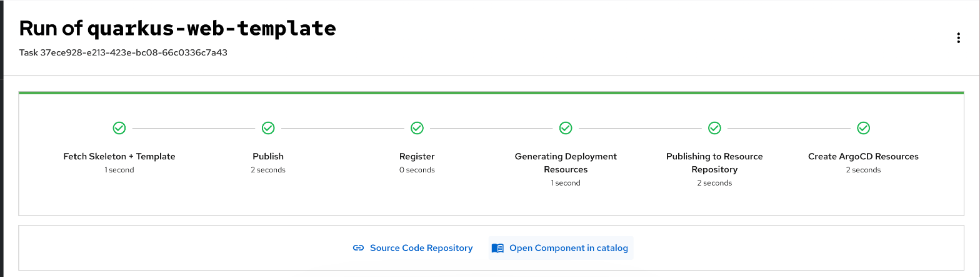
If the system creates the component successfully, a success page is displayed.
Troubleshooting
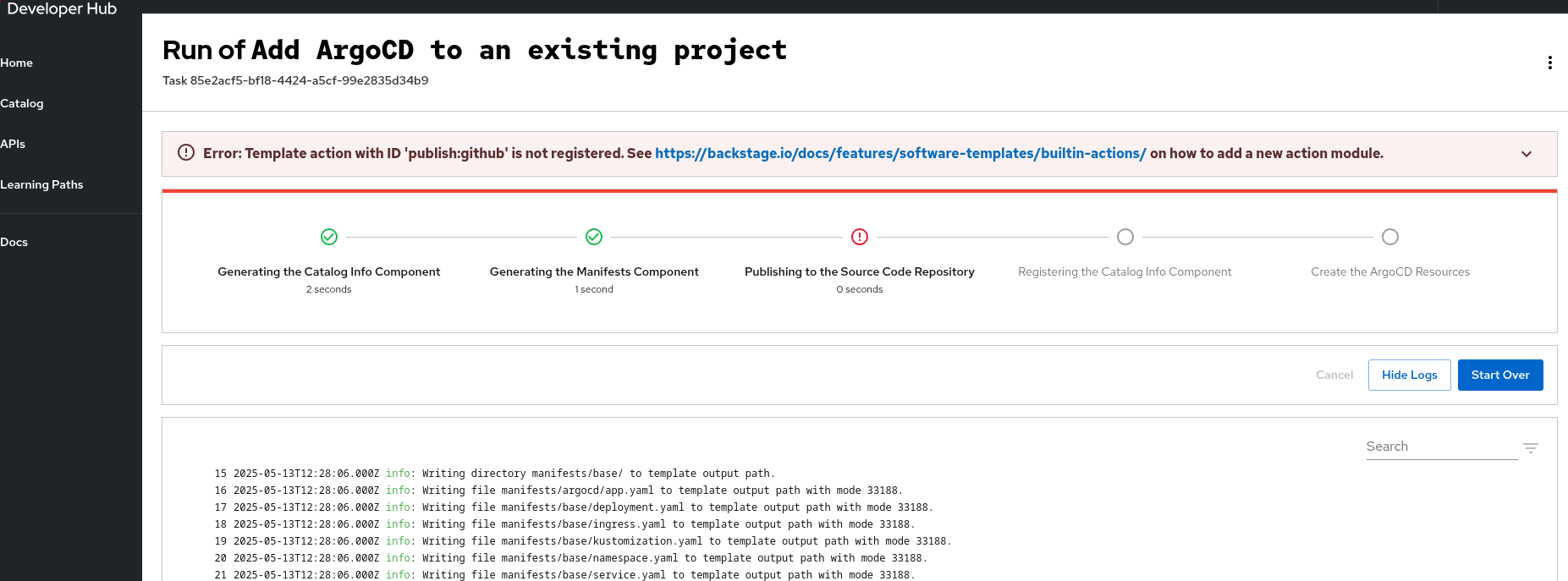
- If the creation process fails, you must review the logs on the error page for specific failure details.
To retry, click Start Over; the system keeps your earlier entered values on the Self-service page.
8.3.9.3. Browse available templates
Search and filter the available Software Templates to quickly locate the correct configuration for your project.
Procedure
- In the Red Hat Developer Hub navigation menu, click Catalog > Self-service.
- In the Search field, enter the name for the Software Template.
- Optional: To refine the results, select a category from the Category list.
8.3.9.4. Import an existing template file using the Catalog Processor
You can use the Catalog Processor to import an existing Software Template into your Red Hat Developer Hub instance.
Prerequisites
- You have created a directory or repository that has at least one template YAML file or have access to such a directory or repository.
- Optional: To use a template stored in GitHub, you have configured Developer Hub integration with GitHub.
Procedure
-
Open your RHDH
app-config.yamlconfiguration file. In the
catalog.rulessection, add a rule to allowTemplateskinds, as shown in the following example:# ... catalog: rules: - allow: [Template] locations: - type: url target: https://<repository_url/template-name>.yaml # ...where:
catalog.rules.allow-
Specify the
Templaterule to allow new Software Templates in the catalog. catalog.locations.type-
Specify the
urltype when importing templates from a repository (for example, GitHub or GitLab). catalog.locations.target- Specify the full URL to the template file.
Verification
- In the Red Hat Developer Hub navigation menu, click Catalog.
- From the Kind list, select Template.
- Verify that the Template list displays your template.
8.4. Automate repository onboarding to the catalog
8.4.1. Automate repository onboarding to the catalog
Automate onboarding of GitHub repositories and GitLab projects to Red Hat Developer Hub catalog, and monitor import status by using bulk import capabilities.
These features are for Technology Preview only. Technology Preview features are not supported with Red Hat production service level agreements (SLAs), might not be functionally complete, and Red Hat does not recommend using them for production. These features provide early access to upcoming product features, enabling customers to test functionality and provide feedback during the development process.
For more information on Red Hat Technology Preview features, see Technology Preview Features Scope.
8.4.2. Import source code repositories in bulk
8.4.2.1. Import source code repositories in bulk
Automate onboarding of GitHub repositories and GitLab projects to Red Hat Developer Hub catalog, and monitor import status by using bulk import capabilities.
8.4.2.2. Repository visibility in Bulk Import
View and bulk-import only the repositories you have permission to access and have not yet added to your catalog.
8.4.2.2.1. User-scoped repository access
When you use Bulk Import, Red Hat Developer Hub retrieves the list of available repositories using your authenticated user credentials through OAuth. Repository and organization listing API calls use your OAuth token for each configured source code management (SCM) host, ensuring that results match your personal access permissions rather than server-wide integration credentials.
This approach provides several benefits:
- User-scoped access
- You see only repositories you can access in GitHub or GitLab, matching your experience in those platforms.
- Enhanced security
- Import operations use your personal access token, maintaining audit trails tied to your user account.
- Permission alignment
- Repository visibility respects your organizational access policies and role-based permissions.
This differs from catalog discovery providers, which use service account credentials to automatically discover and import repositories containing catalog-info.yaml files across an entire organization.
8.4.2.2.2. Technical implementation
Bulk Import requires user authentication for all repository and organization listing operations. The following API endpoints require a valid OAuth token:
-
GET /repositories- List all accessible repositories -
GET /organizations/{org}/repositories- List repositories in a specific organization
These endpoints use the X-SCM-Tokens header to pass user OAuth tokens for GitHub and GitLab hosts. There is no fallback to server-wide integration credentials (GitHub App, PAT, or GitLab token) for these listing operations. Requests without valid user OAuth tokens are rejected with HTTP 401 Unauthorized.
Deployments that previously relied on integration-only listing must configure SCM authentication providers for user authentication. See the Bulk Import plugin documentation for configuration details.
8.4.2.2.3. Automatic filtering of imported repositories
The Bulk Import interface automatically excludes repositories that are already present in your Developer Hub catalog, showing only repositories that have not yet been imported. This filtering helps you:
- Avoid duplicate catalog entries.
- Focus on new repositories that need onboarding.
- Identify which repositories remain to be imported from your Git provider.
If a repository is removed from the catalog, it will reappear in the Bulk Import repository list and can be imported again.
8.4.2.2.4. Prerequisites for repository visibility
User authentication with OAuth is a mandatory requirement for the Bulk Import feature. To view and import repositories through Bulk Import, you must:
Configure GitHub or GitLab authentication using one of the following approaches:
- As your primary authentication provider for Developer Hub.
- As an auxiliary authentication provider if you use another primary provider, for example, OIDC or Red Hat build of Keycloak.
- Configure SCM authentication providers with OAuth support for your Git hosts
-
Have the
bulk.importpermission configured in RBAC policies. - Maintain an active OAuth session with your Git provider.
Repository and organization listing operations require user OAuth tokens. There is no fallback to server-wide integration credentials. Deployments without user authentication configured will receive HTTP 401 errors when accessing Bulk Import.
8.4.2.2.5. Troubleshooting repository visibility
If you cannot see expected repositories in the Bulk Import interface, verify the following:
- User access
- Your user account has access to those repositories in GitHub or GitLab
- Catalog status
- The repositories are not already imported into the Developer Hub catalog
- Session validity
- Your Developer Hub OAuth session has not expired
- Authentication configuration
- GitHub or GitLab authentication provider is correctly configured
- ScmAuthApi registration
-
The
ScmAuthApiis properly registered for your SCM hosts
If you receive HTTP 401 Unauthorized errors when accessing the Bulk Import page, this indicates that user OAuth tokens are not available. Verify that:
- You have authenticated to Developer Hub using GitHub or GitLab as your authentication provider
- Your authentication provider includes OAuth scopes required for repository access
- The SCM authentication provider is configured and registered in your Developer Hub deployment
8.4.2.3. Enable and authorize bulk import plugins
Enable Bulk Import plugins and configure RBAC permissions to allow users to import multiple GitHub repositories and GitLab projects into the catalog.
Prerequisites
- You have configured user authentication with GitHub or GitLab as your authentication provider. This is a mandatory requirement for Bulk Import, as repository listings use user OAuth tokens.
- You have configured the GitHub or GitLab integration.
- For GitHub only: You have enabled GitHub repository discovery.
Bulk Import requires user OAuth tokens for all repository and organization listing operations. Deployments without user authentication configured will receive HTTP 401 Unauthorized errors when accessing the Bulk Import feature.
Procedure
The Bulk Import plugins are installed but disabled by default. To enable the
./dynamic-plugins/dist/red-hat-developer-hub-backstage-plugin-bulk-import-backend-dynamicand./dynamic-plugins/dist/red-hat-developer-hub-backstage-plugin-bulk-importplugins, edit yourdynamic-plugins.yamlwith the following content:plugins: - package: ./dynamic-plugins/dist/red-hat-developer-hub-backstage-plugin-bulk-import-backend-dynamic disabled: false - package: ./dynamic-plugins/dist/red-hat-developer-hub-backstage-plugin-bulk-import disabled: falseSee Installing and viewing plugins in Red Hat Developer Hub.
Configure the required
bulk.importRBAC permission for the users who are not administrators as shown in the following code:rbac-policy.csvfragmentp, role:default/bulk-import, bulk.import, use, allow g, user:default/<your_user>, role:default/bulk-importNote that only Developer Hub administrators or users with the
bulk.importpermission can use the Bulk Import feature. See Permission policies in Red Hat Developer Hub.
Verification
- The sidebar displays a Bulk Import option.
- The Bulk Import page shows a list of added GitHub repositories and GitLab projects.
8.4.2.4. Select and import GitHub repositories
Select and import multiple GitHub repositories that you can access into the Red Hat Developer Hub catalog, automatically creating pull requests with required catalog-info.yaml files.
Prerequisites
The Bulk Import feature displays only repositories that your GitHub user account can access and that are not already imported into the Developer Hub catalog. Repository visibility is determined by your GitHub permissions, not the Developer Hub GitHub App configuration.
Procedure
- Click Bulk Import in the Developer Hub left sidebar.
If your RHDH instance has multiple source control tools configured, select GitHub from the Source control tool list.
The interface displays GitHub repositories that your authenticated user account can access, excluding repositories already present in the catalog.
Select the repositories to import, and click Add.
Developer Hub creates a pull request in each selected repository to add the required
catalog-info.yamlfile using your GitHub credentials.- For each repository to import, click PR to review and merge the changes in GitHub.
Verification
- Click Bulk Import in the Developer Hub left sidebar.
- Verify that each imported GitHub repository in the Selected repositories list has the status Waiting for approval or Imported.
For each Waiting for approval repository, click the pull request link to review and merge the
catalog-info.yamlfile in the corresponding repository.The pull request is created using your GitHub user account, ensuring proper attribution in the repository history.
8.4.2.5. Manage imported repositories
Select and import multiple GitLab projects that you can access into the Red Hat Developer Hub catalog, automatically creating merge requests with required catalog-info.yaml files.
These features are for Technology Preview only. Technology Preview features are not supported with Red Hat production service level agreements (SLAs), might not be functionally complete, and Red Hat does not recommend using them for production. These features provide early access to upcoming product features, enabling customers to test functionality and provide feedback during the development process.
For more information on Red Hat Technology Preview features, see Technology Preview Features Scope.
Prerequisites
- You have enabled the Bulk Import feature and configured access permissions.
- You have authenticated to Developer Hub using GitLab as your authentication provider.
- You have set up a GitLab personal access token (PAT).
You configured the GitLab integration by adding the following section to your RHDH
app-config.yamlfile:integrations: gitlab: - host: ${GITLAB_HOST} token: ${GITLAB_TOKEN}You enabled the GitLab catalog provider plugin in your
dynamic-plugins.yamlfile to import GitLab users and groups:plugins: - package: './dynamic-plugins/dist/backstage-plugin-catalog-backend-module-gitlab-org-dynamic' disabled: false
The Bulk Import feature displays only projects that your GitLab user account can access and that are not already imported into the Developer Hub catalog. Project visibility is determined by your GitLab permissions, not the Developer Hub GitLab integration token configuration.
Procedure
- In the Developer Hub left sidebar, click Bulk Import.
If your RHDH instance has multiple source control tools configured, select GitLab from the Source control tool list.
The interface displays GitLab projects that your authenticated user account can access, excluding projects already present in the catalog.
Select the projects to import, and click Add.
Developer Hub creates a merge request in each selected project to add the required
catalog-info.yamlfile using your GitLab credentials.- For each project to import, click MR to review and merge the changes in GitLab.
Verification
- Click Bulk Import in the Developer Hub left sidebar.
- Verify that each imported GitLab project in the Selected projects list has the status Waiting for approval or Imported.
For projects with the Waiting for approval status, click the merge request link to review and add the
catalog-info.yamlfile to the project repository.The merge request is created using your GitLab user account, ensuring proper attribution in the project history.
8.4.2.6. Monitor bulk import operations in audit logs
Review Bulk Import backend plugin audit log events to monitor repository import operations, track API requests, and troubleshoot import issues.
Procedure
- Access your Developer Hub backend logs where audit log events are recorded.
Review the following Bulk Import audit log events to monitor repository operations:
BulkImportUnknownEndpoint- Tracks requests to unknown endpoints.
BulkImportPing-
Tracks
GETrequests to the/pingendpoint, which allows us to make sure the bulk import backend is up and running. BulkImportFindAllOrganizations-
Tracks
GETrequests to the/organizationsendpoint, which returns the list of organizations accessible from all configured GitHub Integrations. BulkImportFindRepositoriesByOrganization-
Tracks
GETrequests to the/organizations/:orgName/repositoriesendpoint, which returns the list of repositories for the specified organization (accessible from any of the configured GitHub Integrations). BulkImportFindAllRepositories-
Tracks GET requests to the
/repositoriesendpoint, which returns the list of repositories accessible from all configured GitHub Integrations. BulkImportFindAllImports-
Tracks
GETrequests to the/importsendpoint, which returns the list of existing import jobs along with their statuses. BulkImportCreateImportJobs-
Tracks
POSTrequests to the/importsendpoint, which allows to submit requests to bulk-import one or many repositories into the Developer Hub catalog, by eventually creating import pull requests in the target repositories. BulkImportFindImportStatusByRepo-
Tracks
GETrequests to the/import/by-repoendpoint, which fetches details about the import job for the specified repository. BulkImportDeleteImportByRepoTracks
DELETErequests to the/import/by-repoendpoint, which deletes any existing import job for the specified repository, by closing any open import pull request that could have been created.Example audit log output:
{
  "actor": {
    "actorId": "user:default/myuser",
    "hostname": "localhost",
    "ip": "::1",
    "userAgent": "Mozilla/5.0 (X11; Linux x86_64) AppleWebKit/537.36 (KHTML, like Gecko) Chrome/128.0.0.0 Safari/537.36"
  },
  "eventName": "BulkImportFindAllOrganizations",
  "isAuditLog": true,
  "level": "info",
  "message": "'get /organizations' endpoint hit by user:default/myuser",
  "meta": {},
  "plugin": "bulk-import",
  "request": {
    "body": {},
    "method": "GET",
    "params": {},
    "query": {
      "pagePerIntegration": "1",
      "sizePerIntegration": "5"
    },
    "url": "/api/bulk-import/organizations?pagePerIntegration=1&sizePerIntegration=5"
  },
  "response": {
    "status": 200
  },
  "service": "backstage",
  "stage": "completion",
  "status": "succeeded",
  "timestamp": "2024-08-26 16:41:02"
}
8.4.3. Configure bulk import capabilities
8.4.3.1. Configure bulk import capabilities
Automate onboarding of GitHub repositories and GitLab projects to Red Hat Developer Hub catalog, and monitor import status by using bulk import capabilities.
8.4.3.2. Manage imported repositories
Select and import multiple GitLab projects that you can access into the Red Hat Developer Hub catalog, automatically creating merge requests with required catalog-info.yaml files.
These features are for Technology Preview only. Technology Preview features are not supported with Red Hat production service level agreements (SLAs), might not be functionally complete, and Red Hat does not recommend using them for production. These features provide early access to upcoming product features, enabling customers to test functionality and provide feedback during the development process.
For more information on Red Hat Technology Preview features, see Technology Preview Features Scope.
Prerequisites
- You have enabled the Bulk Import feature and configured access permissions.
- You have authenticated to Developer Hub using GitLab as your authentication provider.
- You have set up a GitLab personal access token (PAT).
You configured the GitLab integration by adding the following section to your RHDH
app-config.yamlfile:integrations: gitlab: - host: ${GITLAB_HOST} token: ${GITLAB_TOKEN}You enabled the GitLab catalog provider plugin in your
dynamic-plugins.yamlfile to import GitLab users and groups:plugins: - package: './dynamic-plugins/dist/backstage-plugin-catalog-backend-module-gitlab-org-dynamic' disabled: false
The Bulk Import feature displays only projects that your GitLab user account can access and that are not already imported into the Developer Hub catalog. Project visibility is determined by your GitLab permissions, not the Developer Hub GitLab integration token configuration.
Procedure
- In the Developer Hub left sidebar, click Bulk Import.
If your RHDH instance has multiple source control tools configured, select GitLab from the Source control tool list.
The interface displays GitLab projects that your authenticated user account can access, excluding projects already present in the catalog.
Select the projects to import, and click Add.
Developer Hub creates a merge request in each selected project to add the required
catalog-info.yamlfile using your GitLab credentials.- For each project to import, click MR to review and merge the changes in GitLab.
Verification
- Click Bulk Import in the Developer Hub left sidebar.
- Verify that each imported GitLab project in the Selected projects list has the status Waiting for approval or Imported.
For projects with the Waiting for approval status, click the merge request link to review and add the
catalog-info.yamlfile to the project repository.The merge request is created using your GitLab user account, ensuring proper attribution in the project history.
8.4.3.3. Review input parameters
Define Scaffolder template parameters such as repository URL, name, organization, and branch details to customize bulk import automation workflows for your repositories.
As an administrator, you can use the Bulk Import plugin to run a Scaffolder template task with specified parameters, which you must define within the template.
The Bulk Import plugin analyzes Git repository information and provides the following parameters for the Scaffolder template task:
repoUrlNormalized repository URL in the following format:
${gitProviderHost}?owner=${owner}&repo=${repository-name}name- The repository name.
organization- The repository owner, which can be a user nickname or organization name.
branchName-
The proposed repository branch. By default, the proposed repository branch is
bulk-import-catalog-entity. targetBranchName- The default branch of the Git repository.
gitProviderHost-
The Git provider host parsed from the repository URL. You can use this parameter to write
Git-provider-agnostictemplates.
Example of a Scaffolder template:
parameters:
  - title: Repository details
    required:
      - repoUrl
      - branchName
      - targetBranchName
      - name
      - organization
    properties:
      repoUrl:
        type: string
        title: Repository URL ({product-short} format)
        description: github.com?owner=Org&repo=repoName
      organization:
        type: string
        title: Owner of the repository
      name:
        type: string
        title: Name of the repository
      branchName:
        type: string
        title: Branch to add the catalog entity to
      targetBranchName:
        type: string
        title: Branch to target the PR/MR to
      gitProviderHost:
        type: string
        title: Git provider host
8.4.3.4. Create custom Scaffolder workflows
Create custom Scaffolder templates aligned with your organization’s repository conventions to automate bulk import tasks such as entity imports, pull request creation, and webhook integration.
As an administrator, you can create a custom Scaffolder template inline with the repository conventions of your organization and add the template into the Red Hat Developer Hub catalog for use by the Bulk Import plugin on many selected repositories.
You can define various custom tasks, including, but not limited to the following:
- Importing existing catalog entities from a repository
- Creating pull requests for cleanup
- Calling webhooks for external system integration
Prerequisites
- You created a custom Scaffolder template for the Bulk Import plugin.
You have run your RHDH instance with the following environment variable enabled to allow the use of the Scaffolder functionality:
export NODE_OPTIONS=--no-node-snapshot
Procedure
Configure your app-config.yaml configuration to instruct the Bulk Import plugin to use your custom template as shown in the following example:
bulkImport:
  importTemplate: <your_template_entity_reference_or_template_name>
  importAPI: `open-pull-requests` | `scaffolder`;
where:
importTemplate:- Enter your Scaffolder template entity reference.
importAPI- Set the API to 'scaffolder' to trigger the defined workflow for high-fidelity automation. This field defines the import workflow and currently supports two following options:
open-pull-requests- This is the default import workflow, which includes the logic for creating pull requests for every selected repository.
scaffolderThis workflow uses an import scenario defined in the Scaffolder template to create import jobs. Select this option to use the custom import scenario defined in your Scaffolder template.
Optional: You can direct the Bulk Import plugin to hand off the entire list of selected repositories to a custom Orchestrator workflow.
ImportantThe Scaffolder template must be generic and not specific to a single repository if you want your custom Scaffolder template to run successfully for every repository in the bulk list.
Verification
-
The Bulk Import plugin runs the custom Scaffolder template for the list of repositories using the
/task-importsAPI endpoint.
8.4.3.5. Register repository lists with the orchestrator
8.4.3.5.1. Register repository lists with the orchestrator
Automate onboarding of GitHub repositories and GitLab projects to Red Hat Developer Hub catalog, and monitor import status by using bulk import capabilities.
8.4.3.5.2. Run Orchestrator workflows for bulk imports
Configure Bulk Import to use Orchestrator workflows for advanced bulk operations across multiple repositories, enabling automated pull request creation and configuration publishing at scale.
As a platform engineer, you can configure the Bulk Import plugin to run Orchestrator workflows for bulk import operations. This mode uses the Orchestrator engine to provide advanced capabilities, such as creating pull requests or publishing configurations across multiple repositories.
Prerequisites
- You have installed and configured the Orchestrator plugin in your Developer Hub instance.
-
You have registered a generic custom workflow (for example,
universal-pr) in the Orchestrator plugin. - You have added a custom Developer Hub application configuration.
Procedure
Configure the Bulk Import plugin by editing your
app-config.yamlfile to enable Orchestrator mode.bulkImport: orchestratorWorkflow: your_workflow_id importAPI: 'orchestrator'
where:
orchestratorWorkflow- The ID of the workflow to run for each repository.
importAPI-
The execution mode for the workflow. Enter
orchestratorto enable workflow execution.
Verify that the Orchestrator workflow receives the following input:
{
  "inputData": {
    "owner": "redhat-developer",
    "repo": "rhdh-plugins",
    "baseBranch": "main",
    "targetBranch": "bulk-import-orchestrator"
  },
  "authTokens": [
    {
      "token": "<github_token>",
      "provider": "github"
    }
  ]
}
where:
owner- Specifies the repository owner (organization or user name).
repo- Specifies the repository name.
baseBranch- Specifies the default branch of the Git repository (for example, main).
targetBranch-
Specifies the target branch for the import operation. By default, this is set to
bulk-import-orchestrator. authTokens- Specifies the authentication tokens for the Git provider:
-
For GitHub: {
token: <github_token>, provider: github} -
For GitLab: {
token: <gitlab_token>, provider: gitlab} Navigate to the Bulk Import page in the sidebar and complete the following steps:
- Select your Git provider (for example, GitHub or GitLab).
- Select the projects you want to import.
- Click import to run the workflow.
Verification
- Locate your repository and confirm status is COMPLETED.
8.4.3.5.3. Data handoff and custom workflow design
Design Scaffolder templates to receive repository data as parameters and automate repository-specific tasks when using Scaffolder mode for bulk imports.
When you configure the Bulk Import plugin by setting the importAPI field to scaffolder, the Bulk Import Backend passes all necessary context directly to the Scaffolder API.
As an administrator, you can define the Scaffolder template workflow and structure the workflow to do the following:
- Define template parameters to consume input
- Structure the Scaffolder template to receive the repository data as template parameters for the current workflow run. The template must be generic, and not specific to a single repository, so that it can successfully run for every repository in the bulk list.
- Automate processing for each repository
-
Implement the custom logic needed for a single repository within the template. The Orchestrator iterates through the repository list, launching the template once for each repository and passes only the data for that single repository to the template run. This allows you to automate tasks such as creating the
catalog-info.yaml, running compliance checks, or registering the entity with the catalog.
8.5. Orchestrate infrastructure tasks using workflows
8.5.1. Orchestrate infrastructure tasks using workflows
You can streamline and automate your work by using the Orchestrator in Red Hat Developer Hub to design, run, and monitor workflows across applications and services.
- Design, run, and monitor workflows to simplify multi-step processes across applications and services.
- Standardize onboarding, migration, and integration workflows to reduce manual effort and improve consistency.
- Extend RHDH with enterprise-grade Orchestration features to support collaboration and scalability.
Orchestrator currently supports only Red Hat OpenShift Container Platform (OpenShift Container Platform); it is not available on Microsoft Azure Kubernetes Service (AKS), Amazon Elastic Kubernetes Service (EKS), or Google Kubernetes Engine (GKE).
8.5.2. Orchestrator process automation architecture
8.5.2.1. Orchestrator process automation architecture
You can streamline and automate your work by using the Orchestrator in Red Hat Developer Hub to design, run, and monitor workflows across applications and services.
8.5.2.2. Compatibility guide for Orchestrator
To verify that your serverless workflows run reliably, use the validated Orchestrator plugin and infrastructure versions listed in the following table.
Red Hat does not support or guarantee Orchestrator plugin functionality with unvalidated infrastructure versions. Use only the specific versions of OpenShift Serverless Logic (OSL) and other components listed in the following table.
The following table lists compatible Orchestrator and infrastructure versions:
|
Orchestrator plugin version |
Red Hat Developer Hub (RHDH) version |
OpenShift version |
OpenShift Serverless Logic (OSL) version |
OpenShift Serverless version |
|
Orchestrator |
|
|
OSL |
|
|
Orchestrator |
|
|
OSL |
|
|
Orchestrator |
|
|
OSL |
|
|
Orchestrator 1.8.2 |
1.8 |
|
OSL |
|
|
Orchestrator 1.10.0 |
1.10 |
|
OSL 1.38.0 |
1.37.1 |
The Orchestrator plugin supports the same OpenShift Container Platform versions as RHDH. See the Life Cycle page.
8.5.2.3. Understand Orchestrator architecture
The Orchestrator architecture is composed of several components, each contributing to the running and management of workflows.
- Red Hat Developer Hub (RHDH)
Serves as the primary interface. It contains the following subcomponents:
- Orchestrator frontend plugins
- Provide the interface for users to run and monitor workflows within RHDH.
- Orchestrator backend plugins
- Get workflow data into Developer Hub.
- Notifications plugins
- Inform users about workflow events.
- OpenShift Serverless Logic Operator
Serves as the workflow engine, and its subcomponents handle running, executing and providing persistence for the workflows. The Red Hat Developer Hub Operator and the Red Hat Developer Hub Helm chart manage the following lifecycle of these subcomponents:
- SonataFlow Runtime/Workflow Application
- Functions as a deployed workflow. Operates as an HTTP server, handling requests for running workflow instances. It is managed as a Kubernetes (K8s) deployment by the Openshift Serverless Logic Operator.
- Data Index Service
- Serves as a repository for workflow definitions, instances, and associated jobs. It exposes a GraphQL API used by the Orchestrator backend plugin to retrieve workflow definitions and instances.
- Job Service
- Orchestrates scheduled tasks for workflows.
- OpenShift Serverless
- Provides serverless capabilities essential for workflow communication. It employs Knative eventing to interface with the Data Index service and uses Knative functions to introduce more complex logic to workflows.
- PostgreSQL Server
- Provides a database solution essential for data persistence within the Orchestrator ecosystem. The system uses PostgreSQL Server for storing both SonataFlow information and Developer Hub data.
- OpenShift AMQ Streams (Strimzi/Kafka)
Provides enhanced reliability of the eventing system. Eventing can work without Kafka by using direct HTTP calls, however, this approach is not reliable.
Optional: The current deployment iteration does not natively integrate or include the AMQ Streams Operator. However, you can add the Operator post-install for enhanced reliability if you require it.
8.5.3. Build serverless workflows
8.5.3.1. Build serverless workflows
Deploy a workflow and make it available in the Orchestrator plugin by building workflow images, generating workflow manifests, and deploying workflows to a cluster.
- Building workflow images
- Generating workflow manifests
- Deploying workflows to a cluster
This process moves the workflow from your local machine to deployment on a cluster.
8.5.3.2. Pre-built workflow container image capabilities
8.5.3.2.1. Pre-built workflow container image capabilities
Deploy a workflow and make it available in the Orchestrator plugin by building workflow images, generating workflow manifests, and deploying workflows to a cluster.
8.5.3.2.2. Benefits of workflow images
While the OpenShift Serverless Logic Operator supports the building of workflows dynamically, this approach is primarily for experimentation. For production deployments, building images is the preferred method due to the following reasons:
- Production readiness: Prebuilt images can be scanned, secured, and tested before going live.
-
GitOps compatibility: The Orchestrator relies on a central OpenShift Serverless Logic Operator instance to track workflows and their state. To use this tracking service, you must deploy workflows with the
gitopsprofile, which expects a prebuilt image. - Testing and quality: Building an image gives you more control over the testing process.
8.5.3.2.3. Project structure overview
The project utilizes Quarkus project layout (Maven project structure), as illustrated by the 01_basic workflow example.
01_basic
├── pom.xml
├── README.md
└── src
    └── main
        ├── docker
        │   ├── Dockerfile.jvm
        │   ├── Dockerfile.legacy-jar
        │   ├── Dockerfile.native
        │   └── Dockerfile.native-micro
        └── resources
            ├── application.properties
            ├── basic.svg
            ├── basic.sw.yaml
            ├── schemas
            │   ├── basic__main-schema.json
            │   └── workflow-output-schema.json
            └── secret.properties
The main workflow resources are located under the src/main/resources/ directory.
The kn-workflow CLI generated this project structure. You can try generating the structure yourself by following the Getting Started guide.
Additional resources
8.5.3.2.4. Create and run your serverless workflow project locally
Use the kn-workflow CLI to generate workflow manifests and project structures, enabling you to develop and test a new serverless workflow locally.
Procedure
Use the
kn-workflowCLI to create a new workflow project, which adheres to the Quarkus structure as shown in the following example:$ kn-workflow quarkus create --name <specify project name, for example ,00_new_project>
Edit the workflow, add schema and specific files, and run it locally from project folder as shown in the following example:
$ kn-workflow quarkus run
Run the workflow locally using the
kn-workflow runwhich pulls the following image:registry.redhat.io/openshift-serverless-1/logic-swf-devmode-rhel9:1.38.0
For building the workflow image, the
kn-workflowCLI pulls the following images:registry.redhat.io/openshift-serverless-1/logic-swf-builder-rhel9:1.38.0 registry.access.redhat.com/ubi9/openjdk-17:1.21-2
8.5.3.3. Build workflow container images locally using the build.sh script
8.5.3.3.1. Build workflow container images locally using the build.sh script
Deploy a workflow and make it available in the Orchestrator plugin by building workflow images, generating workflow manifests, and deploying workflows to a cluster.
8.5.3.3.2. Build workflow images locally
Build workflow images locally by using the build script (build.sh) to prepare container images for deployment.
Procedure
Clone the project as shown in the following example:
git clone git@github.com:rhdhorchestrator/orchestrator-demo.git
cd orchestrator-demo
Check the help menu of the script:
./scripts/build.sh --help
Run the
build.shscript, providing the required flags, for example, the image path (-i), workflow source directory (-w), and manifests output directory (-m).ImportantYou must specify the full target image path with a tag as shown in the following example:
./scripts/build.sh --image=quay.io/orchestrator/demo-basic:test -w 01_basic/ -m 01_basic/manifests
8.5.3.3.3. The build-sh script functionality and important flags
The build-sh script generates workflow manifests, builds workflow images, and optionally pushes images and deploys workflows.
-
Generates workflow manifests using the
kn-workflowCLI. -
Builds the workflow image using
podmanordocker. -
Optional: The script pushes the images to an image registry and deploys the workflow using
kubectl.
You can review the script configuration options and see available flags and their functions by accessing the help menu:
./scripts/build.sh [flags]
The following flags are essential for running the script:
| Flag | Description |
|---|---|
|
|
Required: Full image path, for example, |
|
|
Workflow source directory (default is the current directory) |
|
|
Where to save generated manifests |
|
|
Push the image to the registry |
|
|
Deploy the workflow |
|
|
Show the help message |
The script also supports builder and runtime image overrides, namespace targeting, and persistence flags.
8.5.3.3.4. Environment variables supported by the build script
The build-sh script supports environment variables that customize the workflow build process without modifying the script itself.
QUARKUS_EXTENSIONSThe
QUARKUS_EXTENSIONSvariable specifies additional Quarkus extensions required by the workflow. This variable takes the format of a comma-separated list of fully qualified extension IDs as shown in the following example:export QUARKUS_EXTENSIONS="io.quarkus:quarkus-smallrye-reactive-messaging-kafka"
Add Kafka messaging support or other integrations at build time.
MAVEN_ARGS_APPENDThe
MAVEN_ARGS_APPENDvariable appends additional arguments to the Maven build command. This variable takes the format of a string of Maven CLI arguments as shown in the following example:export MAVEN_ARGS_APPEND="-DmaxYamlCodePoints=35000000"
Control build behavior. For example, set
maxYamlCodePointsparameter that controls the maximum input size for YAML input files to 35000000 characters (~33MB in UTF-8).
Additional resources
8.5.3.3.5. Required tools
To run the build-sh script locally and manage the workflow lifecycle, you must install several command-line tools.
| Tool | Conceptual Purpose. |
|---|---|
|
podman or docker |
Container runtime required for building the workflow images. |
|
|
Kubernetes CLI. |
|
|
YAML processor. |
|
|
JSON processor. |
|
|
Shell utilities. |
|
|
CLI for generating workflow manifests. |
8.5.3.3.6. Build the 01_basic workflow
To run the script from the root directory of the repository, you must use the -w flag to point to the workflow directory. Additionally, specify the output directory with the -m flag.
Prerequisites
- You have specified the target image using a tag.
Procedure
Run the following command:
$ ./scripts/build.sh --image=quay.io/orchestrator/demo-basic:test -w 01_basic/ -m 01_basic/manifests
This build command produces the following two artifacts:
-
A workflow image and Kubernetes manifests:
quay.io/orchestrator/demo-basic:testand tagged aslatest. -
Kubernetes manifests under:
01_basic/manifests/ -
Optional: You can add the
--pushflag to automatically push the image after building. Otherwise, pushing manually is mandatory before deploying.
8.5.3.4. Generated workflow manifests
Review the structure and content of workflow manifests generated under the 01_basic/manifests directory.
01_basic/manifests
├── 00-secret_basic-secrets.yaml
├── 01-configmap_basic-props.yaml
├── 02-configmap_01-basic-resources-schemas.yaml
└── 03-sonataflow_basic.yaml
00-secret_basic-secrets.yaml-
Contains secrets from
01_basic/src/main/resources/secret.properties. Values are not required at this stage as you can set them later after applying CRs or when using GitOps.
In OpenShift Serverless Logic 1.38.0, after updating a secret, you must manually restart the workflow Pod for changes to apply.
01-configmap_basic-props.yaml- Holds application properties from application.properties. Any change to this ConfigMap triggers an automatic Pod restart.
02-configmap_01-basic-resources-schemas.yamlContains JSON schemas from src/main/resources/schemas.
NoteYou do not need to deploy certain configuration resources when using the GitOps profile.
03-sonataflow_basic.yamlThe SonataFlow custom resource (CR) that defines the workflow.
podTemplate:
  container:
    image: quay.io/orchestrator/demo-basic
    resources: {}
    envFrom:
      - secretRef:
          name: basic-secrets
persistence: postgresql: secretRef: name:sonataflow-psql-postgresqluserKey:<your_postgres_username>passwordKey:<your_postgres_password>serviceRef: name:sonataflow-psql-postgresqlport: 5432 databaseName: sonataflow databaseSchema: basicwhere:
postgresql:secretRef:name- Enter the Secret name for your deployment.
postgresql:secretRef:userKey- Enter the key for your deployment.
postgresql:secretRef:passwordKey- Enter the password for your deployment.
postgresql:serviceRef:nameEnter the Service name for your deployment.
If you must connect to an external database, replace
serviceRefwithjdbcUrl. See Managing workflow persistence.
By default, the script generates all the manifests without a namespace. You can specify a namespace to the script by using the --namespace flag if you know the target namespace in advance. Otherwise, you must provide the namespace when applying the manifests to the cluster. See Configuring workflow services.
8.5.3.5. Deploy workflows on a cluster
You can deploy the workflow on a cluster, because the image is pushed to the image registry and the deployment manifests are available.
Prerequisites
You have an OpenShift Container Platform cluster with the following versions of components installed:
- Red Hat Developer Hub (RHDH) 1.10
- Orchestrator plugins 1.10.0
- OpenShift Serverless 1.37.1
OpenShift Serverless Logic 1.38.0
For instructions on how to install these components, see the Orchestrator plugin components on OpenShift Container Platform.
-
You must apply the workflow manifests in a namespace that contains a
SonataflowPlatformcustom resource (CR), which manages the supporting services.
Procedure
Use the
kubectl createcommand specifying the target namespace to apply the Kubernetes manifests as shown in the following example:$ kubectl create -n <your_namespace> -f ./01_basic/manifests/.
After deployment, monitor the status of the workflow pods as shown in the following example:
$ kubectl get pods -n <your_namespace> -l app=basic
The pod may initially appear in an
Errorstate because of missing or incomplete configuration in the Secret or ConfigMap.Inspect the Pod logs as shown in the following example:
$ oc logs -n <your_namespace> basic-f7c6ff455-vwl56
The following code is an example of the output:
SRCFG00040: The config property quarkus.openapi-generator.notifications.auth.BearerToken.bearer-token is defined as the empty String ("") which the following Converter considered to be null: io.smallrye.config.Converters$BuiltInConverter
java.lang.RuntimeException: Failed to start quarkus
...
Caused by: io.quarkus.runtime.configuration.ConfigurationException: Failed to read configuration properties
The error indicates a missing property:
quarkus.openapi-generator.notifications.auth.BearerToken.bearer-token.In such a case where the logs show the
ConfigurationException: Failed to read configuration propertieserror or indicate a missing value, retrieve the ConfigMap as shown in the following example:$ oc get -n <your_namespace> configmaps basic-props -o yaml
The following code is an example of the sample output:
apiVersion: v1
data:
  application.properties: |
    # Backstage notifications service
    quarkus.rest-client.notifications.url=${BACKSTAGE_NOTIFICATIONS_URL}
    quarkus.openapi-generator.notifications.auth.BearerToken.bearer-token=${NOTIFICATIONS_BEARER_TOKEN}
...
Resolve the placeholders using values provided using a Secret.
You must edit the corresponding Secret and provide appropriate base64-encoded values to resolve the placeholders in
application.propertiesas shown in the following example:$ kubectl edit secrets -n <your_namespace> basic-secrets
- Restart the workflow Pod for Secret changes to take effect in OpenShift Serverless Logic 1.38.0.
Verification
Verify the deployment status by checking the Pods again as shown in the following example:
$ oc get pods -n <your_namespace> -l app=basic
The expected status for a successfully deployed workflow Pod is as shown in the following example:
NAME                    READY   STATUS    RESTARTS   AGE
basic-f7c6ff455-grkxd   1/1     Running   0          47s
-
Once the Pod is in the
Runningstate, the workflow now appears in the Orchestrator plugin inside the Red Hat Developer Hub.
Next steps
- Inspect the provided build script to extract the actual steps and implement them in your preferred CI/CD tool, for example, GitHub Actions, GitLab CI, Jenkins, and Tekton.
8.5.3.6. Workflow design best practices
8.5.3.6.1. Workflow design best practices
Deploy a workflow and make it available in the Orchestrator plugin by building workflow images, generating workflow manifests, and deploying workflows to a cluster.
8.5.3.6.2. Best practices when creating serverless workflows
Create effective serverless workflows using thoughtful approaches to design, handle data, and manage error by following these best practices based on the Serverless Workflow Domain Specific Language (DSL) principles. These principles help you to build robust workflows.
- Workflow design principles
The Serverless Workflow DSL prioritizes clarity and ease of use when writing workflows.
- Priority of constituencies
- When developing workflows or APIs, ensure the needs of the author (workflow writer) come first. The constituencies are prioritized in the following order: Authors > Operators > Implementers > Specifications writers.
- Linguistic fluency and clarity
-
Use imperative verbs such as
Call,Emit,For,Fork,Raise,Run,Set,Switch, andWait. These simple, universally understood terms make your workflow simple to read and understand.
-
Use imperative verbs such as
- Structure and extensibility
- Use implicit default behaviors to reduce redundancy.
- Declare components inline if they are not reusable to keep the definition self-contained.
- Use external references to import and reuse shared components, which promotes a modular design.
- Prioritize flexibility over strict enumerations to ensure extensibility and adaptability across different runtime environments.
- Data flow and runtime management
-
Controlling data flow is critical for efficient workflows. Tasks are the fundamental computing units of a workflow. The Domain Specific Language (DSL) defines several default task types that runtimes must do. These include
Do,Listen,Raise,Run,Try, andWait. - Security and error handling
- Secrets
- Use Secrets with caution. Avoid passing them directly in call inputs as this might expose sensitive information.
- Fault tolerance and error handling
- Serverless Workflow is designed with resilience in mind to recover from failures.
- Orchestrator UI integration best practices
For your workflow results to be effectively displayed in the Orchestrator UI and to facilitate chaining of workflows, you must structure the output data according to the
WorkflowResultschema. Additionally, include any error information as part of the workflow output so the UI and subsequent workflows can handle them accordingly.- Workflow output schema
- Results placement
-
The primary output intended for subsequent processing must be placed under the
data.resultproperty. - Schema reference
-
Your output schema file (
schemas/workflow-output-schema.json) must reference theWorkflowResultschema. - Outputs definition
Include an
outputssection in your workflow definition. This section contains human-readable key/value pairs that the UI will display.Structure of workflow:
id: my-workflow
version: "0.8"
specVersion: "0.8"
name: My Workflow
start: ImmediatelyEnd
dataInputSchema: schemas/basic__main-schema.json
extensions:
  - extensionid: workflow-output-schema
    outputSchema: schemas/workflow-output-schema.json
functions:
  - name: print
    type: custom
    operation: sysout
  - name: successResult
    type: expression
    operation: '{
      "result": {
      "message": "Project " + .projectName + " active",
      "outputs":[]
      }
      }'
start: "successResult"
states:
  - name: successResult
    type: operation
    actions:
      - name: setOutput
        functionRef:
          refName: successResult
    end: true
8.5.3.6.3. Unique workflow ID requirements to prevent duplicates
Unique workflow IDs prevent duplicate entries in RHDH. You must use distinct IDs for each deployment to avoid tracking conflicts and maintain clear workflow visibility.
- Understand how RHDH identifies workflows
- RHDH identifies each workflow by using its unique ID. When you deploy or update workflows, the system uses this ID to track, display, and manage workflow instances. If multiple workflows share the same ID, RHDH cannot distinguish between them, resulting in unexpected behavior.
- Follow workflow ID format requirements
Workflow identifiers must comply with RFC 1123 DNS label standards to function correctly across all deployment configurations. Your workflow IDs must meet these format requirements:
- Contain only lowercase letters (a-z), digits (0-9), and hyphens (-)
- Start and end with a lowercase letter or digit
Not contain underscores, uppercase letters, or leading or trailing hyphens
Valid workflow ID examples:
-
order-processing -
invoice123 -
customer-onboarding-flow flow-01Invalid workflow ID examples:
-
OrderProcessing(contains uppercase letters) -
order_processing(contains underscore) -
-orderflow(starts with hyphen) -
orderflow-(ends with hyphen)
- Maintain workflow ID consistency across configurations
You must use the same workflow identifier consistently across all configurations when you build and deploy your workflow. This requirement proves essential for operator-driven deployments that use the gitops profile.
For gitops profile deployments, the Kubernetes resource name must match the workflow ID field in your workflow definition file (
.sw.yamlor.sw.json). This consistency prevents deployment failures and maintains proper workflow tracking in RHDH.- Recognize version field limitations
Although the Serverless workflow specification allows you to define a workflow version attribute in your workflow definition, the current SonataFlow and RHDH ecosystem does not support multiple versions of a workflow that share the same ID.
ImportantDeploying multiple workflows with the same ID and different versions is not supported and results in unexpected behavior. Each workflow ID must be unique across all deployments.
The version field serves as metadata and appears in the RHDH UI for informational purposes to help you identify workflow definitions. The backend retrieves version information from the Data Index GraphQL schema and displays it in both the workflow list view and on individual workflow details pages. If you do not specify a version in your workflow definition, the field appears empty in the UI.
The system does not use the version field to differentiate between workflows or manage workflow versions. All workflow operations, including execution, deletion, and API calls, rely solely on the workflow ID.
- Avoid deploying workflows with duplicate IDs
Each workflow ID must be unique across all deployments, regardless of the configured version attribute. Deploying multiple workflows with the same ID and different versions is not supported and can result in the following issues:
- Duplicate workflow entries appear in the RHDH Orchestrator UI.
- Workflow deletion operations become unpredictable.
- Historical workflow data becomes difficult to interpret.
Workflow instance tracking becomes unreliable.
Duplicate entries can occur when you deploy workflows with the same ID to different runtime servers over time, or when you redeploy a workflow with a new version by using the same ID. Because the Data Index records all workflow executions regardless of which runtime server executed them, historical records from multiple deployments with the same ID appear as duplicate entries in the RHDH UI.
- Apply workflow version management best practices
To maintain different versions of a workflow, assign a new workflow ID for each version. Incorporate the version identifier into the workflow ID itself using a consistent naming convention.
Recommended naming pattern: Use a naming convention that clearly links related versions of the same workflow:
-
workflow-name-v1implements and deploys version 1 -
workflow-name-v2implements and deploys version 2 workflow-name-v3implements and deploys version 3Example workflow ID evolution:
id: customer-onboarding-v1
version: "1.0"
name: Customer Onboarding Workflow
When you need to deploy an updated version:
id: customer-onboarding-v2
version: "2.0"
name: Customer Onboarding Workflow
This approach provides clarity and prevents conflicts when you manage multiple iterations of a workflow.
-
- Manage workflow transitions between versions
When you transition from one workflow version to another:
-
Deploy the new workflow version with a unique ID (for example,
workflow-name-v2). - Verify the new workflow operates correctly.
- Monitor running instances of the old workflow version.
After all instances of the old workflow complete, remove the old workflow deployment.
This process helps you maintain workflow history and prevents disruption to running workflow instances.
-
Deploy the new workflow version with a unique ID (for example,
8.5.4. Automate workflow deployments
8.5.4.1. Automate workflow deployments
Automate the software development lifecycle for serverless workflows by using Orchestrator software templates to bootstrap complete workflow projects with Git repositories, deployment configurations, and CI/CD pipelines.
8.5.4.2. Orchestrator workflow deployment components
The Orchestrator plugin integrates several components to automate the software development lifecycle for serverless workflows.
Use the rhdh namespace where the RHDH chart is installed.
The Orchestrator plugin integrates these components:
- RHDH Helm chart
- Installs the RHDH Orchestrator.
- Tekton or Red Hat OpenShift Pipelines
-
Manages the
Kubernetes-nativeCI pipeline to build images. - ArgoCD or Red Hat OpenShift GitOps
- Manages the CD pipeline to deploy the workflow on the RHDH instance.
- Quay.io
- Stores the container images generated by the pipelines.
- OpenShift Serverless Logic operator
- Implements serverless workflow specifications
8.5.4.3. Install Orchestrator Helm charts
8.5.4.3.1. Install Orchestrator Helm charts
Automate the software development lifecycle for serverless workflows by using Orchestrator software templates to bootstrap complete workflow projects with Git repositories, deployment configurations, and CI/CD pipelines.
8.5.4.3.2. Install Orchestrator software templates
To enable software templates on RHDH, you must install two additional Helm charts.
Prerequisites
- You have installed RHDH and the Orchestrator plugin by using the Helm chart.
-
You have installed the
redhat-developer-hub-orchestrator-infrachart.
Procedure
-
Install the
orchestrator-software-templates-infrachart. -
Install the
orchestrator-software-templateschart.
8.5.4.3.3. Install the Orchestrator Software Templates Infra chart
The orchestrator-software-templates-infra chart installs the Custom Resource Definitions (CRDs) and operators for Tekton (Red Hat OpenShift Pipelines) and Argo CD (Red Hat OpenShift GitOps). These are required to handle the CI/CD automation for serverless workflows.
Prerequisites
-
You have
cluster-adminprivileges. - You have installed the Helm CLI.
You have added the following plugins to the RHDH chart
values.yamlfile to include the following dynamic plugins:-
backstage-plugin-scaffolder-backend-module-github-dynamic -
backstage-plugin-scaffolder-backend-module-gitlab-dynamic -
backstage-plugin-kubernetes-backend-dynamic -
backstage-plugin-kubernetes -
backstage-community-plugin-tekton -
backstage-community-plugin-redhat-argocd -
backstage-community-plugin-argocd-backend roadiehq-scaffolder-backend-argocd-dynamicEdit the
values.yamland upgrade the chart.
-
Procedure
Install the infrastructure chart:
$ helm install <release_name> redhat-developer/redhat-developer-hub-orchestrator-infra
Verification
Verify the installation by running the following command:
$ helm test redhat-developer-hub-orchestrator-infra
8.5.4.3.4. Install the Orchestrator Software Templates chart
The orchestrator-software-templates chart loads the actual software templates into your RHDH instance. This allows users to select workflow templates from the RHDH Catalog.
Prerequisites
-
You have installed the
orchestrator-software-templates-infrachart to deploy OpenShift Pipelines (Tekton) operator and OpenShift GitOps (ArgoCD) operator in the same namespace as RHDH. You have labeled the
rhdhnamespace to enable GitOps sync:$ oc label ns rhdh rhdh.redhat.com/argocd-namespace=true
You have created a secret named
orchestrator-auth-secretin therhdhnamespace containing the following keys:-
BACKEND_SECRET: Backend authentication secret -
K8S_CLUSTER_TOKEN: Kubernetes cluster token -
K8S_CLUSTER_URL: Kubernetes cluster URL -
GITHUB_TOKEN: GitHub access token (optional) -
GITHUB_CLIENT_ID: GitHub OAuth client ID (optional) -
GITHUB_CLIENT_SECRET: GitHub OAuth client secret (optional) -
GITLAB_HOST: GitLab host URL (optional) -
GITLAB_TOKEN: GitLab access token (optional) -
ARGOCD_URL: ArgoCD server URL (optional) -
ARGOCD_USERNAME: ArgoCD username (optional) -
ARGOCD_PASSWORD: ArgoCD password (optional)
-
Procedure
Install the software templates chart:
$ helm repo add redhat-developer https://redhat-developer.github.io/rhdh-chart
$ helm install my-orchestrator-templates redhat-developer/orchestrator-software-templates --version 0.2.0
Create your environment-specific values file:
Retrieve your RHDH route URL:
RHDH_ROUTE="https://$(oc get route -n {{ .Values.orchestratorTemplates.rhdhChartNamespace }} -o jsonpath='{.items[0].spec.host}')"Copy the template and replace placeholders
cp charts/orchestrator-software-templates/orchestrator-templates-values.yaml.template orchestrator-templates-values.yaml
sed -i "s|RHDH_BASE_URL|$RHDH_ROUTE|g" orchestrator-templates-values.yaml
Backup your RHDH configuration:
helm show values charts/backstage \
     -n {{ .Values.orchestratorTemplates.rhdhChartNamespace }} > current-backstage-values.yaml
Upgrade the RHDH chart with both value files:
 helm upgrade {{ .Values.orchestratorTemplates.rhdhChartReleaseName }} charts/backstage \
     -n {{ .Values.orchestratorTemplates.rhdhChartNamespace }} \
     -f current-backstage-values.yaml \
     -f orchestrator-templates-values.yaml
Verification
- Wait for the deployment to complete.
- Open your RHDH instance and verify the new software templates appear in the Create menu.
8.5.4.4. Install Orchestrator in an air-gapped environment
8.5.4.4.1. Install Orchestrator in an air-gapped environment
You can configure Red Hat Developer Hub (RHDH) with the Orchestrator plugin in a fully disconnected or partially disconnected environment by using the Operator or Helm chart.
8.5.4.4.2. Install Red Hat Developer Hub with Orchestrator in a fully disconnected OpenShift Container Platform environment using the Operator
You can install Red Hat Developer Hub with Orchestrator plugin in a fully air-gapped environment using the Operator.
A disconnected installation prevents unauthorized access, data transfer, or communication with external sources.
You can use the helper script to install Red Hat Developer Hub by mirroring the Operator-related images to disk and transferring them to your disconnected environment without any connection to the internet.
Prerequisites
- You have mirrored the Red Hat Developer Hub Operator images to the local registry using the RHDH mirroring script. For more information, see Installing Red Hat Developer Hub in a fully disconnected environment with the Operator.
- You have set up your disconnected environment using a local registry.
- You have permissions to push OCI images to your internal container registry.
-
You have installed the
oc mirrortool, with a version corresponding to the version of your OpenShift Container Platform cluster.
Procedure
Create an
ImageSetConfigurationfile foroc mirror. You must include the images and operators required by the Serverless Logic Operator in theImageSetConfigurationfile, as shown in the following example:apiVersion: mirror.openshift.io/v2alpha1 kind: ImageSetConfiguration mirror: additionalimages: - name: registry.access.redhat.com/rhdh/red-hat-developer-hub-backstage-plugin-orchestrator@<digest> - name: registry.access.redhat.com/rhdh/red-hat-developer-hub-backstage-plugin-orchestrator-backend@<digest> - name: registry.access.redhat.com/rhdh/red-hat-developer-hub-backstage-plugin-scaffolder-backend-module-orchestrator@<digest> - name: registry.access.redhat.com/rhdh/red-hat-developer-hub-backstage-plugin-orchestrator-form-widgets@<digest> operators: - catalog: registry.redhat.io/redhat/redhat-operator-index:v<ocp-version> # For example: registry.redhat.io/redhat/redhat-operator-index:v4.21 packages: - name: logic-operator channels: - name: stable minVersion: 1.38.0 maxVersion: 1.38.0 - name: serverless-operator channels: - name: stable minVersion: 1.37.1 maxVersion: 1.37.1
where:
<digest>Locate the image digests for your version of RHDH in the
dynamic-plugins.default.yamlfile. You can extract this file from the plugin catalog index image to verify the default settings for your specific release:#!/bin/bash unpack () { local IMAGE="$1" DIR="${IMAGE//:/}" DIR="/tmp/${DIR//\//-}" rm -fr "$DIR"; mkdir -p "$DIR"; container_id=$(podman create "${IMAGE}") podman export $container_id -o /tmp/image.tar && tar xf /tmp/image.tar -C "${DIR}/"; podman rm $container_id; rm -f /tmp/image.tar echo "Unpacked $IMAGE into $DIR" cd $DIR; tree -d -L 3 -I "usr|root|buildinfo" } unpack "registry.access.redhat.com/rhdh/plugin-catalog-index:{product-version)" # you can then find thedynamic-plugins.default.yamlunder /tmp/registry.access.redhat.com/rhdh/plugin-catalog-index{product-version)/dynamic-plugins.default.yaml
Mirror the images in the
ImageSetConfiguration.yamlfile by running theoc mirrorcommand. For example:$ oc mirror --config=ImageSetConfiguration.yaml file:///path/to/mirror-archive --authfile /path/to/authfile --v2
Note-
The
--v2flag is required for OpenShift Container Platform 4.21 and later. -
The
oc mirrorcommand generates a local workspace containing the mirror archive files and the required cluster manifests.
-
The
-
Transfer the directory specified by
/path/to/mirror-archiveto a bastion host within your disconnected environment. From the bastion host which has access to the mirror registry, mirror the images from the disk directory to your target registry. For example:
$ oc mirror --v2 --from <mirror-archive-file> docker://<target-registry-url:port> --workspace file://<workspace folder> --authfile /path/to/authfile
where:
<mirror-archive-file>-
Enter the name of the transferred
tarfile. <target-registry-url:port>-
Enter your local registry, for example,
registry.localhost:5000.
Apply the cluster-wide resources generated during the push step to redirect all image pulls to your local registry, as shown in the following example:
$ cd <workspace folder>/working-dir/cluster-resources/
$ oc apply -f .
-
Install the OpenShift Serverless Operator and OpenShift Serverless Logic Operators using
OperatorHub. - Create a Backstage custom resource (CR).
Configure the Backstage CR for the Orchestrator as described in the Orchestrator plugin dependencies for Operator installation.
Create all the resources and configure the Backstage instance accordingly.
Verification
- Restart the RHDH pod and wait for the components to deploy properly.
- Once stable, go to the RHDH UI, and confirm that the Orchestrator UI is accessible and functioning correctly.
The successful accessibility of the Orchestrator UI confirms that the underlying components are running and the cluster recognizes the plugin.
8.5.4.4.3. Install Red Hat Developer Hub with Orchestrator in a partially disconnected OpenShift Container Platform environment using the Operator
You can install Red Hat Developer Hub with Orchestrator plugin in a partial air-gapped environment using the Operator.
A disconnected installation prevents unauthorized access, data transfer, or communication with external sources.
You can use the oc mirror command to mirror resources directly to your accessible local mirror registry and apply the generated cluster resources.
Prerequisites
- You have mirrored the Red Hat Developer Hub Operator images to the local registry using the RHDH mirroring script. For more information, see Installing Red Hat Developer Hub in a partially disconnected environment with the Operator.
- You have set up your disconnected environment using a local registry.
- You have permissions to push OCI images to your internal container registry.
-
You have installed the
oc mirrortool, with a version corresponding to the version of your OpenShift Container Platform cluster.
Procedure
Create an
ImageSetConfigurationfile foroc mirror. You must include the images and operators required by the Serverless Logic Operator in theImageSetConfigurationfile, as shown in the following example:apiVersion: mirror.openshift.io/v2alpha1 kind: ImageSetConfiguration mirror: additionalimages: - name: registry.access.redhat.com/rhdh/red-hat-developer-hub-backstage-plugin-orchestrator@<digest> - name: registry.access.redhat.com/rhdh/red-hat-developer-hub-backstage-plugin-orchestrator-backend@<digest> - name: registry.access.redhat.com/rhdh/red-hat-developer-hub-backstage-plugin-scaffolder-backend-module-orchestrator@<digest> - name: registry.access.redhat.com/rhdh/red-hat-developer-hub-backstage-plugin-orchestrator-form-widgets@<digest> operators: - catalog: registry.redhat.io/redhat/redhat-operator-index:v<ocp-version> # For example: registry.redhat.io/redhat/redhat-operator-index:v4.21 packages: - name: logic-operator channels: - name: stable minVersion: 1.38.0 maxVersion: 1.38.0 - name: serverless-operator channels: - name: stable minVersion: 1.37.1 maxVersion: 1.37.1
Where:
<digest>Locate the image digests for your version of RHDH in the
dynamic-plugins.default.yamlfile. You can extract this file from the plugin catalog index image to verify the default settings for your specific release:#!/bin/bash unpack () { local IMAGE="$1" DIR="${IMAGE//:/}" DIR="/tmp/${DIR//\//-}" rm -fr "$DIR"; mkdir -p "$DIR"; container_id=$(podman create "${IMAGE}") podman export $container_id -o /tmp/image.tar && tar xf /tmp/image.tar -C "${DIR}/"; podman rm $container_id; rm -f /tmp/image.tar echo "Unpacked $IMAGE into $DIR" cd $DIR; tree -d -L 3 -I "usr|root|buildinfo" } unpack "registry.access.redhat.com/rhdh/plugin-catalog-index:{product-version)" # you can then find thedynamic-plugins.default.yamlunder /tmp/registry.access.redhat.com/rhdh/plugin-catalog-index{product-version)/dynamic-plugins.default.yaml
Mirror the images in the
ImageSetConfiguration.yamlfile by running theoc mirrorcommand. For example:$ oc mirror --config=imagesetconfiguration.yaml docker://<registry URL:port> --workspace file://<workspace folder> --authfile /path/to/authfile --v2 $ cd <workspace folder>/working-dir/cluster-resources/ $ oc apply -f .
NoteThe
--v2flag is required for OpenShift Container Platform 4.21 and later.-
Install the OpenShift Serverless Operator and OpenShift Serverless Logic Operators using
OperatorHub. - Create a Backstage custom resource (CR).
Configure the Backstage CR for the Orchestrator as described in the Orchestrator plugin dependencies for Operator installation.
Create all the resources and configure the Backstage instance accordingly.
Verification
- Restart the RHDH pod and wait for the components to deploy properly.
- Once stable, go to the RHDH UI, and confirm that the Orchestrator UI is accessible and functioning correctly.
The successful accessibility of the Orchestrator UI confirms that the underlying components are running and the cluster recognizes the plugin.
8.5.4.4.4. Install Red Hat Developer Hub with Orchestrator in a fully disconnected OpenShift Container Platform environment using the Helm chart
You can install Red Hat Developer Hub (RHDH) with the Orchestrator plugin in a fully air-gapped OpenShift Container Platform environment using the Helm chart.
You can mirror images to an intermediary disk, and then mirror from the disk to your target local registry and apply the generated cluster resources.
Prerequisites
- You have set up your disconnected environment using a local registry.
- You have permissions to push OCI images to your internal container registry.
-
You have installed the
oc mirrortool, with a version corresponding to the version of your OpenShift Container Platform cluster.
Procedure
Create an
ImageSetConfiguration.yamlfile foroc mirror. You must use anImageSetConfigurationfile to include all mirrored images required, as shown in the following example:apiVersion: mirror.openshift.io/v2alpha1 kind: ImageSetConfiguration mirror: additionalimages: - name: registry.access.redhat.com/rhdh/red-hat-developer-hub-backstage-plugin-orchestrator@<digest> - name: registry.access.redhat.com/rhdh/red-hat-developer-hub-backstage-plugin-orchestrator-backend@<digest> - name: registry.access.redhat.com/rhdh/red-hat-developer-hub-backstage-plugin-scaffolder-backend-module-orchestrator@<digest> - name: registry.access.redhat.com/rhdh/red-hat-developer-hub-backstage-plugin-orchestrator-form-widgets@<digest> helm: repositories: - name: openshift-charts url: https://charts.openshift.io charts: - name: redhat-developer-hub version: "1.10.0" - name: redhat-developer-hub-orchestrator-infra version: "1.10.0" operators: - catalog: registry.redhat.io/redhat/redhat-operator-index:v<ocp-version> # For example: registry.redhat.io/redhat/redhat-operator-index:v4.21 packages: - name: logic-operator channels: - name: stable minVersion: 1.38.0 maxVersion: 1.38.0 - name: serverless-operator channels: - name: stable minVersion: 1.37.1 maxVersion: 1.37.1
where:
<digest>Locate the image digests for your version of RHDH in the
dynamic-plugins.default.yamlfile. You can extract this file from the plugin catalog index image to verify the default settings for your specific release:#!/bin/bash unpack () { local IMAGE="$1" DIR="${IMAGE//:/_}" DIR="/tmp/${DIR//\//-}" rm -fr "$DIR"; mkdir -p "$DIR"; container_id=$(podman create "${IMAGE}") podman export $container_id -o /tmp/image.tar && tar xf /tmp/image.tar -C "${DIR}/"; podman rm $container_id; rm -f /tmp/image.tar echo "Unpacked $IMAGE into $DIR" cd $DIR; tree -d -L 3 -I "usr|root|buildinfo" } unpack "registry.access.redhat.com/rhdh/plugin-catalog-index:1.10" # you can then find thedynamic-plugins.default.yamlunder /tmp/registry.access.redhat.com/rhdh/plugin-catalog-index_1.10/dynamic-plugins.default.yaml
Mirror the images in the
ImageSetConfiguration.yamlfile by running theoc mirrorcommand. For example:$ oc mirror --config=ImageSetConfiguration.yaml file:///path/to/mirror-archive --authfile /path/to/authfile --v2
Note-
The
--v2flag is required for OpenShift Container Platform 4.21 and later. -
The
oc mirrorcommand pulls the charts listed in theImageSetConfigurationfile and makes them available astgzarchives under the/path/to/mirror-archivedirectory.
-
The
Apply the cluster-wide resources generated during the push step to redirect all image pulls to your local registry, as shown in the following example:
$ cd <workspace folder>/working-dir/cluster-resources/
$ oc apply -f .
-
Transfer the generated mirror archive file, for example,
/path/to/mirror-archive/mirror_000001.tar, to a bastion host within your disconnected environment. From the bastion host in your disconnected environment, which has access to the mirror registry, mirror the images from the archive file to your target registry. For example:
$ oc mirror --v2 --from <mirror-archive-file> docker://<target-registry-url:port> --workspace file://<workspace folder> --authfile /path/to/authfile
where:
<mirror-archive-file>-
Enter the name of the transferred
tarfile. <target-registry-url:port>-
Enter your local registry, for example,
registry.localhost:5000.
-
Apply the
redhat-developer-hub-orchestrator-infraHelm chart and approve the install plans. See Air-gapped installation with Helm chart instructions for details. Apply the RHDH 1.10 Helm chart. Include the version 1.10.0 and enable the Orchestrator plugin, as shown in the following example:
orchestrator.enabled=true
The RHDH 1.10 Helm chart defaults to pulling Orchestrator plugins from the official Red Hat OCI registry using full URL references. Override this default behavior to point the chart to your local registry.
To configure the Orchestrator plugins to use a custom registry, complete the following steps:
-
Open your
values.yamlfile. List the Orchestrator plugin packages under the
orchestrator.pluginssection. You must replace the simplified package references with the full URLs that point to your custom OCI registry.ImportantYou must explicitly include the
pluginConfigconfiguration for each plugin as shown in the following example:orchestrator: plugins: - package: oci://<custom_registry_url>/rhdh/red-hat-developer-hub-backstage-plugin-orchestrator@_<digest>_ disabled: true pluginConfig: orchestrator: dataIndexService: url: http://sonataflow-platform-data-index-service - package: oci://<custom_registry_url>/rhdh/red-hat-developer-hub-backstage-plugin-orchestrator-form-widgets@_<digest>_ disabled: true pluginConfig: dynamicPlugins: frontend: red-hat-developer-hub.backstage-plugin-orchestrator-form-widgets: {} - package: oci://<custom_registry_url>/rhdh/red-hat-developer-hub-backstage-plugin-orchestrator@_<digest>_ disabled: true pluginConfig: dynamicPlugins: frontend: red-hat-developer-hub.backstage-plugin-orchestrator: appIcons: - importName: OrchestratorIcon name: orchestratorIcon dynamicRoutes: - importName: OrchestratorPage menuItem: icon: orchestratorIcon text: Orchestrator textKey: menuItem.orchestrator path: /orchestrator entityTabs: - path: /workflows title: Workflows titleKey: catalog.entityPage.workflows.title mountPoint: entity.page.workflows mountPoints: - mountPoint: entity.page.workflows/cards importName: OrchestratorCatalogTab config: layout: gridColumn: 1 / -1 if: anyOf: - IsOrchestratorCatalogTabAvailable - package: oci://<custom_registry_url>/rhdh/red-hat-developer-hub-backstage-plugin-scaffolder-backend-module-orchestrator@_<digest>_ disabled: true pluginConfig: orchestrator: dataIndexService: url: http://sonataflow-platform-data-index-servicewhere:
<custom_registry_url>- Enter the address of your custom registry where the OCI images have been mirrored.
<digest>Locate the image digests for your version of RHDH in the
dynamic-plugins.default.yamlfile. You can extract this file from the plugin catalog index image to verify the default settings for your specific release:#!/bin/bash unpack () { local IMAGE="$1" DIR="${IMAGE//:/}" DIR="/tmp/${DIR//\//-}" rm -fr "$DIR"; mkdir -p "$DIR"; container_id=$(podman create "${IMAGE}") podman export $container_id -o /tmp/image.tar && tar xf /tmp/image.tar -C "${DIR}/"; podman rm $container_id; rm -f /tmp/image.tar echo "Unpacked $IMAGE into $DIR" cd $DIR; tree -d -L 3 -I "usr|root|buildinfo" } unpack "registry.access.redhat.com/rhdh/plugin-catalog-index:{product-version)" # you can then find the dynamic-plugins.default.yaml under /tmp/registry.access.redhat.com/rhdh/plugin-catalog-index{product-version)/dynamic-plugins.default.yaml
Verification
- Restart the RHDH Pod and wait for the components to deploy properly.
- After deployment is complete, go to the RHDH UI and confirm that the Orchestrator UI is accessible and functioning correctly.
The successful accessibility of the Orchestrator UI confirms that the underlying components are running and the cluster recognizes the plugin.
8.5.4.4.5. Install Red Hat Developer Hub with Orchestrator in a partially disconnected OpenShift Container Platform environment using the Helm chart
You can install Red Hat Developer Hub (RHDH) with the Orchestrator plugin in a partial OpenShift Container Platform environment using the Helm chart.
A disconnected installation prevents unauthorized access, data transfer, or communication with external sources.
You can use the oc mirror command to mirror resources directly to your accessible local registry and apply the generated cluster resources.
Prerequisites
- You have set up your disconnected environment using a local registry.
- You have permissions to push OCI images to your internal container registry.
-
You have installed the
oc mirrortool, with a version corresponding to the version of your OpenShift Container Platform cluster.
Procedure
Create an
ImageSetConfiguration.yamlfile foroc mirror. You must use anImageSetConfigurationfile to include all mirrored images required, as shown in the following example:apiVersion: mirror.openshift.io/v2alpha1 kind: ImageSetConfiguration mirror: additionalimages: - name: registry.access.redhat.com/rhdh/red-hat-developer-hub-backstage-plugin-orchestrator@<digest> - name: registry.access.redhat.com/rhdh/red-hat-developer-hub-backstage-plugin-orchestrator-backend@<digest> - name: registry.access.redhat.com/rhdh/red-hat-developer-hub-backstage-plugin-scaffolder-backend-module-orchestrator@<digest> - name: registry.access.redhat.com/rhdh/red-hat-developer-hub-backstage-plugin-orchestrator-form-widgets@<digest> helm: repositories: - name: openshift-charts url: https://charts.openshift.io charts: - name: redhat-developer-hub version: "1.10.0" - name: redhat-developer-hub-orchestrator-infra version: "1.10.0" operators: - catalog: registry.redhat.io/redhat/redhat-operator-index:v<ocp-version> # For example: registry.redhat.io/redhat/redhat-operator-index:v4.21 packages: - name: logic-operator channels: - name: stable minVersion: 1.38.0 maxVersion: 1.38.0 - name: serverless-operator channels: - name: stable minVersion: 1.37.1 maxVersion: 1.37.1
Mirror the images in the
ImageSetConfiguration.yamlfile by running theoc mirrorcommand to pull images and charts, and push the images directly to the target registry. For example:$ oc mirror --config=imagesetconfiguration.yaml docker://<registry URL:port> --workspace file://<workspace folder> --authfile /path/to/authfile --v2
Note-
The
--v2flag is required for OpenShift Container Platform 4.21 and later. -
The
oc mirrorcommand pulls the charts listed in theImageSetConfigurationfile and makes them available astgzarchives under the<workspace folder>directory.
-
The
Apply the generated cluster resources to the disconnected cluster. For example:
$ cd <workspace folder>/working-dir/cluster-resources/
$ oc apply -f .
-
Apply the
redhat-developer-hub-orchestrator-infraHelm chart and approve the install plans. See Air-gapped installation with Helm chart instructions for details. Apply the RHDH 1.10 Helm chart. Include the version 1.10.0 and enable the Orchestrator plugin, as shown in the following example:
orchestrator.enabled=true
The RHDH 1.10 Helm chart defaults to pulling Orchestrator plugins from the official Red Hat OCI registry using full URL references. You must override this behavior to point to your local registry.
To configure the Orchestrator plugins to use a custom registry, complete the following steps:
-
Open your
values.yamlfile. Explicitly list the Orchestrator plugin packages under the
orchestrator.pluginssection.You must replace the simplified package references with the full URLs that point to your custom OCI registry. You must explicitly include the
pluginConfigconfiguration for each plugin as shown in the following example:orchestrator: plugins: - package: oci://<custom_registry_url>/rhdh/red-hat-developer-hub-backstage-plugin-orchestrator@_<digest>_ disabled: true pluginConfig: orchestrator: dataIndexService: url: http://sonataflow-platform-data-index-service - package: oci://<custom_registry_url>/rhdh/red-hat-developer-hub-backstage-plugin-orchestrator-form-widgets@_<digest>_ disabled: true pluginConfig: dynamicPlugins: frontend: red-hat-developer-hub.backstage-plugin-orchestrator-form-widgets: {} - package: oci://<custom_registry_url>/rhdh/red-hat-developer-hub-backstage-plugin-orchestrator@_<digest>_ disabled: true pluginConfig: dynamicPlugins: frontend: red-hat-developer-hub.backstage-plugin-orchestrator: appIcons: - importName: OrchestratorIcon name: orchestratorIcon dynamicRoutes: - importName: OrchestratorPage menuItem: icon: orchestratorIcon text: Orchestrator textKey: menuItem.orchestrator path: /orchestrator entityTabs: - path: /workflows title: Workflows titleKey: catalog.entityPage.workflows.title mountPoint: entity.page.workflows mountPoints: - mountPoint: entity.page.workflows/cards importName: OrchestratorCatalogTab config: layout: gridColumn: 1 / -1 if: anyOf: - IsOrchestratorCatalogTabAvailable - - package: oci://<custom_registry_url>/rhdh/red-hat-developer-hub-backstage-plugin-scaffolder-backend-module-orchestrator@_<digest>_ disabled: true pluginConfig: orchestrator: dataIndexService: url: http://sonataflow-platform-data-index-serviceWhere:
<custom_registry_url>- Enter the address of your custom registry where the OCI images have been mirrored.
<digest>Locate the image digests for your version of RHDH in the
dynamic-plugins.default.yamlfile. You can extract this file from the plugin catalog index image to verify the default settings for your specific release:#!/bin/bash unpack () { local IMAGE="$1" DIR="${IMAGE//:/}" DIR="/tmp/${DIR//\//-}" rm -fr "$DIR"; mkdir -p "$DIR"; container_id=$(podman create "${IMAGE}") podman export $container_id -o /tmp/image.tar && tar xf /tmp/image.tar -C "${DIR}/"; podman rm $container_id; rm -f /tmp/image.tar echo "Unpacked $IMAGE into $DIR" cd $DIR; tree -d -L 3 -I "usr|root|buildinfo" } unpack "registry.access.redhat.com/rhdh/plugin-catalog-index:{product-version)" # you can then find thedynamic-plugins.default.yamlunder /tmp/registry.access.redhat.com/rhdh/plugin-catalog-index{product-version)/dynamic-plugins.default.yaml
-
Open your
Verification
- Restart the RHDH pod and wait for the components to deploy properly.
- After deployment is complete, go to the RHDH UI and confirm that the Orchestrator UI is accessible and functioning correctly.
The successful accessibility of the Orchestrator UI confirms that the underlying components are running and the cluster recognizes the plugin.
8.5.4.5. Create a serverless workflow project
Use the Orchestrator software templates to generate a project that includes workflow definitions, Kustomize configurations, and CI/CD pipelines.
Prerequisites
-
You have installed
orchestrator-software-templates-infraandorchestrator-software-templatesHelm charts to enable templates. - You have installed RHDH and the Orchestrator plugin by using the Helm chart.
-
You have a
Quay.ioorganization and repository for storing the workflow images. - You have a GitHub or Gitlab personal access token with repository creation permissions.
- You have configured a GitOps secret for the target cluster.
-
You have set the target namespace for both the pipeline and the workflow to the
rhdhnamespace.
Procedure
Prepare the image registry. Before creating the template, configure the target repository in
Quay.io.-
Log in to your
Quay.ioorganization (for example,orchestrator-testing). -
Create a new repository (for example,
serverless-workflow-demo). - Add robot account permissions to the repository settings.
-
Log in to your
Open the Red Hat Developer Hub Catalog.
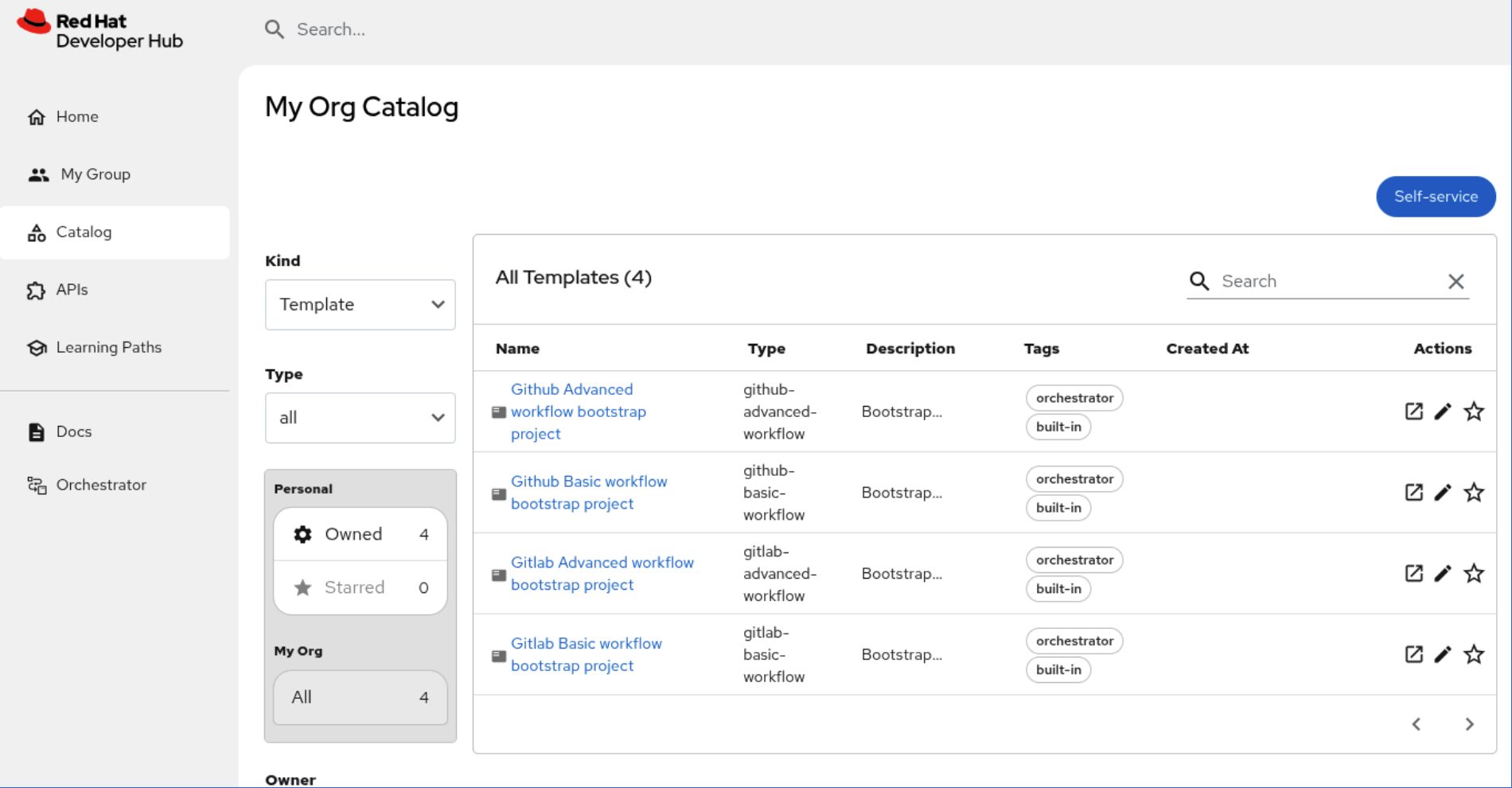
- Select the Basic workflow bootstrap project template and click Launch Template.
- Follow the template form to enter required details, including the GitHub organization, source code repository name, and a unique Workflow ID.
- For the CI/CD method, select Tekton with Argo CD to generate GitOps resources.
-
Set the Workflow Namespace to
rhdhand the GitOps Namespace toorchestrator-gitops. -
Enter your
Quay.ioregistry details. Click Review, then click Create.
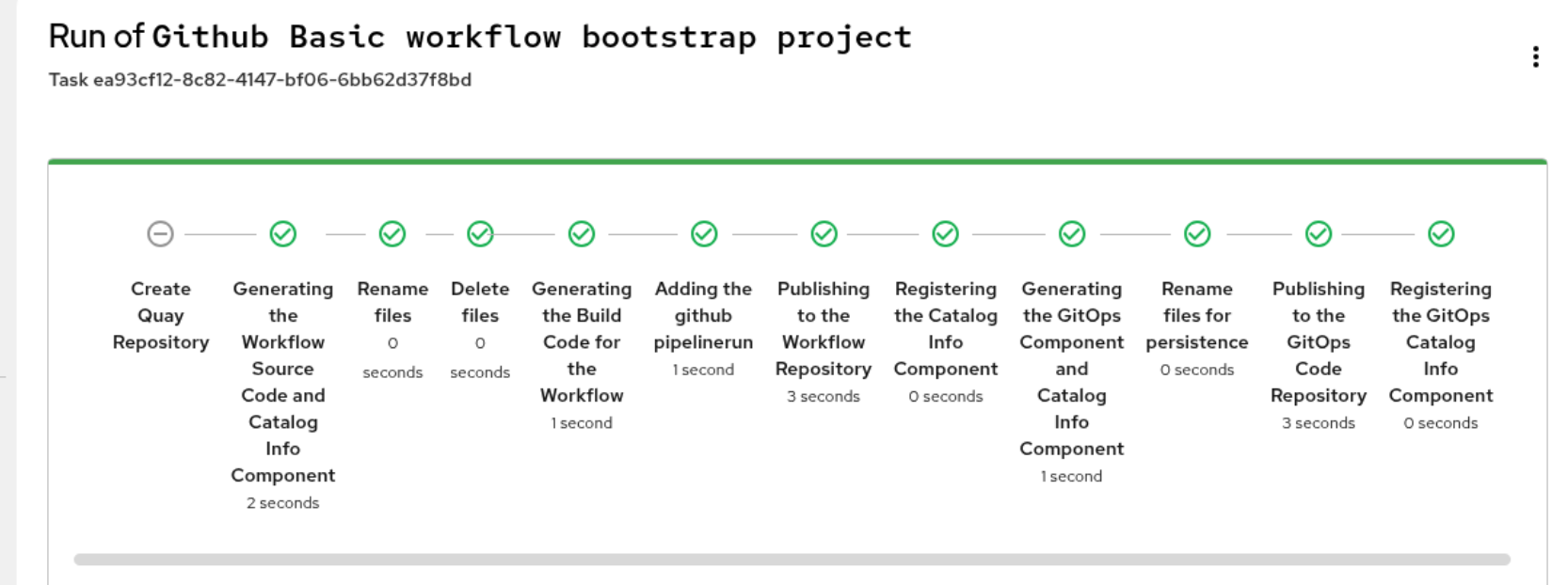
- Optional: Enable persistence and provide database connection details if the workflow requires a database schema.
Verification
The system creates the following repositories:
- Source code repository: Contains the serverless workflow project.
- GitOps repository: Contains GitOps configurations, Tekton pipeline templates, and bootstrap instructions.
Additional resources
8.5.4.6. Bootstrap GitOps resources and trigger pipelines
You must manually bootstrap the GitOps resources to trigger the continuous integration (CI) pipeline.
Procedure
- Open the generated GitOps repository.
Clone the repository and navigate to the
bootstrapdirectory:$ git clone https://token:<PAT>@${{ values.gitHost }}/${{ values.orgName }}/${{ values.repoName }}.git cd <repo_name>/bootstrapNoteIf you are not authenticated, you must use a personal access token (PAT) in the clone URL. Make sure the PAT has repository access permissions.
-
Open
${{values.workflowId}}-argocd-repo.yamland replace theREPLACE_SSH_PRIVATE_KEYstring with your SSH private key. Apply the manifests to the cluster:
$ kubectl apply -f .
Applying these manifests triggers the following automated sequence:
-
CI Pipeline (Tekton): Builds the workflow image and pushes it to your
Quay.ioregistry. - CD Pipeline (Argo CD): Deploys the serverless workflow manifests to the cluster.
-
CI Pipeline (Tekton): Builds the workflow image and pushes it to your
8.5.4.7. Verify the deployment
Verify the status of your continuous integration (CI) and continuous deployment (CD) pipelines in the RHDH component catalog.
Procedure
For CI:
-
In the RHDH Catalog, select your source code repository component (for example,
onboardings). - Click the CI tab and verify that the pipeline run status is Succeeded.
- If the pipeline status does not appear in the Red Hat Developer Hub console, verify the CI status directly in your Git provider (GitHub or GitLab).
- If the pipeline fails, click the run name to view the logs and identify build errors.
-
In the RHDH Catalog, select your source code repository component (for example,
For CD:
-
Open the GitOps Resources Repository component in the Catalog (for example,
onboarding-gitops). Click the CD tab and make sure the Kubernetes resources are synced and healthy. This confirms that ArgoCD deployed the workflow to the cluster.
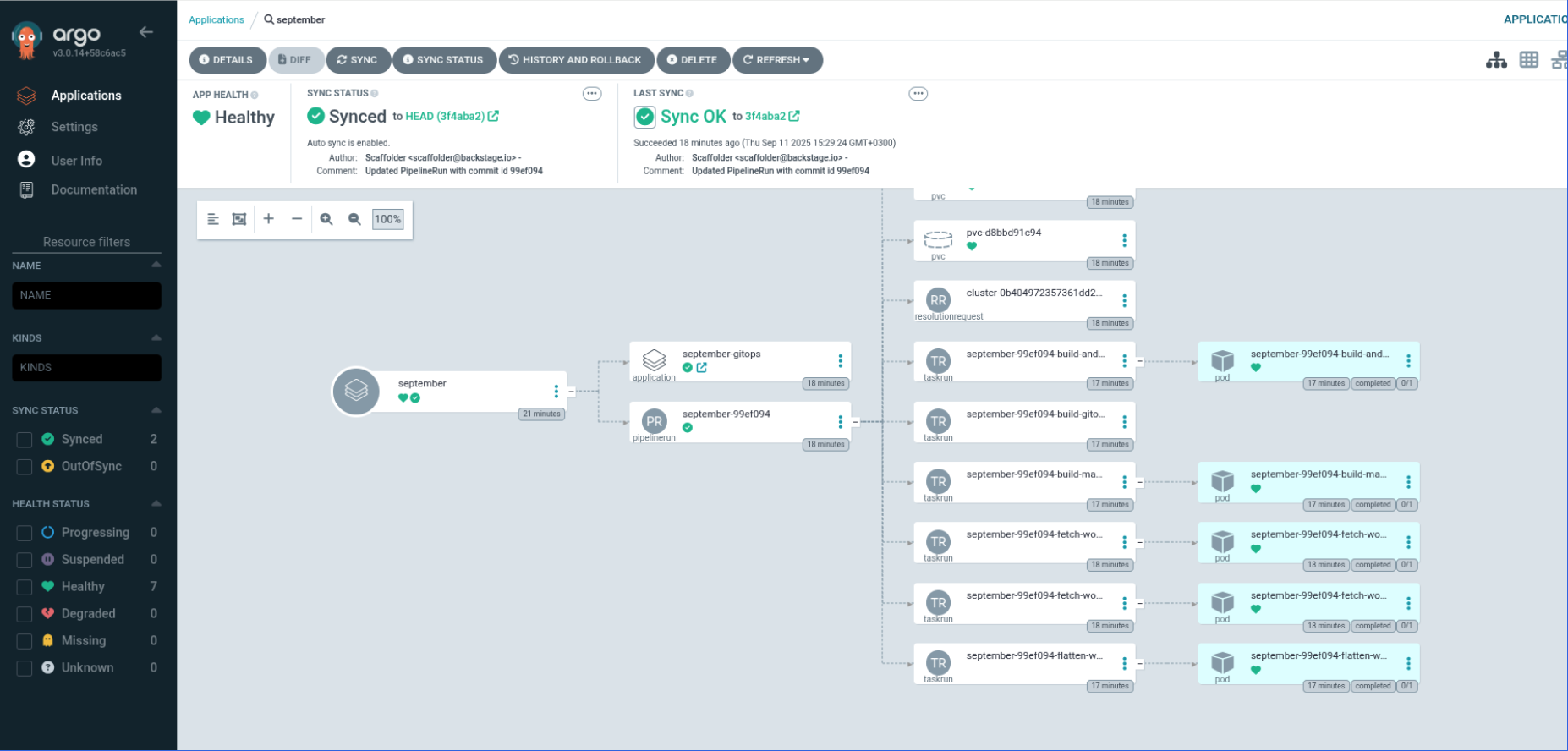
-
Open the GitOps Resources Repository component in the Catalog (for example,
8.5.4.8. Troubleshooting workflow deployments
Identify and resolve issues related to plugin visibility, pipeline execution, or resource synchronization.
Visibility issues
- Missing Orchestrator plugin
- If Orchestrator features do not appear in RHDH, make sure you have updated the RHDH Helm chart with the required plugins.
- Software templates not appearing
-
Make sure the
orchestrator-software-templateschart is installed and theorchestrator-auth-secretexists in the correct namespace.
Pipeline failure (CI)
- GitHub or GitLab actions failure
-
The GitOps automation includes a GitHub Action or GitLab CI step that creates a
PipelineRunmanifest from aPipelineRuntemplate. Examine the failed GitHub or GitLab actions logs. Failures often occur due to invalid Git credentials or misconfigured runner permissions. You can also create thePipelineRunfile manually to bypass automation issues. - Build or push issues
Check the CI tab in the RHDH Catalog.
If RHDH does not display the status, use the OpenShift Container Platform console to monitor pipeline instances and triggered jobs. Navigate to Pipelines > PipelineRuns for detailed logs.
If the Tekton pipeline fails during the build or push stages:
-
Verify that your
Quay.iorobot account has Write permissions. -
Ensure the
docker-registry-credentialssecret exists in therhdhnamespace.
-
Verify that your
Resource visibility and Sync issues (CD)
- Pipeline succeeds but workflows are missing
If the CI pipeline succeeds but the workflow does not appear in the CD tab:
Make sure the target namespace is labeled for Argo CD:
$ oc label ns <target_namespace> rhdh.redhat.com/argocd-namespace=true-
Make sure the ArgoCD ServiceAccount has the required permissions to manage resources in the
rhdhnamespace.
- Argo CD sync failure
-
If resources appear but remain in an
OutOfSyncstate, click Refresh in the Argo CD UI or verify that the AppProject exists in theorchestrator-gitopsnamespace. - PostgreSQL authentication failures in Argo CD
If the Orchestrator fails to connect to the PostgreSQL database when you deploy by using Argo CD, the failure is often due to a mismatch in password generation.
The Orchestrator Helm chart uses the Helm
lookupfunction to check for an existing PostgreSQL secret. Because Argo CD useshelm templateto render manifests, it cannot query the live cluster. Consequently, the chart generates a new, random password instead of retrieving the existing one, resulting in an authentication failure.To resolve this failure, you must complete the following steps:
Create the database secret manually with the correct credentials:
$ kubectl create secret generic <backstage-postgresql-svcbind-postgres> --from-literal=password=<your_password>
Update your Helm configuration (for example, in
values.yaml) to disable automatic service binding generation:upstream: postgresql: serviceBindings: enabled: false auth: username: postgres database: backstage existingSecret: backstage-postgresql-svcbind-postgres secretKeys: adminPasswordKey: password userPasswordKey: password- Sync the application in Argo CD to apply the changes.
8.6. Write and publish documentation as code to keep knowledge synchronized
8.6.1. Write and publish documentation as code to keep knowledge synchronized
After an administrator configures TechDocs, a developer can add documentation by importing from a remote repository, creating standalone docs, or enabling docs for an existing catalog entity.
8.6.2. Import documentation into TechDocs from a remote repository
Teams can store their documentation files in the same remote repository where they store their code files. You can import documentation into your TechDocs plugin from a remote repository that contains the documentation files that your team uses.
Prerequisites
- Your organization has documentation files stored in a remote repository.
-
You have a
mkdocs.yamlfile in the root directory of your repository. -
You have the
catalog.entity.createandcatalog.location.createpermissions to import documentation into TechDocs from a remote repository.
Procedure
- In your Red Hat Developer Hub instance, click Catalog > Self-service > Register Existing Component.
In the Select URL box, enter the URL to the
catalog-info.yamlfile that you want to import from your repository using the following format:https://github.com/<project_name>/<repo_name>/blob/<branch_name>/<file_directory>/catalog-info.yaml- Click Analyze
- Click Finish
Verification
- In the Developer Hub navigation menu, click Docs.
- Verify that the documentation that you imported is listed in the table on the Documentation page.
8.6.3. Search for relevant content
To quickly find the information needed for your services, search or filter the TechDocs catalog. Narrowing your search helps you find relevant resources without browsing many repositories.
Procedure
- In the Red Hat Developer Hub navigation menu, click Docs.
On the Documentation page, use the Search bar or filters to locate your document:
- Search: Enter keywords to find specific terms within documents.
- Filter by Owner: View documents owned by specific users or groups.
- Filter by Tags: Narrow results by specific labels or categories.
- Filter by Owned: View documents belonging to you or your group.
Filter by Starred: View your bookmarked favorites.
The results update automatically to show the number of documents that meet your criteria.
8.6.5. Make changes to project documentation in TechDocs
You can edit a document in your TechDocs plugin directly from the document book page. Any authorized user in your organization can edit a document regardless of whether or not they are the owner of the document.
Procedure
- In the Red Hat Developer Hub navigation menu, click Docs.
- In the Documentation table, click the name of the document that you want to edit.
- In the document, click the Edit this page icon to open the document in your remote repository.
- In your remote repository, edit the document as needed.
- Use the repository provider UI and your usual team processes to commit and merge your changes.
8.6.6. Add video content to enhance TechDocs
You can use <iframe> elements to add video content to enhance your experience with TechDocs.
Prerequisites
- An administrator has configured your AWS S3 bucket to store TechDocs sites.
-
An administrator has configured the appropriate
techdocs.sanitizer.allowedIframeHostsandbackend.cspsettings in yourapp-config.yamlfile.
Procedure
In the section of the TechDocs file that you want to embed a video into, add the following configuration:
<iframe
  width="<video_width>"
  height="<video_height>"
  src="<video_url>"
  title="<video_title>"
  frameborder="<frame_border>"
  allow="picture-in-picture"
  allowfullscreen>
</iframe>
where
- <video_width>
-
Specifies the width of the video in number of pixels, for example,
672. - <video_height>
-
Specifies the height of the video in number of pixels, for example,
378. - <video_url>
-
Specifies the url of the video, for example,
https://www.youtube.com/watch?v=LB1w8hjBt5k. - <video_title>
-
Specifies the title of the video, for example,
Red Hat Developer Hub Overview Video. - <frame_border>
Specifies the size of the frame border in number of pixels, for example,
0. Use a value of0for no border.NoteTechDocs uses DOMPurify to sanitize HTML. To prevent DOMPurify from removing the
<iframe>elements, you must list every permitted video host, such as www.youtube.com, under thetechdocs.sanitizer.allowedIframeHostssection of yourapp-config.yamlfile. You must also add the video host to thebackend.cspsection of yourapp-config.yamlfile.
In the
frame-srcandallowedIframeHostsfields of yourapp-config.yamlfile, add any video hosts that you want to use. You can add multiple hosts. For example:backend: csp: connect-src: ['https:'] frame-src: ['https://www.youtube.com/'] techdocs: builder: external sanitizer: allowedIframeHosts: - www.youtube.com - <additional_video_host_url> publisher: type: awsS3 awsS3: bucketName: $AWS_S3_BUCKET_NAME} accountId: $AWS_ACCOUNT_ID} region: $AWS_REGION}
8.6.7. Configure TechDocs storage and CI/CD pipelines
8.6.7.1. Configure TechDocs storage and CI/CD pipelines
The TechDocs plugin is preinstalled and enabled on a Developer Hub instance by default. You can disable or enable the TechDocs plugin, and change other parameters, by configuring the Red Hat Developer Hub Helm chart or the Red Hat Developer Hub Operator ConfigMap.
Red Hat Developer Hub includes a built-in TechDocs builder that generates static HTML documentation from your codebase. However, the default basic setup of the local builder is not intended for production.
You can use a CI/CD pipeline with the repository that has a dedicated job to generate docs for TechDocs. The generated static files are stored in OpenShift Data Foundation or in a cloud storage solution of your choice and published to a static HTML documentation site.
After you configure OpenShift Data Foundation to store the files that TechDocs generates, you can configure the TechDocs plugin to use the OpenShift Data Foundation for cloud storage.
8.6.7.2. Configure Amazon S3 or OpenShift Data Foundation buckets
8.6.7.2.1. Configure Amazon S3 or OpenShift Data Foundation buckets
The TechDocs plugin is preinstalled and enabled on a Developer Hub instance by default. You can configure TechDocs to use cloud storage for storing generated documentation files.
8.6.7.2.2. Configuring storage for TechDocs files
The TechDocs publisher stores generated files in local storage or in cloud storage, such as AWS S3 or OpenShift Data Foundation.
8.6.7.2.3. Configure Amazon S3 for file storage
You can create a dedicated Amazon S3 bucket to store TechDocs sites. Red Hat Developer Hub uploads TechDocs to this bucket and serves them from the same location.
Prerequisites
- You are logged in to your AWS account as an administrator.
Procedure
On the AWS console, create an AWS S3 bucket.
- On the Create bucket page, enter a Bucket name and use the default selections for all other settings.
- Create an IAM policy to give authorized users permissions to generate and publish TechDocs for your organization.
On the Create policy > Specify permissions page, in the Policy editor, enter the following JSON content:
{
    "Version": "2012-10-17",
    "Statement": [
        {
            "Sid": "TechDocsList",
            "Effect": "Allow",
            "Action": "s3:ListBucket",
            "Resource": "arn:aws:s3:::_<bucket_name>_"
        },
        {
            "Sid": "TechDocsObjects",
            "Effect": "Allow",
            "Action": [
                "s3:GetObject",
                "s3:PutObject",
                "s3:DeleteObject",
                "s3:DeleteObjectVersion"
            ],
            "Resource": "arn:aws:s3:::_<bucket_name>_/*"
        }
    ]
}
where
- <bucket_name>
- Specifies the name of your Amazon S3 bucket.
- On the Create policy > Specify permissions page, enter a Policy name.
- Assign the IAM policy to a new or existing user.
Generate a new access key and a new secret access key.
NoteYou can use the newly created access keys to generate a TechDocs pipeline with GitHub Actions.
From the OpenShift Container Platform web console, click Topology > Actions > Restart rollout to restart the pod.
NoteYou must restart the pod to apply the configuration changes.
Verification
- Go to your Amazon S3 bucket to see a set of static site files in your Objects list.
8.6.7.2.4. Configure OpenShift Data Foundation for file storage
You can configure OpenShift Data Foundation to store the files that TechDocs generates instead of relying on other cloud storage solutions.
OpenShift Data Foundation provides an ObjectBucketClaim custom resource (CR) that you can use to request an S3-compatible bucket backend. You must install the OpenShift Data Foundation Operator to use this feature.
For air-gapped environments, using OpenShift Data Foundation is the recommended storage for TechDocs.
Prerequisites
-
An OpenShift Container Platform administrator has installed the OpenShift Data Foundation Operator in Red Hat OpenShift Container Platform, created an OpenShift Data Foundation cluster and configured the
StorageSystemschema. For more information, see Deploying OpenShift Data Foundation using Amazon Web Services.
Procedure
Create an
ObjectBucketClaimCR where the generated TechDocs files are stored. For example:apiVersion: objectbucket.io/v1alpha1 kind: ObjectBucketClaim metadata: name: <rhdh_bucket_claim_name> spec: generateBucketName: <rhdh_bucket_claim_name> storageClassName: openshift-storage.noobaa.io
NoteCreating the Developer Hub
ObjectBucketClaimCR automatically creates both the Developer HubObjectBucketClaimconfig map and secret. The config map and secret have the same name as theObjectBucketClaimCR.After you create the
ObjectBucketClaimCR, you can use the information stored in the config map and secret to make the information accessible to the Developer Hub container as environment variables. Depending on the method that you used to install Developer Hub, you add the access information to either the Red Hat Developer Hub Helm chart or Operator configuration.
Additional resources
8.6.7.2.5. Make object storage accessible to containers by using the Operator
Add ObjectBucketClaim access information to the Operator configuration to make it accessible to the Developer Hub container as environment variables.
Creating an ObjectBucketClaim custom resource (CR) automatically generates both the Developer Hub ObjectBucketClaim config map and secret. The config map and secret contain ObjectBucket access information. The Operator uses the following environment variables:
-
BUCKET_NAME -
BUCKET_HOST -
BUCKET_PORT -
BUCKET_REGION -
BUCKET_SUBREGION -
AWS_ACCESS_KEY_ID -
AWS_SECRET_ACCESS_KEY
These variables are then used in the TechDocs plugin configuration.
Prerequisites
- You have installed Red Hat Developer Hub on OpenShift Container Platform using the Operator.
-
You have created an
ObjectBucketClaimCR for storing files generated by TechDocs.
Procedure
In your
BackstageCR, enter the name of the Developer HubObjectBucketClaimconfig map as the value for thespec.application.extraEnvs.configMapsfield and enter the Developer HubObjectBucketClaimsecret name as the value for thespec.application.extraEnvs.secretsfield. For example:apiVersion: rhdh.redhat.com/v1alpha5 kind: {backstage} metadata: name: <name> spec: application: extraEnvs: configMaps: - name: <rhdh_bucket_claim_name> secrets: - name: <rhdh_bucket_claim_name>
8.6.7.2.6. Make object storage accessible to containers by using the Helm chart
Add ObjectBucketClaim access information to the Helm chart configuration to make it accessible to the Developer Hub container as environment variables.
Creating an ObjectBucketClaim custom resource (CR) automatically generates both the Developer Hub ObjectBucketClaim config map and secret. The config map and secret contain ObjectBucket access information. The Helm chart uses the following environment variables:
-
BUCKET_NAME -
BUCKET_HOST -
BUCKET_PORT -
BUCKET_REGION -
BUCKET_SUBREGION -
AWS_ACCESS_KEY_ID -
AWS_SECRET_ACCESS_KEY
These variables are then used in the TechDocs plugin configuration.
Prerequisites
- You have installed Red Hat Developer Hub on OpenShift Container Platform using the Helm chart.
-
You have created an
ObjectBucketClaimCR for storing files generated by TechDocs. For more information see Using OpenShift Data Foundation for file storage
Procedure
In the
upstream.backstagekey in the Helm chart values, enter the name of the Developer HubObjectBucketClaimsecret as the value for theextraEnvVarsSecretsfield and theextraEnvVarsCMfield. For example:upstream: backstage: extraEnvVarsSecrets: - <rhdh_bucket_claim_name> extraEnvVarsCM: - <rhdh_bucket_claim_name>
8.6.7.3. Configuring CI/CD to generate and publish TechDocs sites
You can generate documentation on CI/CD and publish to cloud storage by using the techdocs-cli CLI tool.
TechDocs reads the static generated documentation files from a cloud storage bucket, such as OpenShift Data Foundation. The documentation site is generated on the CI/CD workflow associated with the repository that has the documentation files.
You can use the following example to create a script for TechDocs publication:
# Prepare
REPOSITORY_URL='https://github.com/org/repo'
git clone $REPOSITORY_URL
cd repo

# Install @techdocs/cli, mkdocs and mkdocs plugins
npm install -g @techdocs/cli
pip install "mkdocs-techdocs-core==1.*"

# Generate
techdocs-cli generate --no-docker

# Publish
techdocs-cli publish --publisher-type awsS3 --storage-name <bucket/container> --entity <Namespace/Kind/Name>
The TechDocs workflow starts the CI when a user makes changes in the repository containing the documentation files. You can configure the workflow to start only when files inside the docs/ directory or mkdocs.yml are changed.
8.6.8. Install TechDocs add-ons
8.6.8.1. Install TechDocs add-ons
Install and configure TechDocs add-ons to extend the functionality of the TechDocs plugin in Red Hat Developer Hub.
TechDocs add-ons supported by Red Hat are exported to the TechDocs plugin by the backstage-plugin-techdocs-module-addons-contrib plugin package, which is preinstalled on Red Hat Developer Hub and enabled by default. The <ReportIssue /> add-on is part of the default configuration of this plugin package and comes ready to use in the TechDocs plugin.
You can install other supported TechDocs add-ons by configuring the backstage-plugin-techdocs-module-addons-contrib plugin package in the Red Hat Developer Hub ConfigMap or Helm chart, depending on whether you use the Operator or Helm chart for installation. If you want to customize your TechDocs experience beyond the functions of the supported add-ons, you can install third-party add-ons on your TechDocs plugin, including add-ons that you create yourself.
8.6.8.2. Install external or third-party add-ons
8.6.8.2.1. Install external or third-party add-ons
Install and configure TechDocs add-ons to extend the functionality of the TechDocs plugin in Red Hat Developer Hub.
8.6.8.2.2. Install and configure an external TechDocs add-on using the Operator
You can use a dynamic plugin to import TechDocs add-ons into your TechDocs plugin. If you use the Red Hat Developer Hub Operator to install the dynamic plugin, you can add TechDocs add-ons to the plugin package in your ConfigMap.
Preinstalled add-ons, such as ReportIssue, are included in the default backstage-plugin-techdocs-module-addons-contrib package configuration. External add-ons that are supported by Red Hat are installed by manually adding them to the techdocsAddons section of the configuration file.
Procedure
- From the Developer perspective in the OpenShift Container Platform web console, click ConfigMaps > Create ConfigMap.
- From the Create ConfigMap page, select the YAML view option in the Configure via field.
In the newly created ConfigMap, add the default
backstage-plugin-techdocs-module-addons-contribpackage configuration. For example:kind: ConfigMap apiVersion: v1 metadata: name: dynamic-plugins-rhdh data: dynamic-plugins.yaml: | includes: - dynamic-plugins.default.yaml plugins: - package: ./dynamic-plugins/dist/backstage-plugin-techdocs-module-addons-contrib disabled: false pluginConfig: dynamicPlugins: frontend: backstage.plugin-techdocs-module-addons-contrib: techdocsAddons: - importName: ReportIssueIn the
techdocsAddonssection of the ConfigMap, addimportName: <external_techdocs_add-on>for each external TechDocs add-on that you want to add from the specified plugin package. For example:kind: ConfigMap apiVersion: v1 metadata: name: dynamic-plugins-rhdh data: dynamic-plugins.yaml: | includes: - dynamic-plugins.default.yaml plugins: - package: ./dynamic-plugins/dist/backstage-plugin-techdocs-module-addons-contrib disabled: false pluginConfig: dynamicPlugins: frontend: backstage.plugin-techdocs-module-addons-contrib: techdocsAddons: - importName: ReportIssue - importName: <external_techdocs_add-on>where:
- <external_techdocs_add-on>
-
Specifies the external TechDocs add-on that you want to install, for example,
TextSizeorLightBox.
- Click Create.
- In the web console navigation menu, click Topology.
- Click the overflow menu for the Red Hat Developer Hub instance that you want to use and select Edit Backstage to load the YAML view of the Red Hat Developer Hub instance.
In your
BackstageCR, add thedynamicPluginsConfigMapName: <dynamic_plugins_configmap>key-value pair. For example:apiVersion: rhdh.redhat.com/v1alpha5 kind: Backstage metadata: name: my-rhdh spec: application: # ... dynamicPluginsConfigMapName: <dynamic_plugins_configmap> # ...where:
- <dynamic_plugins_configmap>
-
Specifies the name of your dynamic plugins ConfigMap for your Red Hat Developer Hub instance, for example,
dynamic-plugins-rhdh.
- Click Save.
- In the web console navigation menu, click Topology and wait for the Red Hat Developer Hub pod to start.
- Click the Open URL icon to start using the Red Hat Developer Hub platform with the new configuration changes.
8.6.8.2.3. Install and configure an external TechDocs add-on using the Helm chart
You can use a dynamic plugin to import TechDocs add-ons into your TechDocs plugin. If you use the Red Hat Developer Hub Helm chart to install the dynamic plugin, you can add TechDocs add-ons to the plugin package in your Helm chart.
Preinstalled add-ons, such as ReportIssue, are included in the default backstage-plugin-techdocs-module-addons-contrib package configuration. External add-ons that are supported by Red Hat are installed by manually adding them to the techdocsAddons section of the configuration file.
Prerequisites
- The TechDocs plugin is installed and enabled.
Procedure
In your Helm chart, add the
global.dynamicparameters required to install a dynamic plugin, as shown in Installing dynamic plugins using the Helm chartNoteThe default configuration includes the
dynamic-plugins.default.yamlfile, which contains all of the dynamic plugins, including TechDocs add-ons, that are preinstalled in Red Hat Developer Hub, whether they are enabled or disabled by default.In your Helm chart, add the default
backstage-plugin-techdocs-module-addons-contribpackage configuration. For example:global: dynamic: plugins: - package: ./dynamic-plugins/dist/backstage-plugin-techdocs-module-addons-contrib disabled: false pluginConfig: dynamicPlugins: frontend: backstage.plugin-techdocs-module-addons-contrib: techdocsAddons: - importName: ReportIssueIn the
techdocsAddonssection of the Helm chart, addimportName: <external_techdocs_add-on>for each external TechDocs add-on that you want to add from the specified plugin package. For example:global: dynamic: plugins: - package: ./dynamic-plugins/dist/backstage-plugin-techdocs-module-addons-contrib disabled: false pluginConfig: dynamicPlugins: frontend: backstage.plugin-techdocs-module-addons-contrib: techdocsAddons: - importName: ReportIssue - importName: <external_techdocs_add-on>where:
- <external_techdocs_add-on>
-
Specifies the external TechDocs add-on that you want to install, for example,
TextSizeorLightBox.
8.6.8.3. Disable or remove TechDocs add-ons
8.6.8.3.1. Disable or remove TechDocs add-ons
Remove or disable installed TechDocs add-ons from your Red Hat Developer Hub instance by using the Operator or the Helm chart.
Administrators can remove installed TechDocs add-ons by using either the Operator or Helm chart, depending on the method used to install the add-on. If you used the Operator to install the add-on, remove it from the ConfigMap. If you used the Helm chart to install the add-on, remove it from the Helm chart.
If you want to disable a plugin instead of removing it from your Red Hat Developer Hub instance, you can disable the plugin that you are using to import the TechDocs add-on. Since the disabled status is controlled at the plugin level, disabling the plugin disables all of the TechDocs add-ons in the specified plugin package.
8.6.8.3.2. Remove an external TechDocs add-on from your ConfigMap
Disable or permanently remove an external TechDocs add-on from your Red Hat Developer Hub ConfigMap when you no longer need it.
The disabled status is controlled at the plugin level, therefore, disabling the plugin disables all of the TechDocs add-ons in the disabled plugin package.
Procedure
- From the Developer perspective in the OpenShift Container Platform web console, click ConfigMaps.
- From the ConfigMaps page, click the ConfigMap that contains the TechDocs add-on that you want to remove.
- Select the YAML view option in the Configure via field.
In the
pluginssection of the ConfigMap, do one of the following actions based on whether you want to disable or remove a TechDocs add-on:To temporarily disable all of the TechDocs add-ons in a particular plugin package, change the value of the
disabledfield totrue. For example:kind: ConfigMap apiVersion: v1 metadata: name: dynamic-plugins-rhdh data: dynamic-plugins.yaml: | includes: - dynamic-plugins.default.yaml plugins: - package: ./dynamic-plugins/dist/backstage-plugin-techdocs-module-addons-contrib disabled: true pluginConfig: dynamicPlugins: frontend: backstage.plugin-techdocs-module-addons-contrib: techdocsAddons: - importName: ReportIssue - importName: <external_techdocs_add-on>where:
- <external_techdocs_add-on>
-
Specifies the external TechDocs add-on that you want to remove, for example,
TextSize.
To remove one or more TechDocs add-ons from your Red Hat Developer Hub instance, delete
importName: <external_techdocs_add-on>for each external TechDocs add-on that you want to remove from thetechdocsAddonssection of your ConfigMap. For example:kind: ConfigMap apiVersion: v1 metadata: name: dynamic-plugins-rhdh data: dynamic-plugins.yaml: | includes: - dynamic-plugins.default.yaml plugins: - package: ./dynamic-plugins/dist/backstage-plugin-techdocs-module-addons-contrib disabled: false pluginConfig: dynamicPlugins: frontend: backstage.plugin-techdocs-module-addons-contrib: techdocsAddons: - importName: ReportIssue - importName: <external_techdocs_add-on>where:
- <external_techdocs_add-on>
-
Specifies the external TechDocs add-on that you want to remove, for example,
TextSize.
- Click Save.
- In the web console navigation menu, click Topology and wait for the Red Hat Developer Hub pod to start.
- Click the Open URL icon to start using the Red Hat Developer Hub platform with the new configuration changes.
8.6.8.3.3. Remove an external TechDocs add-on from your Helm chart
Disable or permanently remove an external TechDocs add-on from your Red Hat Developer Hub Helm chart when you no longer need it.
The disabled status is controlled at the plugin level, therefore, disabling the plugin disables all of the TechDocs add-ons in the disabled plugin package.
Procedure
In the
pluginssection of the Helm chart, do one of the following actions based on whether you want to disable or remove a TechDocs add-on:To temporarily disable all of the TechDocs add-ons in a particular plugin package, change the value of the
disabledfield totrue. For example:global: dynamic: plugins: - package: ./dynamic-plugins/dist/backstage-plugin-techdocs-module-addons-contrib disabled: true pluginConfig: dynamicPlugins: frontend: backstage.plugin-techdocs-module-addons-contrib: techdocsAddons: - importName: ReportIssue - importName: <external_techdocs_add-on>where:
- <external_techdocs_add-on>
-
Specifies the external TechDocs add-on that you want to remove, for example,
TextSize.
To remove one or more TechDocs add-ons from your Red Hat Developer Hub instance, delete
importName: <external_techdocs_add-on>for each external TechDocs add-on that you want to remove from thetechdocsAddonssection of your Helm chart. For example:global: dynamic: plugins: - package: ./dynamic-plugins/dist/backstage-plugin-techdocs-module-addons-contrib disabled: false pluginConfig: dynamicPlugins: frontend: backstage.plugin-techdocs-module-addons-contrib: techdocsAddons: - importName: ReportIssue - importName: <external_techdocs_add-on>where:
- <external_techdocs_add-on>
-
Specifies the external TechDocs add-on that you want to remove, for example,
TextSize.
8.6.8.4. Use enabled add-ons
8.6.8.4.1. Use enabled add-ons
After an administrator installs a TechDocs add-on in your Red Hat Developer Hub instance, you can use it to extend the functionality of the TechDocs plugin and enhance your documentation experience.
8.6.8.4.2. Use the ReportIssue TechDocs add-on
If you find an error in your organization’s TechDocs documentation, you can use the ReportIssue add-on to open a new GitHub or GitLab issue directly from the documentation. ReportIssue automatically imports the text that you highlight in the document into a new issue template in your repository.
Prerequisites
-
The
ReportIssueadd-on is installed and enabled in your TechDocs plugin. - You have permissions to create issues in the repository where documentation issues are reported.
Procedure
- In your TechDocs documentation, highlight the text that you want to report an issue for.
-
Click the text in the
ReportIssuebox, for example, Open new GitHub issue. From the new issue page in your repository, use the template to create the issue that you want to report.
NoteThe default issue title is Documentation feedback: <highlighted_text>, where <highlighted_text> is the text that you highlighted in your TechDocs documentation.
In the issue description, <highlighted_text> is the default value for the The highlighted text field.
Verification
- The issue that you created is listed on the issues page in your repository.
8.6.8.4.3. Use the TextSize TechDocs add-on
You can use the TextSize add-on to change the size of the text on either the TechDocs Reader page or an Entity page.
Prerequisites
-
The
TextSizeadd-on is installed and enabled in your TechDocs plugin.
Procedure
- In your TechDocs header, click the Settings icon.
Use the sliding scale to adjust the size of your documentation text.
Note- The default text size is 100%
- The minimize text size is 90%
- The maximum text size is 150%
8.6.8.4.4. Use the LightBox TechDocs add-on
Use the LightBox add-on to view enlarged images in a lightbox overlay window and navigate between images on a single documentation page.
Prerequisites
-
The
LightBoxadd-on is installed and enabled in your TechDocs plugin.
Procedure
- In your TechDocs documentation, click the image that you want to view in a lightbox.
- In the lightbox, you can do any of the following actions:
- Click the image or scroll to zoom in or zoom out.
- Click the arrow to navigate between images.
8.6.9. Create a TechDocs add-on
If your organization has documentation needs that are not met by the functions of existing TechDocs add-ons, developers can create a new add-on for your TechDocs plugin.
A TechDocs add-on is a React component that is imported from a front-end plugin. If you do not have an existing plugin that you can use to export your TechDocs add-on, you can create a new plugin by using backstage-cli to generate a default front-end plugin structure that you can customize.
The folder structure of a new plugin that can be used to import TechDocs add-ons into the TechDocs plugin looks similar to the following example:
<new_plugin_for_techdocs_add-on>/
   dev/
       index.ts
   src/
       components/
         <new_techdocs_add-on_component>/
              <new_techdocs_add-on_component>.test.tsx
              <new_techdocs_add-on_component>.tsx
               index.ts
         <new_techdocs_add-on_fetch-component>/
              <new_techdocs_add-on_fetch-component>.test.tsx
              <new_techdocs_add-on_fetch-component>.tsx
               index.ts
       index.ts
       plugin.test.ts
       plugin.ts
       routes.ts
       setupTests.ts
   .eslintrc.js
   package.json
   README.md
Prerequisites
-
The
yarnpackage manager is installed. - Docker v3.2.0 or later or Podman v3.2.0 or later is installed and running.
Procedure
- In the terminal, navigate to the root folder of the repository where you want to create your new plugin.
To create a new front-end plugin, run the following command:
$ yarn new
Example output:
? What do you want to create? plugin - A new frontend plugin
? Enter the ID of the plugin [required]
In the terminal prompt, type a name for the new plugin. For example:
? Enter the ID of the plugin [required] <new_plugin_for_techdocs_add-on>Example output:
Successfully created plugin
Upon completion of this action, a sub-directory with the same name that you gave to your plugin is automatically generated inside the
pluginsdirectory. The directory contains all of the files that you need to configure to create your new plugin.In the terminal, navigate to your new plugin directory. For example:
$ cd plugins/<new_techdocs_add-on_directory>Add the`@backstage/plugin-techdocs-react` package to get frontend utilities for TechDocs add-ons. For example:
$ yarn add @backstage/plugin-techdocs-react
-
In the directory containing the components of your custom TechDocs add-on, delete any default files or file components that are not required for your add-on, such as the
routes.tsfile or components of theindex.tsxandplugins.tsfiles. In the
plugins.tsfile, add the following code:$ import { createPlugin } from '@backstage/core-plugin-api'; $ import { createTechDocsAddonExtension } from '@backstage/plugin-techdocs-react'; $ export const <new_plugin_for_techdocs_add-on> = createPlugin({ id: '<new_techdocs_add-on>', }); /* * * @public */ $ export const <new_techdocs_add-on> = <new_plugin_for_techdocs_add-on>.provide( createTechDocsAddonExtension<_<new_techdocs_addon_props>_>({ name: '<new_techdocs_add-on>', location: TechDocsAddonLocations.Content, component: <new_techdocs_add-on_component>, }), );where
- <new_plugin_for_techdocs_add-on>
- Specifies the new plugin that you use to import the TechDocs add-on to your Red Hat Developer Hub instance.
- <new_techdocs_add-on>
- Specifies the custom TechDocs add-on that you want to create.
- <new_techdocs_addon_props> (Optional)
-
Specifies the
propsfor your new TechDocs add-on, as specified in your<new_techdocs_add-on>.tsxfile, if applicable. - <new_techdocs_add-on_component>
-
Specifies the React component for the custom TechDocs add-on that you want to create. You will create this component in a
.tsxfile in a later step.
In the
index.tsfile, export the custom TechDocs add-on that you want to create by adding the following code:$ export { <new_plugin_for_techdocs_add-on>, <new_techdocs_add-on> } from './plugin';-
Create a new
<new_techdocs_add-on>.tsxfile and add the code for your new TechDocs add-on component. Create a new
index.tsxfile and use it to export your new TechDocs add-on component by adding the following code:$ export { <new_techdocs_add-on>, type <new_techdocs_addon_props>} from './<new_techdocs_add-on_directory>'where
- <new_techdocs_addon_props> (Optional)
-
Specifies the
propsfor your new TechDocs add-on, as specified in your<new_techdocs_add-on>.tsxfile, if applicable.
-
In the
plugins.tsfile, import your new TechDocs add-on component. - Install and configure your new TechDocs add-on by following the steps in Install and configure a TechDocs add-on
Verification
- Restart the RHDH application and verify that the plugin is successfully activated and configured.
- Verify the application logs for confirmation and ensure the plugin is functioning as expected.
Chapter 9. Configure
9.1. Configure
TODO: Replace this placeholder with an overview of Configure.
9.2. Configure core parameters to meet infrastructure requirements
9.2.1. Configure core parameters to meet infrastructure requirements
TODO: Replace this placeholder with an overview of Configure core parameters to meet infrastructure requirements.
9.2.2. Provision custom config maps and secrets to define platform behavior
9.2.2.1. Provision custom config maps and secrets to define platform behavior
TODO: Replace this placeholder with an overview of Provision custom config maps and secrets to define platform behavior.
9.3. Customize the user interface to reflect organizational branding
9.3.1. Customize the user interface to reflect organizational branding
TODO: Replace this placeholder with an overview of Customize the user interface to reflect organizational branding.
9.3.4. Customize themes and branding to align with corporate standards
9.3.4.1. Customize themes and branding to align with corporate standards
TODO: Replace this placeholder with an overview of Customize themes and branding to align with corporate standards.
Chapter 10. Secure
10.1. Secure
Manage authentication and authorization in Red Hat Developer Hub to control user access, verify identities, and enforce role-based policies.
You can enable authentication in Red Hat Developer Hub to allow users to sign in using credentials from an external identity provider, such as RHBK, GitHub, or Microsoft Azure, and provision user and group data to the software catalog.
Red Hat Developer Hub (RHDH) administrators can use role-based access control (RBAC) to manage authorizations of other users by defining roles, permissions, and policies for users and groups.
10.2. Configure authentication providers to verify user identities
10.2.1. Configure authentication providers to verify user identities
Enable authentication with your main identity provider to allow users to sign in to Red Hat Developer Hub using their organizational credentials.
10.2.2. Authentication methods and identity provider selection
10.2.2.1. Authentication methods and identity provider selection
User provisioning and authentication are two independent mechanisms in Red Hat Developer Hub. You can configure them separately depending on your requirements.
10.2.2.2. Understand authentication and user provisioning
User provisioning and authentication are two independent mechanisms in Red Hat Developer Hub. You can configure them separately depending on your requirements.
10.2.2.2.1. User provisioning
To fully enable catalog features, provision user and group data from an Identity Provider (IdP) to the Developer Hub software catalog. Catalog provider plugins handle this task asynchronously. These plugins query the IdP for relevant user and group information, and create or update corresponding entities in the Developer Hub catalog. Scheduled provisioning ensures that the catalog accurately reflects the users and groups in your organization.
You can provision users and groups from any supported source, including Red Hat Build of Keycloak (RHBK), GitHub, GitLab, Microsoft Azure, or LDAP. LDAP provisioning works independently of your authentication provider. Following associations are supported:
| User provisioning | Authentication |
|---|---|
|
RHBK |
RHBK |
|
LDAP |
RHBK |
|
GitHub |
GitHub |
|
Microsoft Azure |
Microsoft Azure |
For example, you can authenticate users with RHBK while provisioning user and group data from your LDAP directory.
Configuring user provisioning is critical for several reasons.
- Enabling authorization by allowing you to define access controls based on user and group memberships synchronized from your IdP.
Provisioning user and group data to the catalog is necessary for various catalog features that rely on understanding entity ownership and relationships between users, groups, and software components.
ImportantWithout this provisioning step, features such as displaying who owns a catalog entity might not function correctly.
To explore Developer Hub features in a non-production environment, you can:
- To use Developer Hub without external IdP, enable the guest user to skip configuring authentication and authorization, log in as the guest user, and access all Developer Hub features.
-
To use Developer Hub without authorization policies and features relying on the software catalog, you can enable the
dangerouslyAllowSignInWithoutUserInCatalogresolver option. This setting bypasses the check requiring a user to be in the catalog but still enforces authentication.
Developer Hub uses a one-way synchronization model, where user and group data flow from your Identity Provider to the Developer Hub software catalog. As a result, deleting users or groups manually through the Developer Hub Web UI or REST API might be ineffective or cause inconsistencies, since Developer Hub will create those entities again during the next import.
10.2.2.2.2. Authentication
When a user attempts to access Developer Hub, Developer Hub redirects them to a configured authentication provider, such as Red Hat Build of Keycloak (RHBK), GitHub, GitLab, or Microsoft Azure. This external IdP is responsible for authenticating the user.
On successful authentication, the Developer Hub authentication plugin, configured in your app-config.yaml file, processes the response from the IdP, resolves the identity in the Developer Hub software catalog, and establishes a user session within Developer Hub.
Authentication works independently of user provisioning. By default you cannot authenticate users without provisioning them to the software catalog. You can override this behavior to authenticate users without provisioning them to the software catalog, by using the dangerouslyAllowSignInWithoutUserInCatalog parameter. However, provisioning is a prerequisite for full catalog functionality, such as entity ownership and group-based access controls.
10.2.3. Configure guest access to securely test non-production environments
10.2.3.1. Configure guest access to securely test non-production environments
For trial or non-production environments, you can enable guest access to explore Developer Hub features without configuring authentication. For production environments, disable guest access to ensure security.
10.2.3.2. Enable the Guest login
To allow users to log in as a guest on the login page, enable the guest login option.
Procedure
In the
app-config.yamlfile, set the authentication environment todevelopment:auth: environment: development
- Restart the Developer Hub application to apply the changes.
Verification
- Go to the login page of your Developer Hub instance.
- Verify that the option to log in as a guest is available.
10.2.3.3. Disable the Guest login
To prevent users from logging in as a guest on the login page, disable the guest login option.
Procedure
In the
app-config.yamlfile, set the authentication environment toproduction:auth: environment: production
- Restart the Developer Hub application to apply the changes.
Verification
- Go to the login page of your Developer Hub instance.
- Verify that the option to log in as a guest is no longer available.
10.2.6. Enable authentication to verify identities against enterprise directories
10.2.6.1. Enable authentication to verify identities against enterprise directories
Enable authentication with your main identity provider to allow users to sign in to Red Hat Developer Hub using their organizational credentials.
10.2.6.2. Enable authentication with Red Hat Build of Keycloak (RHBK)
Configure Red Hat Build of Keycloak (RHBK) as your Red Hat Developer Hub sign-in provider by enabling the OIDC authentication provider.
Prerequisites
- You have shared a secret with RHBK.
- You have provisioned users and groups to the software catalog.
Procedure
The OIDC provider authentication backend plugin requires Developer Hub to support sessions. Enable session support by adding the session secret to your
app-config.yamlfile:auth: session: secret: ${SESSION_SECRET}Add an OIDC provider section to your
app-config.yamlfile:auth: environment: production providers: oidc: production: metadataUrl: ${KEYCLOAK_BASE_URL} clientId: ${KEYCLOAK_CLIENT_ID} clientSecret: ${KEYCLOAK_CLIENT_SECRET} prompt: auto signInPage: oidcenvironment: production-
Mark the environment as
productionto hide the Guest login in the Developer Hub home page. metadataUrl,clientId,clientSecret- Configure the OIDC provider with your secrets.
promptEnter
autoto allow the identity provider to automatically determine whether to prompt for credentials or bypass the login redirect if an active RHBK session exists.The identity provider defaults to
none, which assumes that you are already logged in. Sign-in requests without an active session are rejected.signInPage-
Enter
oidcto enable the OIDC provider as default sign-in provider.
Optional: Add optional fields to the OIDC authentication provider section in your
app-config.yamlfile:auth: providers: oidc: production: metadataUrl: ${KEYCLOAK_BASE_URL} clientId: ${KEYCLOAK_CLIENT_ID} clientSecret: ${KEYCLOAK_CLIENT_SECRET} callbackUrl: ${KEYCLOAK_CALLBACK_URL} tokenEndpointAuthMethod: ${KEYCLOAK_TOKEN_ENDPOINT_METHOD} tokenSignedResponseAlg: ${KEYCLOAK_SIGNED_RESPONSE_ALG} additionalScopes: ${KEYCLOAK_SCOPE} signIn: resolvers: - resolver: oidcSubClaimMatchingKeycloakUserId - resolver: preferredUsernameMatchingUserEntityName - resolver: emailMatchingUserEntityProfileEmail - resolver: emailLocalPartMatchingUserEntityName dangerouslyAllowSignInWithoutUserInCatalog: true sessionDuration: { hours: 24 } backstageTokenExpiration: { minutes: _<user_defined_value>_ } signInPage: oidccallbackUrl- RHBK callback URL.
tokenEndpointAuthMethod- Enter your token endpoint authentication method.
tokenSignedResponseAlg- Token signed response algorithm.
additionalScopes- Enter additional RHBK scopes to request for during the authentication flow.
signInresolversAfter successful authentication, the user signing in must be resolved to an existing user in the Developer Hub catalog. To best match users securely for your use case, consider configuring a specific resolver.
Enter the resolver list to override the default resolver:
oidcSubClaimMatchingKeycloakUserId.Available values:
oidcSubClaimMatchingKeycloakUserId-
Matches the user with the immutable
subparameter from OIDC to the RHBK user ID. Consider using this resolver for enhanced security. oidcLdapUuidMatchingAnnotationMatches the user by their immutable LDAP UUID. Requires a custom client scope in Red Hat Build of Keycloak.
For setup instructions, see Match users by LDAP UUID with Red Hat Build of Keycloak.
emailLocalPartMatchingUserEntityName- Matches the email local part with the user entity name.
emailMatchingUserEntityProfileEmail- Matches the email with the user entity profile email.
preferredUsernameMatchingUserEntityNameMatches the preferred username with the user entity name.
The authentication provider tries each sign-in resolver in order until it succeeds, and fails if none succeed.
WarningIn production mode, configure only one resolver to make sure users are securely matched.
dangerouslyAllowSignInWithoutUserInCatalog: trueConfigure the sign-in resolver to bypass the user provisioning requirement in the Developer Hub software catalog.
WarningIn production mode, do not enable the
dangerouslyAllowSignInWithoutUserInCatalogoption.
sessionDuration-
Lifespan of the user session. Enter a duration in
mslibrary format (such as '24h', '2 days'), ISO duration, or "human duration" as used in code. backstageTokenExpirationEnter a value to modify the Developer Hub token expiration from its default value of one hour. It refers to the validity of short-term cryptographic tokens, not to the session duration. The expiration value must be set between 10 minutes and 24 hours.
WarningIf multiple valid refresh tokens are issued due to frequent refresh token requests, older tokens will remain valid until they expire. Enhance security and prevent potential misuse of older tokens by enabling a refresh token rotation strategy in your RHBK realm.
- From the Configure section of the navigation menu, click Realm Settings.
- From the Realm Settings page, click the Tokens tab.
- From the Refresh tokens section of the Tokens tab, toggle the Revoke Refresh Token to the Enabled position.
To disable the guest login option, in the
app-config.yamlfile, set the authentication environment toproduction:auth: environment: production
Verification
- Go to the Developer Hub login page.
- Your Developer Hub sign-in page displays Sign in using OIDC and the Guest user sign-in is disabled.
- Log in with OIDC by using the saved Username and Password values.
10.2.6.3. Match users by LDAP UUID with Red Hat Build of Keycloak
When you use Red Hat Build of Keycloak with LDAP user federation, configure the oidcLdapUuidMatchingAnnotation sign-in resolver to match users by their immutable LDAP UUID for secure user resolution. This requires a custom client scope in Red Hat Build of Keycloak that exposes the LDAP UUID as a token claim.
Prerequisites
- LDAP user federation is configured in Red Hat Build of Keycloak.
- LDAP provisioning is enabled in Red Hat Developer Hub. For more information, see Enable user provisioning with LDAP.
- A Red Hat Developer Hub client is created in Red Hat Build of Keycloak.
Procedure
-
In the Red Hat Build of Keycloak admin console, go to Client scopes and click Create client scope. Name the scope
ldap_uuid. In the
ldap_uuidscope, click the Mappers tab, then click Add mapper > Configure a new mapper > User Attribute. Configure the mapper with the following values:-
Name:
LDAP_ID -
User Attribute:
LDAP_ID -
Token Claim Name:
ldap_uuid -
Claim JSON Type:
String - Add to ID token: ON
- Add to userinfo: ON
-
Name:
-
Go to Clients > your Red Hat Developer Hub client > Client scopes. Click Add client scope and add
ldap_uuidas a Default scope. Optional: Add the
oidcLdapUuidMatchingAnnotationresolver to yourapp-config.yamlfile, to replace the defaultldap_uuidresolver:auth: providers: oidc: production: signIn: resolvers: - resolver: oidcLdapUuidMatchingAnnotation ldapUuidKey: ldap_uuidldapUuidKey-
Enter the token claim name containing the LDAP UUID value. The default value is
ldap_uuid. This value must match the Token Claim Name configured in step 2.
- Restart the Red Hat Developer Hub application to apply the changes.
10.2.6.4. Enable authentication with GitHub
Configure GitHub as your Red Hat Developer Hub sign-in provider.
Prerequisites
- You have shared secrets with GitHub.
- You have provisioned users and groups to the software catalog.
Procedure
Add a GitHub authentication provider section to your
app-config.yamlfile:auth: environment: production providers: github: production: clientId: ${GITHUB_APP_CLIENT_ID} clientSecret: ${GITHUB_APP_CLIENT_SECRET} signInPage: githubenvironment-
Enter
productionto disable the Guest login option in the Developer Hub login page. clientId-
Enter the configured secret variable name:
${GITHUB_APP_CLIENT_ID}. clientSecret-
Enter the configured secret variable name:
${GITHUB_APP_CLIENT_SECRET}. signInPage-
Enter
githubto enable the GitHub provider as your Developer Hub sign-in provider.
Optional: Add optional fields to the GitHub authentication provider section in your
app-config.yamlfile:auth: environment: production providers: github: production: clientId: ${GITHUB_APP_CLIENT_ID} clientSecret: ${GITHUB_APP_CLIENT_SECRET} callbackUrl: <your_intermediate_service_url/handler> sessionDuration: { hours: 24 } signIn: resolvers: - resolver: usernameMatchingUserEntityName dangerouslyAllowSignInWithoutUserInCatalog: true signInPage: githubcallbackUrl- Enter the callback URL that GitHub uses when initiating an OAuth flow, such as: <your_intermediate_service_url/handler>. Define it when Developer Hub is not the immediate receiver, such as in cases when you use one OAuth app for many Developer Hub instances.
sessionDuration-
Enter the user session lifespan, in
mslibrary format (such as '24h', '2 days'), ISO duration, or "human duration". signInresolvers- After successful authentication, Developer Hub resolves the user signing in to an existing user in the Developer Hub catalog. Configure a specific resolver to best match users securely for your use case..
Enter the resolver list to override the default resolver:
usernameMatchingUserEntityName.The authentication provider tries each sign-in resolver in order until it succeeds. If none of the attempts succeed, the sign-in fails.
WarningIn production mode, configure only one resolver to make sure users are securely matched.
resolver-
Enter the sign-in resolver name. Available resolvers:
usernameMatchingUserEntityName,preferredUsernameMatchingUserEntityName,emailMatchingUserEntityProfileEmail. dangerouslyAllowSignInWithoutUserInCatalogEnter
trueto configure the sign-in resolver to bypass the user provisioning requirement in the Developer Hub software catalog.WarningIn production mode, do not enable
dangerouslyAllowSignInWithoutUserInCatalog.
To disable the guest login option, in the
app-config.yamlfile, set the authentication environment toproduction:auth: environment: production
Verification
- Go to the Developer Hub login page.
- Your Developer Hub sign-in page displays Sign in using GitHub and the Guest user sign-in is disabled.
- Log in with a GitHub account.
10.2.6.5. Enable authentication with Microsoft Azure
Configure Microsoft Azure as your Red Hat Developer Hub sign-in provider.
Prerequisites
Procedure
Add the Microsoft authentication provider to your
app-config.yamlfile:auth: environment: production providers: microsoft: production: clientId: ${MICROSOFT_CLIENT_ID} clientSecret: ${MICROSOFT_CLIENT_SECRET} tenantId: ${MICROSOFT_TENANT_ID} signInPage: microsoftenvironment-
Enter
productionto disable the Guest login option in the Developer Hub login page. clientId-
Enter the configured secret variable name:
${MICROSOFT_CLIENT_ID}. clientSecret-
Enter the configured secret variable name:
${MICROSOFT_CLIENT_SECRET}. tenantId-
Enter the configured secret variable name:
${MICROSOFT_TENANT_ID}. signInPage-
Enter
microsoftto set the Azure provider as your Developer Hub sign-in provider.
Optional: Add optional fields to the Microsoft authentication provider section in your
app-config.yamlfile:auth: environment: production providers: microsoft: production: clientId: ${MICROSOFT_CLIENT_ID} clientSecret: ${MICROSOFT_CLIENT_SECRET} tenantId: ${MICROSOFT_TENANT_ID} domainHint: ${MICROSOFT_TENANT_ID} additionalScopes: - Mail.Send sessionDuration: hours: 24 signIn: resolvers: - resolver: usernameMatchingUserEntityName dangerouslyAllowSignInWithoutUserInCatalog: true signInPage: microsoftdomainHintLeave this parameter empty, or enter the tenant ID when your application registration is single-tenant.
Leave this parameter empty when your application registration is multitenant.
Enter the tenant ID to reduce login friction for users with accounts in multiple tenants, by automatically filtering out accounts from other tenants. For more information, see Home Realm Discovery.
additionalScopes-
Enter the list of additional scopes to add scopes for the application registration. The default and mandatory value lists following scopes:
openid,offline_access,profile,email,User.Read. sessionDuration-
Lifespan of the user session. Enter a duration in
mslibrary (such as '24h', '2 days'), ISO duration, or "human duration" format. signIn.resolversAfter successful authentication, Developer Hub resolves the user signing in to an existing user in the Developer Hub catalog. To best match users securely for your use case, consider configuring a specific resolver.
Enter the resolver list to override the default resolver:
userIdMatchingUserEntityAnnotation.The authentication provider tries each sign-in resolver in order until it succeeds, and fails if none succeed.
WarningIn production mode, configure only one resolver to make sure users are securely matched.
resolverEnter the sign-in resolver name. Available resolvers:
emailMatchingUserEntityAnnotation- Use this resolver to look up the user by matching their Microsoft email to the email entity annotation.
emailLocalPartMatchingUserEntityName- Use this resolver to look up the user by matching their Microsoft email user name to the user entity name.
emailMatchingUserEntityProfileEmail- Use this resolver to look up the user by matching their Microsoft email to the user entity profile email.
dangerouslyAllowSignInWithoutUserInCatalogEnter
trueto configure the sign-in resolver to bypass the user provisioning requirement in the Developer Hub software catalog.WarningIn production mode, do not enable
dangerouslyAllowSignInWithoutUserInCatalog.
To disable the guest login option, in the
app-config.yamlfile, set the authentication environment toproduction:auth: environment: production
Verification
- Go to the Developer Hub login page.
- Your Developer Hub sign-in page displays Sign in using Microsoft and the Guest user sign-in is disabled.
- Log in with an Azure account.
10.2.6.6. Enable authentication with GitLab
Configure GitLab as your Red Hat Developer Hub sign-in provider.
Prerequisites
- You have shared secrets with GitLab.
- You have provisioned users and groups to the software catalog.
Procedure
Add a GitLab authentication provider section to your RHDH
app-config.yamlfile:includeTransitiveGroupOwnership: true signInPage: gitlab auth: environment: production session: secret: <name_of_secret> providers: gitlab: production: audience: https://${GITLAB_HOST} clientId: ${GITLAB_CLIENT_ID} clientSecret: ${GITLAB_CLIENT_SECRET} callbackUrl: https://__<my_developer_hub_domain>__/api/auth/gitlab/handler/frameaudience-
Enter your GitLab instance address:
https://${GITLAB_HOST} clientId-
Enter the configured client ID:
${GITLAB_CLIENT_ID}. clientSecret-
Enter the configured secret variable name:
${GITLAB_CLIENT_SECRET}. callbackUrl-
Enter your Developer Hub authentication backend URL:
https://<my_developer_hub_domain>/api/auth/gitlab/handler/frame
To disable the guest login option, in the
app-config.yamlfile, set the authentication environment toproduction:auth: environment: production
Verification
- Go to the Developer Hub login page.
- Your Developer Hub sign-in page displays Sign in using GitLab and the Guest user sign-in is disabled.
- Log in with a GitLab account.
10.2.6.7. Enable authentication with PingFederate
You can enable authentication with PingFederate to allow users to sign in to Developer Hub by using their PingFederate credentials and match authenticated users to their LDAP catalog entities.
Prerequisites
- You have administrative access to PingFederate with a configured LDAP Data Store.
- You have configured the LDAP catalog provider in Developer Hub.
- You have added a custom Developer Hub application configuration, and have enough permissions to modify it.
Procedure
Configure the LDAP Data Store for binary attributes.
Configure the Data Store to treat unique identifiers as binary data to ensure they are processed correctly for OGNL transformations.
- In PingFederate, go to System > Data Stores and edit your LDAP store.
-
In Advanced options > LDAP Binary Attributes, add
objectGUIDto the list. -
In the Attribute Source lookup configuration, set the Encoding Type for
objectGUIDto Hex.
Create the Authentication Policy Contract.
The contract bridges the LDAP directory and the OIDC policy, transforming the binary GUID into a string format.
-
Create a new contract named
rhdh-contract. - Add an Attribute Source linked to your LDAP Data Store.
-
Set the Search Filter to
sAMAccountName=${username}. -
Expose the LDAP UUID attribute (for example,
objectGUIDfor Active Directory) within the contract. Under Contract Fulfillment, map thesubclaim to theobjectGUIDfrom LDAP by using an Expression source. Enter the following OGNL expression to format the binary GUID as a UUID string:
#GUID = #this.get("ds.<ldap-data-source-id>.objectGUID").toString(),
#GUID.substring(6,8) + #GUID.substring(4,6) + #GUID.substring(2,4) + #GUID.substring(0,2) + "-" +
#GUID.substring(10,12) + #GUID.substring(8,10) + "-" +
#GUID.substring(14,16) + #GUID.substring(12,14) + "-" +
#GUID.substring(16,20) + "-" + #GUID.substring(20,32)
Replace
<ldap-data-source-id>with the ID of your LDAP Data Store in PingFederate.
-
Create a new contract named
Configure OAuth and OIDC scopes.
Ensure PingFederate allows the standard OIDC scopes requested by Developer Hub.
- Navigate to System > OAuth Scopes.
-
Ensure
emailandprofileare added to the Common Scopes list.
Bridge the contract to the OIDC policy.
Configure the policy to deliver the transformed UUID through the
subclaim in the ID token and UserInfo endpoint.-
Access Token Mapping: Map the
subfield fromrhdh-contractto your Access Token Manager. -
OIDC Policy Fulfillment: Fulfill the
subclaim by selecting Access Token as the source andsubas the value. -
Enable Delivery: In the OIDC Policy Attribute Contract, select the ID Token and UserInfo checkboxes for the
subclaim. -
Extend Contract: Add
ldap_uuidto the Attribute Contract and map it to thesubvalue by using the Access Token to ensure consistency.
-
Access Token Mapping: Map the
Create the OIDC client.
- In PingFederate, go to Applications > OAuth Clients and click Add Client.
- Under Client Authentication, select Client Secret, generate a secret, and save it.
-
Enter the Redirect URI:
https://<my_developer_hub_domain>/api/auth/oidc/handler/frame. - Under Allowed Grant Types, select Authorization Code.
- Under OpenID Connect > Policy, select the OIDC policy you created.
Save the following values for the next step:
- Client ID
- Client Secret
-
OIDC metadata URL: The
.well-known/openid-configurationendpoint URL for your PingFederate instance.
- Create a long, complex, and unique string to use as the Developer Hub session secret key.
Add your PingFederate credentials and the session secret key to Developer Hub, by adding the following key-value pairs to your Developer Hub secrets. You can use these secrets in the Developer Hub configuration files by using their environment variable name.
AUTH_OIDC_CLIENT_ID- Enter the saved Client ID.
AUTH_OIDC_CLIENT_SECRET- Enter the saved Client Secret.
AUTH_OIDC_METADATA_URL- Enter the saved OIDC metadata URL.
SESSION_SECRET- Enter the created session secret key.
Enable session support by adding the session secret to your
app-config.yamlfile:auth: session: secret: ${SESSION_SECRET}Enable the PingFederate authentication provider with the LDAP UUID matching resolver by adding the OIDC provider section in your
app-config.yamlfile:auth: environment: production providers: oidc: production: metadataUrl: ${AUTH_OIDC_METADATA_URL} clientId: ${AUTH_OIDC_CLIENT_ID} clientSecret: ${AUTH_OIDC_CLIENT_SECRET} signIn: resolvers: - resolver: oidcLdapUuidMatchingAnnotation ldapUuidKey: sub signInPage: oidcenvironment: production-
Mark the environment as
productionto hide the Guest login on the Developer Hub home page. metadataUrl- Enter your PingFederate OIDC metadata URL, defined earlier.
clientId- Enter your Developer Hub application client ID in PingFederate, defined earlier.
clientSecret- Enter your Developer Hub application client secret in PingFederate, defined earlier.
oidcLdapUuidMatchingAnnotation-
Match the authenticated user to an LDAP catalog entity by using the LDAP UUID. By default, Developer Hub attempts to match the
ldap_uuidclaim from the UserInfo endpoint to the LDAP catalog entity. ldapUuidKey-
Enter the claim key containing the LDAP UUID. Set to
subto use thesubclaim, which contains the transformed UUID from the PingFederate policy contract. signInPage-
Enter
oidcto enable the OIDC provider as the default sign-in provider.
Verification
- Go to the Developer Hub login page.
- Verify that the Developer Hub sign-in page displays Sign in using OIDC and the Guest user sign-in is disabled.
- Log in with OIDC by using your PingFederate user credentials.
10.2.6.8. Enable user authentication with GitHub as an auxiliary authentication provider
If your primary authentication provider is not GitHub, you can configure GitHub as an auxiliary provider to grant users the GitHub permissions needed for templates or plugins, without re-resolving user identities.
Prerequisites
You have enough permissions in GitHub to create and manage a GitHub App.
TipAlternatively, ask your GitHub administrator to prepare the required GitHub App.
- You have added a custom Developer Hub application configuration, and have enough permissions to change it.
- You have configured a primary authentication provider to provision user and group identities to the Red Hat Developer Hub software catalog, and establish Developer Hub user sessions.
Procedure
Add the
auth.providers.githubsection to yourapp-config.yamlfile:auth: providers: github: production: clientId: ${GITHUB_APP_CLIENT_ID} clientSecret: ${GITHUB_APP_CLIENT_SECRET} disableIdentityResolution: truewhere:
clientId:: Enter the configured secret variable name:${GITHUB_APP_CLIENT_ID}.clientSecret-
Enter the configured secret variable name:
${GITHUB_APP_CLIENT_SECRET}. disableIdentityResolution-
Enter
trueto skip user identity resolution for this provider to enable sign-in from an auxiliary authentication provider.
WarningDo not enable this setting on the primary authentication provider you plan on using for sign-in and identity management.
To disable the guest login option, in the
app-config.yamlfile, set the authentication environment toproduction:auth: environment: production
Verification
- Go to the Developer Hub login page.
- Log in with your primary authentication provider account.
- In the top user menu, go to Settings > Authentication Providers.
- In the GitHub line, click the Sign in button and log in.
- In the GitHub line, the button displays Sign out.
Additional resources
10.2.7. Connect your platform to external identity providers and APIs
10.2.7.1. Connect your platform to external identity providers and APIs
Enable authentication with external services to allow Red Hat Developer Hub to communicate with secondary identity providers and external APIs.
10.2.7.2. Configure service-to-service authentication to secure API calls
10.2.7.2.1. Configure service-to-service authentication to secure API calls
You can configure service-to-service authentication to secure communication between services, including plugin-to-plugin and external-service-to-plugin communication.
The availability of service-to-service authentication might vary for REST APIs. Each plugin defines the restrictions on this feature. Consult your specific plugin’s documentation for detailed limitations.
For example, the RBAC plugin supports exclusively all GET requests, but no POST requests.
10.2.7.2.2. Enable service-to-service authentication by using a static token
You can use a static token to enable service-to-service authentication. This method is simpler to set up than JWKS tokens but requires careful token management to ensure security. * Following security best practices.
Some security best practices when using static tokens include:
- Regular rotation
- Rotate tokens on a regular schedule to limit the impact of potential leaks. Document the rotation process to ensure consistency.
- Secure storage
-
Never store tokens in plain text in the
app-config.yamlconfiguration file. Instead, use the environment variable mechanism available in Developer Hub. - Access control
- Implement the principle of least privilege, restricting tokens to specific plugins and operations; regularly review and update access permissions.
- Analyze logs
- Monitor and track token usage to identify unusual patterns and set up alerts for failed authentication attempts if you have a monitoring system integration available.
- Documentation
- Document all authentication methods in use and keep an inventory of all tokens and their purposes, and keep security policies up to date.
Static token authentication might be a good solution for simple, non-critical scenarios, such as:
- Development and testing environments
- These require quick setup and configuration, simple debugging and troubleshooting, and easy integration with development tools. Static token authentication can be an easy option, especially when using ephemeral testing environments.
- Simple automation tasks
- Basic CI/CD pipelines, simple maintenance scripts, and basic monitoring systems.
- Internal tools and utilities
- Development tools, testing frameworks, and internal automation scripts.
However, static token authentication might not be suitable for:
- Production environments with high security requirements.
- Systems handling sensitive data.
- Large-scale deployments with many external services.
- Environments requiring frequent token rotation.
Prerequisites
- You have administrative access to configure Developer Hub in your OpenShift cluster.
Procedure
Generate a secure token.
You can use a tool such as Node.js:
$ node -p'require('crypto').randomBytes(24).toString('base64')'This command generates a 24-byte random value and encodes it in base64 format. The resulting token is sufficiently strong for authentication purposes, and properly encoded for use in HTTP headers.
-
Add the generated token in your Developer Hub secrets in OpenShift to define the
<YOUR_SERVICE_TOKEN_ENV_VAR>environment variable where your services can access it. Add the generated token or JWKS URL to your
app-config.yamlDeveloper Hub configuration file in OpenShift.backend: auth: - type: static options: token: "$<YOUR_SERVICE_TOKEN_ENV_VAR>" subject: "<your_service_name>" accessRestrictions: - plugin: "<target_plugin_name>"type-
Enter
staticto specify that authentication is using a static token. optionsEnter the configuration options for static token authentication.
token- Enter the environment variable name from the earlier step.
subject- (Optional) Enter a unique identifier for the service that will be using this token.
plugin- (Optional) Enter the name of the target plugin that the service will communicate with.
Use the token in the
Authorizationheader of your service requests.When making requests from one service to another, include the static token in the
Authorizationheader as follows:Authorization: Bearer <your_generated_token>Replace
<your_generated_token>with the actual token you generated in step 1.For instance, to list all available locations in the catalog by using the
curlcommand, you would use:$ curl --location --request GET 'https://<my_developer_hub_domain>/api/catalog/locations' \ --header 'Content-Type: application/json' \ --header 'Authorization: Bearer <your_generated_token>'
Verification
-
In the Audit Logs of the service receiving the request, verify that Developer Hub authenticated the request successfully by using the
subjectvalue as the actor.
10.2.7.2.3. Enable service-to-service authentication by using JSON web key sets (JWKS) tokens
You can use JSON Web Key Sets (JWKS) tokens to enable service-to-service authentication.
Consider using JWKS tokens when you need a more secure and scalable authentication method compared to static tokens. While JWKS tokens require more setup and configuration, they offer enhanced security features that are crucial for production environments and sensitive applications:
- Asymmetric encryption
- Your trusted Identity Provider issues JWKS tokens by using asymmetric encryption. JWKS uses a pair of shared keys: one public, one private, instead of a single shared static token. The Identity Provider signs the JSON Web Token (JWT) with its private key, then Developer Hub verifies it using the public key fetched from the JWKS endpoint. Developer Hub can validate these tokens without sharing secret keys directly. This means Developer Hub never has access to the private signing key, reducing the risk of compromise.
- Easy key rotation
- The Identity Provider can rotate signing keys regularly without requiring changes to Developer Hub afterward. This minimizes downtime and enhances security.
- Ability to validate claims
- JWKS tokens include claims such as issuer and audience. Developer Hub can verify these claims to ensure the token is from a trusted source and prevent the external service from using the token in unintended contexts.
The diagram illustrates the authentication flow between an external service and Developer Hub:
- The external service requests, receives, and returns an access token from the identity provider to request a resource from Developer Hub.
- The identity provider issues a JWKS token signed with its private key, and provides the public key via the JWKS endpoint.
- Developer Hub receives and validates the token and its claims.
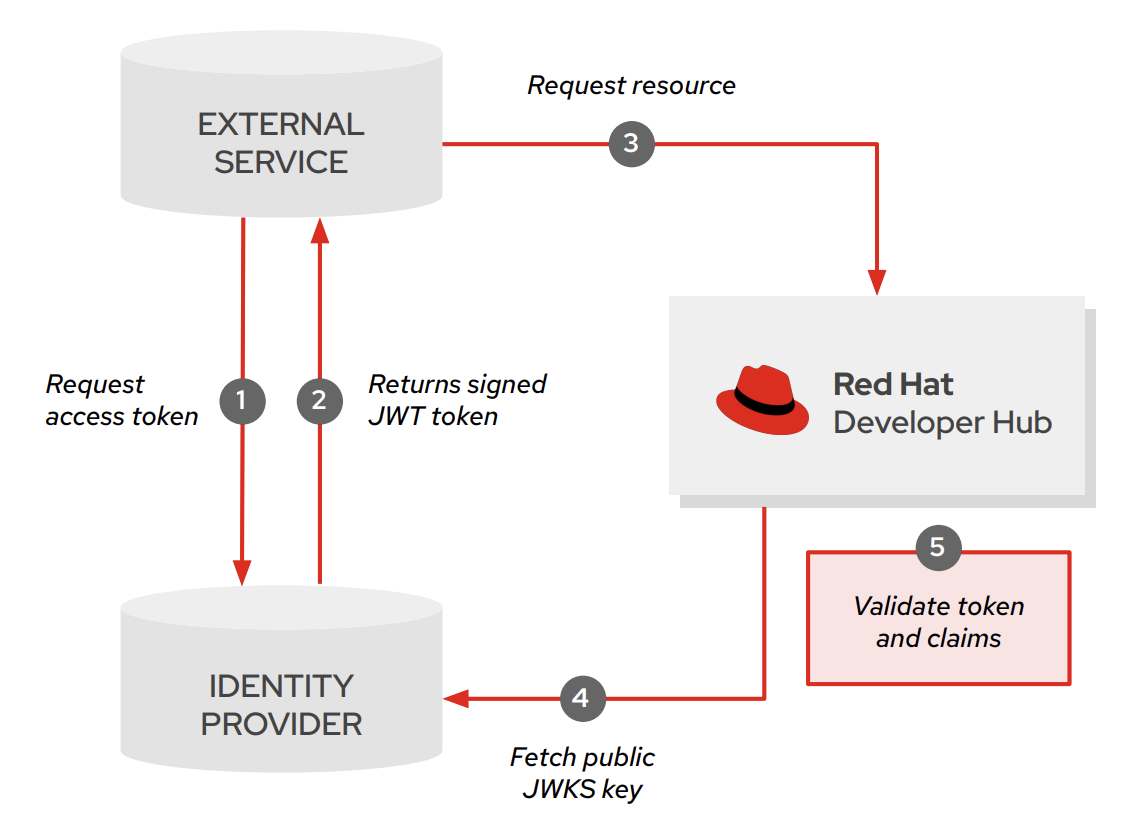
Prerequisites
- You have administrative access to configure Developer Hub in your OpenShift cluster.
- Developer Hub can access a JWKS endpoint available from your Identity Provider.
-
You have configured the external service to obtain a JWT from your Identity Provider and include it in the
Authorizationheader of requests to Developer Hub.
Procedure
Add the JWKS URL to your
app-config.yamlDeveloper Hub configuration file:backend: auth: externalAccess: - type: jwks options: url: <your_jwks_endpoint> algorithm: RS256 issuer: <your_issuer_claim> audience: <your_audience_claim> subjectPrefix: <your_subject_prefix>where:
type-
Enter
jwksto specify that authentication is using JWKS tokens. optionsEnter the configuration options for JWKS authentication.
url-
Enter the URL of your JWKS endpoint, such as
http://your-idp.example.com/well-known/jwks.json. algorithm-
(Optional) Enter the signing algorithm used by your Identity Provider, such as
RS256. issuer-
(Optional) Enter the expected issuer claim in the token
issfield, such ashttp://your-idp.example.com. audience-
(Optional) Enter the expected audience claim in the token
audfield, such asmanagement. subjectPrefix-
(Optional) Enter a prefix to add to the subject claim, and to display in the Audit Log for debugging and tracking purposes, such as
your_prefix.
10.2.7.2.4. Set access restrictions to external service tokens
By default, when you configure service-to-service access in Red Hat Developer Hub, any external service with a valid token has unrestricted access to all backend plugins and actions. To limit the scope of an external service, you can define access restrictions.
Procedure
Restrict access to specific plugins.
For example, to restrict access to the catalog plugin for the static tokens, add the following
accessRestrictionssection to yourapp-config.yamlDeveloper Hub configuration file:backend: auth: externalAccess: - type: static accessRestrictions: - plugin: catalogtype-
Specify whether this is a
jwksorstatictoken. plugin-
Specify the allowed plugin, such as
catalog,scaffolder, ortechdocs.
With this configuration:
-
The token is only allowed to make requests to the
catalogplugin. -
The token has unrestricted access to all actions within the
catalogplugin.
Restrict access by action attributes, to filter permissions based on what kind of action to allow.
List the specific actions defined by the permission, such as
createandread.backend: auth: externalAccess: - type: jwks accessRestrictions: - plugin: catalog permissionAttribute: action: - create - readRestrict access by explicit permission IDs, to control access at the permission rule level.
List the exact ID of the permission to allow.
backend:
  auth:
    externalAccess:
      - type: jwks
        accessRestrictions:
          - plugin: catalog
            permission:
              - catalog.entity.create
              - catalog.entity.read
By choosing between explicit permission IDs and action-based attributes, you can strike the right balance between precision and flexibility depending on your external service needs.
10.2.8. Configure session expiration and auto-logout policies
10.2.8.1. Configure session expiration and auto-logout policies
You can manage how long users stay authenticated in Red Hat Developer Hub by configuring session duration and auto-logout settings.
10.2.8.2. Session management
10.2.8.2.1. Session management
Session management in Red Hat Developer Hub involves multiple mechanisms that control how long users stay authenticated and what happens when sessions expire.
10.2.8.2.2. Understand session management in Developer Hub
Session management in Red Hat Developer Hub involves multiple mechanisms that control how long users stay authenticated and what happens when sessions expire.
10.2.8.2.2.1. What happens when a session expires
When a session approaches expiration, Developer Hub can display a pre-expiration warning dialog that includes a countdown timer. The timing of this warning depends on how you configure the auto-logout feature.
After the session expires, Developer Hub redirects the user to the login page. To continue working, the user must re-authenticate with the configured identity provider and is then returned to Developer Hub.
10.2.8.2.2.2. AutoLogout (frontend inactivity)
The AutoLogout feature monitors user activity in the browser and logs out the user after a configurable idle period. AutoLogout revokes the refresh token for Developer Hub, but does not end the Identity Provider (IdP) session. The logout mechanism is the same as if you manually logout from the user settings page.
You configure AutoLogout under the auth.autologout section of your app-config.yaml file.
10.2.8.2.2.3. Session duration (provider-level)
Session duration controls the absolute session lifetime regardless of user activity. This is a backend HTTP-only cookie configuration. When this duration elapses, no warning popup is displayed. Instead, the user is redirected to the sign-in page the next time they interact with Developer Hub, such as navigating to a new page or refreshing the browser.
You configure session duration per provider by using the auth.providers.<name>.<env>.sessionDuration parameter in your app-config.yaml file. This parameter accepts milliseconds, ISO duration, or human-readable duration values (for example, 24h, 2 days).
10.2.8.2.2.4. Identity Provider session settings
Your Identity Provider (IdP), such as Red Hat Build of Keycloak, GitHub, Microsoft Azure, or GitLab, maintains its own session timeout independently of Developer Hub.
Signing out of Developer Hub does not end the IdP SSO session. This is expected behavior. If the IdP session is still active when a user signs back in to Developer Hub, re-authentication might be seamless, with no password prompt.
10.2.8.2.2.5. How the mechanisms interact
The three session management mechanisms operate at different layers:
- AutoLogout
- Triggers on user inactivity in the browser. Frontend-only: does not revoke tokens or end server-side sessions.
- Session duration
- Controls the absolute session lifetime on the server side. The session expires after the configured duration regardless of user activity. No warning popup is displayed; the user is redirected to the sign-in page on next interaction.
- Identity Provider session
- Outlives Developer Hub sign-out. A user might re-enter Developer Hub without a password prompt if the IdP session is still active.
The mechanism with the shortest timeout takes effect first. For example, if AutoLogout is set to 30 minutes of idle time but the session duration is set to 15 minutes, the session expires after 15 minutes regardless of user activity.
Additional resources
10.2.8.3. Configure session management
You can configure the session duration for your authentication provider in Red Hat Developer Hub.
Prerequisites
- You have administrative access to the Red Hat Developer Hub configuration files.
Procedure
To set the absolute session lifetime for an authentication provider, add the
sessionDurationparameter to yourapp-config.yamlfile:auth: providers: <name>: <env>: sessionDuration: 24hsessionDurationEnter the session lifetime in milliseconds, ISO duration, or human-readable format (for example,
24h,2 days). When this duration elapses, the session expires regardless of user activity.This parameter is not set by default.
- Restart the Red Hat Developer Hub application to apply the changes.
Additional resources
10.2.8.4. Enable auto-logout for inactive users
To enhance security, you can configure Red Hat Developer Hub to automatically log out users after a specified period of inactivity. This helps prevent unauthorized access to stale user sessions.
Prerequisites
Procedure
Add the
auth.autologoutsection to your{my-app-config.yaml}file.auth: autologout: enabled: true idleTimeoutMinutes: 60 promptBeforeIdleSeconds: 10 useWorkerTimers: false logoutIfDisconnected: truewhere:
enabledEnter
trueto enable auto-logout.Enter
falseto disable auto-logout.The default value is
false.idleTimeoutMinutes(Optional) Enter the number of minutes of inactivity before automatically logging out the user.
The default value is
60minutes.promptBeforeIdleSeconds(Optional) Enter the number of seconds before the auto-logout occurs to prompt the user about the pending logout.
The default value is
10seconds.useWorkerTimers(Optional) Enter
falseto use main thread timers, when your browser does not support web workers. Your browser might stop timers in inactive tabs, which can affect the auto-logout functionality.Enter
trueto use web worker timers for tracking user activity, and avoid issues when your browser stops timers in inactive tabs.The default value is
false.logoutIfDisconnected(Optional) Enter
trueto log out the users with no active connection, in case of network issues, or when they have no active Developer Hub tab open in their browser.Enter
falseto keep the user logged in during temporary disconnections, or when they have no active Developer Hub tab open in their browser.The default value is
true.
- Restart the Red Hat Developer Hub application to apply the changes.
Verification
- Log in to the Red Hat Developer Hub application.
-
Remain inactive for the duration specified in
idleTimeoutMinutes. -
Observe that a prompt is displayed before the auto-logout occurs, as specified in
promptBeforeIdleSeconds. - Confirm that you are automatically logged out after the inactivity period.
10.2.8.5. Reduce the size of issued tokens
If user identity tokens grow large and cause HTTP errors, you can use the omitIdentityTokenOwnershipClaim flag to remove the ent claim from the JWT payload and reduce token size.
Procedure
In the
app-config.yamlfile, setomitIdentityTokenOwnershipClaimtotrueas follows:auth: omitIdentityTokenOwnershipClaim: true
10.3. Define authorization policies to restrict access based on user roles
10.3.1. Define authorization policies to restrict access based on user roles
Configure role-based access control (RBAC) to define roles, permissions, and policies for users and groups in Developer Hub.
Role-based access control (RBAC) is a security concept that defines how to control access to resources in a system by specifying a mapping between users of the system and the actions that those users can perform on resources in the system. You can use RBAC to define roles with specific permissions and then assign the roles to users and groups.
RBAC on Developer Hub is built on top of the Permissions framework, which defines RBAC policies in code. Rather than defining policies in code, you can use the Developer Hub RBAC feature to define policies in a declarative fashion by using a simple CSV based format. You can define the policies by using Developer Hub web interface or REST API instead of editing the CSV directly.
An administrator can define authorizations in Developer Hub by taking the following steps:
- Enable the RBAC feature and give authorized users access to the feature.
Define roles and policies by combining the following methods:
- The Developer Hub policy administrator uses the Developer Hub web interface or REST API.
- The Developer Hub administrator edits the main Developer Hub configuration file.
- The Developer Hub administrator edits external files.
10.3.2. Enable and give access to the role-based access control (RBAC) feature
Enable the RBAC plugin and declare policy administrators to manage permissions and access the RBAC REST API and Web UI.
The role-based access control (RBAC) feature is disabled by default. Enable the RBAC plugin and declare policy administrators to start using RBAC features.
The permission policies for users and groups in the Developer Hub are managed by permission policy administrators. Only permission policy administrators can access the RBAC REST API.
Prerequisites
Procedure
The RBAC plugin is installed but disabled by default. To enable the
./dynamic-plugins/dist/backstage-community-plugin-rbacplugin, edit yourdynamic-plugins.yamlwith the following content.dynamic-plugins.yamlfragmentplugins: - package: ./dynamic-plugins/dist/backstage-community-plugin-rbac disabled: falseSee Installing and viewing plugins in Red Hat Developer Hub.
Declare policy administrators to enable a select number of authenticated users to configure RBAC policies through the REST API or Web UI, instead of changing the CSV file directly.
The permissions can be specified in a separate CSV file referenced in your
my-rhdh-app-configconfig map, or permissions can be created using the REST API or Web UI.To declare users such as <your_policy_administrator_name> as policy administrators, edit your custom Developer Hub ConfigMap, such as
app-config-rhdh, and add following code to theapp-config.yamlcontent:app-config.yamlfragmentpermission: enabled: true rbac: admin: users: - name: user:default/<your_policy_administrator_name>To display the available permissions provided by installed plugins in the Developer Hub UI, you must supply the corresponding list of plugin IDs. There are two ways to do this, by updating your application configuration or by using the RBAC REST API permissions endpoint.
To supply plugins by updating your application configuration, you can specify the plugins with permissions in your
app-config.yamlfile as follows:app-config.yamlfragmentpermission: enabled: true rbac: admin: users: - name: user:default/<your_policy_administrator_name> pluginsWithPermission: - catalog - scaffolder - permission- To specify the plugins with permissions by using the RBAC REST API permissions endpoint, see the RBAC REST API permissions endpoint.
Verification
- Sign out from the existing Red Hat Developer Hub session and log in again using the declared policy administrator account.
With RBAC enabled, most features are disabled by default.
- Navigate to the Catalog page in RHDH. The Create button is not visible. You cannot create new components.
- Navigate to the API page. The Register button is not visible.
Next steps
- Explicitly enable permissions to resources in Developer Hub.
10.3.3. Determine permission policy and role configuration source
Identify the source of permission policies and roles to keep data consistency and find which source controls each resource.
You can configure Red Hat Developer Hub policy and roles by using different sources. To keep data consistency, Developer Hub associates each permission policy and role with one unique source. You can only use this source to change the resource.
The available sources are:
- Configuration file
Configure roles and policies in the Developer Hub
app-config.yamlconfiguration file, for instance to declare your policy administrators.The Configuration file pertains to the default
role:default/rbac_adminrole provided by the RBAC plugin. The default role has limited permissions to create, read, update, delete permission policies or roles, and to read catalog entities.NoteIn case the default permissions are insufficient for your administrative requirements, you can create a custom admin role with the required permission policies.
- REST API
- Configure roles and policies by using the Developer Hub Web UI or by using the REST API.
- CSV file
- Configure roles and policies by using external CSV files.
- Legacy
The legacy source applies to policies and roles defined before RBAC backend plugin version
2.1.3, and is the least restrictive among the source location options.ImportantReplace the permissions and roles using the legacy source with the permissions using the REST API or the CSV file sources.
Procedure
-
To find the source of a role or policy, use a
GETrequest.
10.3.4. Design your policy rules
Design policy rules carefully to avoid permission conflicts and unintended access denials in Developer Hub.
Carefully design your policies to avoid permission conflicts that can result in unintended access denials.
Red Hat Developer Hub applies policies as follows:
-
The default policy is
deny. - A conditional rule overrides a basic rule.
-
A
denybasic rule overrides anallowbasic rule. -
An
allowconditional rule overrides adenybasic rule. -
A
denyconditional rule overrides anallowconditional rule.
Procedure
-
Use
allowrules to explicitly allow access. -
Avoid creating
denyrules unless you know precisely how they can affect existing basicallowrules and existing conditional rules.
10.3.5. Manage roles using the Web UI
10.3.5.1. Manage roles using the Web UI
Use the Developer Hub Web UI to create, modify, and delete roles and assign permissions to users and groups.
Policy administrators can use the Developer Hub web interface (Web UI) to assign specific roles and permissions to individual users or groups. Assigning roles ensures that access to resources and functionalities is regulated across the Developer Hub.
With the policy administrator role in Developer Hub, you can assign permissions to users and groups. This role allows you to view, create, change, and delete the roles by using the Developer Hub Web UI.
10.3.5.2. Create a role in the Red Hat Developer Hub Web UI
Create a role in Developer Hub by using the Web UI to define permissions, users, and groups.
You can create a role in the Red Hat Developer Hub using the Web UI.
Prerequisites
-
If RBAC is enabled, you have a role with the following permissions:
policy.entity.create,policy.entity.read,catalog.entity.read.
Procedure
Go to Administration at the bottom of the sidebar in the Developer Hub.
The RBAC tab is displayed, showing all the created roles in the Developer Hub.
- (Optional) Click any role to view the role information on the OVERVIEW page.
- Click CREATE to create a role.
- Enter the name and description of the role in the given fields and click NEXT.
- Add users and groups using the search field, and click NEXT.
- Select Plugin and Permission from the drop-downs in the Add permission policies section.
- Select or clear the Policy that you want to set in the Add permission policies section, and click NEXT.
- Review the added information in the Review and create section.
- Click CREATE.
Verification
The created role is displayed in the list available in the RBAC tab.
10.3.5.3. Edit a role in the Red Hat Developer Hub Web UI
Edit a role in Developer Hub by using the Web UI to change role details, users, groups, and permission policies.
You can edit a role in the Red Hat Developer Hub using the Web UI.
The policies generated from a policy.csv or ConfigMap file cannot be edited or deleted using the Developer Hub Web UI.
Prerequisites
-
If RBAC is enabled, you have a role with the following permissions:
policy.entity.update,policy.entity.read,catalog.entity.read. - The role that you want to edit is created in the Developer Hub.
Procedure
Go to Administration at the bottom of the sidebar in the Developer Hub.
The RBAC tab is displayed, showing all the created roles in the Developer Hub.
- (Optional) Click any role to view the role information on the OVERVIEW page.
- Select the edit icon for the role that you want to edit.
- Edit the details of the role, such as name, description, users and groups, and permission policies, and click NEXT.
- Review the edited details of the role and click SAVE.
Verification
- After saving the changes, you can view the edited details of the role on the OVERVIEW page of the role.
- You can also edit a role’s users and groups or permissions by using the edit icon on the Users and Groups or Permissions cards on the OVERVIEW page.
10.3.5.4. Delete a role in the Red Hat Developer Hub Web UI
Delete a role in Developer Hub by using the Web UI to remove roles that are no longer needed.
You can delete a role in the Red Hat Developer Hub using the Web UI.
The policies generated from a policy.csv or ConfigMap file cannot be edited or deleted using the Developer Hub Web UI.
Prerequisites
-
If RBAC is enabled, you have a role with the following permissions:
policy.entity.delete,policy.entity.read,catalog.entity.read. - The role that you want to delete is created in the Developer Hub.
Procedure
Go to Administration at the bottom of the sidebar in the Developer Hub.
The RBAC tab is displayed, showing all the created roles in the Developer Hub.
- (Optional) Click any role to view the role information on the OVERVIEW page.
Select the delete icon from the Actions column for the role that you want to delete.
The Delete this role? pop-up is displayed on the screen.
- Click DELETE.
10.3.6. Manage policies using the REST API
10.3.6.1. Manage policies using the REST API
Automate the maintenance of permission policies and roles by using the Developer Hub RBAC REST API.
To automate the maintenance of Red Hat Developer Hub permission policies and roles, you can use Developer Hub role-based access control (RBAC) REST API.
You can perform the following actions with the REST API:
Retrieve information about:
- All permission policies
- Specific permission policies
- Specific roles
- Static plugins permission policies
Create, update, or delete:
- Permission policy
- Role
10.3.6.2. Send requests to the RBAC REST API by using the curl utility
Send RBAC REST API requests by using the curl utility to create, update, and delete roles and permission policies.
You can send RBAC REST API requests by using the curl utility.
Prerequisites
Procedure
Find your Bearer token to authenticate to the REST API.
- In your browser, open the web console Network tab.
- In the main screen, reload the Developer Hub Homepage.
-
In the web console Network tab, search for the
query?term=network call. - Save the token in the response JSON for the next steps.
In a terminal, run the curl command and review the response:
GETrequest, orDELETErequest not requiring JSON body dataEnter a curl command with the following parameters and review the response:
$ curl -v \
  -H "Authorization: Bearer <token>" \
  -X <method> "https://<my_developer_hub_domain>/<endpoint>" \
POSTorPUTrequest, orDELETErequest requiring JSON body dataEnter a curl command with the following parameters and review the response:
$ curl -v -H "Content-Type: application/json" \
  -H "Authorization: Bearer <token>" \
  -X <method> "https://<my_developer_hub_domain>/<endpoint>" \
  -d <body>
- <token>
- Enter your saved authorization token.
- <method>
Enter the HTTP method for your API endpoint.
GET- To retrieve specified information from a specified resource endpoint.
POST- To create or update a resource.
PUT- To update a resource.
DELETE- To delete a resource.
- https://<my_developer_hub_domain>
- Enter your Developer Hub URL.
- <endpoint>
-
Enter the API endpoint to which you want to send a request, such as
/api/permission/policies. - <body>
Enter the JSON body with data that your API endpoint requires with the HTTP
POST, orPUTrequest, and might require with the HTTPDELETErequest.To create a role:
$ curl -v -H "Content-Type: application/json" \
  -H "Authorization: Bearer <token>" \
  -X POST "https://<my_developer_hub_domain>/api/permission/roles" \
  -d '{
      "memberReferences": ["group:default/example"],
      "name": "role:default/test",
      "metadata": { "description": "This is a test role" }
    }'
To update a role:
$ curl -v -H "Content-Type: application/json" \
  -H "Authorization: Bearer <token>" \
  -X PUT "https://<my_developer_hub_domain>/api/permission/roles/role/default/test" \
  -d '{
          "oldRole": {
            "memberReferences":  [ "group:default/example" ],
            "name": "role:default/test"
          },
          "newRole": {
            "memberReferences": [ "group:default/example", "user:default/test" ],
            "name": "role:default/test"
          }
        }'
To create a permission policy:
$ curl -v -H "Content-Type: application/json" \
  -H "Authorization: Bearer $token" \
  -X POST "https://<my_developer_hub_domain>/api/permission/policies" \
  -d '[{
      "entityReference":"role:default/test",
      "permission": "catalog-entity",
      "policy": "read", "effect":"allow"
    }]'
To update a permission policy:
$ curl -v -H "Content-Type: application/json" \
  -H "Authorization: Bearer $token" \
  -X PUT "https://<my_developer_hub_domain>/api/permission/policies/role/default/test" \
  -d '{
         "oldPolicy": [
           {
             "permission": "catalog-entity", "policy": "read", "effect": "allow"
           }
         ],
         "newPolicy":
           [
             {
               "permission": "policy-entity", "policy": "read", "effect": "allow"
             }
           ]
       }'
To create a condition:
$ curl -v -H "Content-Type: application/json" \
  -H "Authorization: Bearer $token" \
  -X POST "https://<my_developer_hub_domain>/api/permission/roles/conditions" \
  -d '{
      "result": "CONDITIONAL",
      "roleEntityRef": "role:default/test",
      "pluginId": "catalog",
      "resourceType": "catalog-entity",
      "permissionMapping": ["read"],
      "conditions": {
        "rule": "IS_ENTITY_OWNER",
        "resourceType": "catalog-entity",
        "params": {"claims": ["group:default/janus-authors"]}
      }
    }'
To update a condition:
$ curl -v -H "Content-Type: application/json" \
  -H "Authorization: Bearer $token" \
  -X PUT "https://<my_developer_hub_domain>/api/permission/roles/conditions/1" \
  -d '{
          "result":"CONDITIONAL",
          "roleEntityRef":"role:default/test",
          "pluginId":"catalog",
          "resourceType":"catalog-entity",
          "permissionMapping": ["read",  "update", "delete"],
          "conditions": {
            "rule": "IS_ENTITY_OWNER",
            "resourceType": "catalog-entity",
            "params": {"claims": ["group:default/janus-authors"]}
          }
       }'
Verification
Review the returned HTTP status code:
200OK- The request was successful.
201Created- The request resulted in a new resource being successfully created.
204No Content- The request was successful, and the response payload has no more content.
400Bad Request- Input error with the request.
401Unauthorized- Lacks valid authentication for the requested resource.
403Forbidden- Refusal to authorize request.
404Not Found- Could not find requested resource.
409Conflict- Request conflict with the current state and the target resource.
10.3.6.3. Send requests to the RBAC REST API by using a REST client
Send RBAC REST API requests by using any REST client with authorization tokens and appropriate HTTP methods.
You can send RBAC REST API requests by using any REST client.
Prerequisites
Procedure
Find your Bearer token to authenticate to the REST API.
- In your browser, open the web console Network tab.
- In the main screen, reload the Developer Hub Homepage.
-
In the web console Network tab, search for the
query?term=network call. - Save the token in the response JSON for the next steps.
In your REST client, run a command with the following parameters and review the response:
- Authorization
- Enter your saved authorization token.
- HTTP method
Enter the HTTP method for your API endpoint.
GET- To retrieve specified information from a specified resource endpoint.
POST- To create or update a resource.
PUT- To update a resource.
DELETE- To delete a resource.
- URL
-
Enter your Developer Hub URL and API endpoint: https://<my_developer_hub_domain>/<endpoint>, such as
https://<my_developer_hub_domain>/api/permission/policies. - Body
-
Enter the JSON body with data that your API endpoint might need with the HTTP
POSTrequest.
10.3.6.4. Send requests to the RBAC REST API by using an external service
Send GET requests to the RBAC REST API from an external service authenticated with a service-to-service token.
You can send GET requests to the RBAC REST API by using an external service authenticated by using a service-to-service token.
Prerequisites
- You have access to the RBAC feature.
- The external service can send HTTP GET requests, and is authenticated by using a service-to-service token.
Procedure
-
The external service sends a GET request to the RBAC REST API with the service-to-service token in the
Authorizationheader. - The RBAC REST API validates the service-to-service token, and then processes the request if the token is valid. Otherwise, the RBAC REST API returns an error response.
- The RBAC REST API returns the response to the external service.
- The external service processes the response from the RBAC REST API.
10.3.6.5. Supported REST API endpoints
10.3.6.5.1. Supported REST API endpoints
Reference information about the supported RBAC REST API endpoints for managing roles, permission policies, conditional policies, and user statistics in Developer Hub.
10.3.6.5.2. Supported RBAC REST API endpoints
Reference information about RBAC REST API endpoints for managing roles, permissions, and conditional policies.
The RBAC REST API provides endpoints for managing roles, permissions, and conditional policies in the Developer Hub and for retrieving information about the roles and policies.
10.3.6.5.2.1. Roles
The RBAC REST API supports the following endpoints for managing roles in the Red Hat Developer Hub.
- [GET] /api/permission/roles
Returns all roles in Developer Hub.
Example response (JSON):
[ { "memberReferences": ["user:default/username"], "name": "role:default/guests" }, { "memberReferences": [ "group:default/groupname", "user:default/username" ], "name": "role:default/rbac_admin" } ]- [GET] /api/permission/roles/<kind>/<namespace>/<name>
Returns information for a single role in Developer Hub.
Example response (JSON):
[ { "memberReferences": [ "group:default/groupname", "user:default/username" ], "name": "role:default/rbac_admin" } ]- [POST] /api/permission/roles/<kind>/<namespace>/<name>
- Creates a role in Developer Hub.
| Name | Description | Type | Presence |
|---|---|---|---|
|
|
The |
Request body |
Required |
Example request body (JSON):
+
{
  "memberReferences": ["group:default/test"],
  "name": "role:default/test_admin"
}
Example response:
+
201 Created
- [PUT] /api/permission/roles/<kind>/<namespace>/<name>
-
Updates
memberReferences,kind,namespace, ornamefor a role in Developer Hub.
Request parameters: The request body contains the oldRole and newRole objects:
| Name | Description | Type | Presence |
|---|---|---|---|
|
|
The |
Request body |
Required |
Example request body (JSON):
+
{
  "oldRole": {
    "memberReferences": ["group:default/test"],
    "name": "role:default/test_admin"
  },
  "newRole": {
    "memberReferences": ["group:default/test", "user:default/test2"],
    "name": "role:default/test_admin"
  }
}
Example response:
+
200 OK
- [DELETE] /api/permission/roles/<kind>/<namespace>/<name>?memberReferences=<VALUE>
- Deletes the specified user or group from a role in Developer Hub.
| Name | Description | Type | Presence |
|---|---|---|---|
|
|
Kind of the entity |
String |
Required |
|
|
Namespace of the entity |
String |
Required |
|
|
Name of the entity |
String |
Required |
|
|
Associated group information |
String |
Required |
Example response:
+
204
- [DELETE] /api/permission/roles/<kind>/<namespace>/<name>
- Deletes a specified role from Developer Hub.
| Name | Description | Type | Presence |
|---|---|---|---|
|
|
Kind of the entity |
String |
Required |
|
|
Namespace of the entity |
String |
Required |
|
|
Name of the entity |
String |
Required |
Example response:
+
204
10.3.6.5.2.2. Permission policies
The RBAC REST API supports the following endpoints for managing permission policies in the Red Hat Developer Hub.
- [GET] /api/permission/policies
- Returns permission policies list for all users.
Example response (JSON):
+
[
  {
    "entityReference": "role:default/test",
    "permission": "catalog-entity",
    "policy": "read",
    "effect": "allow",
    "metadata": {
      "source": "csv-file"
    }
  },
  {
    "entityReference": "role:default/test",
    "permission": "catalog.entity.create",
    "policy": "use",
    "effect": "allow",
    "metadata": {
      "source": "csv-file"
    }
  },
]- [GET] /api/permission/policies/<kind>/<namespace>/<name>
- Returns permission policies related to the specified entity reference.
| Name | Description | Type | Presence |
|---|---|---|---|
|
|
Kind of the entity |
String |
Required |
|
|
Namespace of the entity |
String |
Required |
|
|
Name related to the entity |
String |
Required |
Example response (JSON):
+
[
  {
    "entityReference": "role:default/test",
    "permission": "catalog-entity",
    "policy": "read",
    "effect": "allow",
    "metadata": {
      "source": "csv-file"
    }
  },
  {
    "entityReference": "role:default/test",
    "permission": "catalog.entity.create",
    "policy": "use",
    "effect": "allow",
    "metadata": {
      "source": "csv-file"
    }
  }
]- [POST] /api/permission/policies
- Creates a permission policy for a specified entity.
| Name | Description | Type | Presence |
|---|---|---|---|
|
|
Reference values of an entity including |
String |
Required |
|
|
Permission from a specific plugin, resource type, or name |
String |
Required |
|
|
Policy action for the permission, such as |
String |
Required |
|
|
Indication of allowing or not allowing the policy |
String |
Required |
Example request body (JSON):
+
[
  {
    "entityReference": "role:default/test",
    "permission": "catalog-entity",
    "policy": "read",
    "effect": "allow"
  }
]
Example response:
+
201 Created
- [PUT] /api/permission/policies/<kind>/<namespace>/<name>
- Updates a permission policy for a specified entity.
Request parameters: The request body contains the oldPolicy and newPolicy objects:
| Name | Description | Type | Presence |
|---|---|---|---|
|
|
Permission from a specific plugin, resource type, or name |
String |
Required |
|
|
Policy action for the permission, such as |
String |
Required |
|
|
Indication of allowing or not allowing the policy |
String |
Required |
Example request body (JSON):
+
{
  "oldPolicy": [
    {
      "permission": "catalog-entity",
      "policy": "read",
      "effect": "allow"
    },
    {
      "permission": "catalog.entity.create",
      "policy": "create",
      "effect": "allow"
    }
  ],
  "newPolicy": [
    {
      "permission": "catalog-entity",
      "policy": "read",
      "effect": "deny"
    },
    {
      "permission": "policy-entity",
      "policy": "read",
      "effect": "allow"
    }
  ]
}
Example response:
+
200
- [DELETE] /api/permission/policies/<kind>/<namespace>/<name>?permission={value1}&policy={value2}&effect={value3}
- Deletes a permission policy added to the specified entity.
| Name | Description | Type | Presence |
|---|---|---|---|
|
|
Kind of the entity |
String |
Required |
|
|
Namespace of the entity |
String |
Required |
|
|
Name related to the entity |
String |
Required |
|
|
Permission from a specific plugin, resource type, or name |
String |
Required |
|
|
Policy action for the permission, such as |
String |
Required |
|
|
Indication of allowing or not allowing the policy |
String |
Required |
Example response:
+
204 No Content
- [DELETE] /api/permission/policies/<kind>/<namespace>/<name>
- Deletes all permission policies added to the specified entity.
| Name | Description | Type | Presence |
|---|---|---|---|
|
|
Kind of the entity |
String |
Required |
|
|
Namespace of the entity |
String |
Required |
|
|
Name related to the entity |
String |
Required |
Example request body (JSON):
+
[
  {
    "entityReference": "role:default/test",
    "permission": "catalog-entity",
    "policy": "delete",
    "effect": "allow"
  },
  {
    "entityReference": "role:default/test",
    "permission": "catalog-entity",
    "policy": "update",
    "effect": "allow"
  }
]
Example response:
+
204 No Content
- [GET] /api/permission/plugins/policies
- Returns permission policies for all static plugins.
Example response (JSON):
+
[
  {
    "pluginId": "catalog",
    "policies": [
      {
        "isResourced": true,
        "permission": "catalog-entity",
        "policy": "read"
      },
      {
        "isResourced": false,
        "permission": "catalog.entity.create",
        "policy": "create"
      },
      {
        "isResourced": true,
        "permission": "catalog-entity",
        "policy": "delete"
      },
      {
        "isResourced": true,
        "permission": "catalog-entity",
        "policy": "update"
      },
      {
        "isResourced": false,
        "permission": "catalog.location.read",
        "policy": "read"
      },
      {
        "isResourced": false,
        "permission": "catalog.location.create",
        "policy": "create"
      },
      {
        "isResourced": false,
        "permission": "catalog.location.delete",
        "policy": "delete"
      }
    ]
  },
  ...
]- [GET] /api/permission/plugins/id
- Returns object with list plugin IDs:
Example response (JSON):
+
[
  {
    "ids": ["catalog", "permission"]
  }
]- [POST] /api/permission/plugins/id
- Add more plugins IDs defined in the request object.
Request Parameters: object in JSON format.
Example request body (JSON):
+
[
  {
    "ids": ["scaffolder"]
  }
]
Returns a status code of 200 and JSON with actual object stored in the server:
Example response (JSON):
+
[
  {
    "ids": ["catalog", "permission", "scaffolder"]
  }
]- [DELETE] /api/permission/plugins/id
- Delete plugins IDs defined in the request object.
Request Parameters: object in JSON format.
Example request body (JSON):
+
[
  {
    "ids": ["scaffolder"]
  }
]
Returns a status code of 200 and JSON with actual object stored in the server:
Example response (JSON):
+
[
  {
    "ids": ["catalog", "permission"]
  }
]To prevent an inconsistent state after a deployment restart, the REST API does not allow deletion of plugin IDs that were provided by using the application configuration. These ID values can only be removed through the configuration file.
10.3.6.5.2.3. Conditional policies
The RBAC REST API supports the following endpoints for managing conditional policies in the Red Hat Developer Hub.
- [GET] /api/permission/plugins/condition-rules
- Returns available conditional rule parameter schemas for the available plugins that are enabled in Developer Hub.
Example response (JSON):
+
[
   {
      "pluginId": "catalog",
      "rules": [
         {
            "name": "HAS_ANNOTATION",
            "description": "Allow entities with the specified annotation",
            "resourceType": "catalog-entity",
            "paramsSchema": {
               "type": "object",
               "properties": {
                  "annotation": {
                     "type": "string",
                     "description": "Name of the annotation to match on"
                  },
                  "value": {
                     "type": "string",
                     "description": "Value of the annotation to match on"
                  }
               },
               "required": [
                  "annotation"
               ],
               "additionalProperties": false,
               "$schema": "http://json-schema.org/draft-07/schema#"
            }
         },
         {
            "name": "HAS_LABEL",
            "description": "Allow entities with the specified label",
            "resourceType": "catalog-entity",
            "paramsSchema": {
               "type": "object",
               "properties": {
                  "label": {
                     "type": "string",
                     "description": "Name of the label to match on"
                  }
               },
               "required": [
                  "label"
               ],
               "additionalProperties": false,
               "$schema": "http://json-schema.org/draft-07/schema#"
            }
         },
         {
            "name": "HAS_METADATA",
            "description": "Allow entities with the specified metadata subfield",
            "resourceType": "catalog-entity",
            "paramsSchema": {
               "type": "object",
               "properties": {
                  "key": {
                     "type": "string",
                     "description": "Property within the entities metadata to match on"
                  },
                  "value": {
                     "type": "string",
                     "description": "Value of the given property to match on"
                  }
               },
               "required": [
                  "key"
               ],
               "additionalProperties": false,
               "$schema": "http://json-schema.org/draft-07/schema#"
            }
         },
         {
            "name": "HAS_SPEC",
            "description": "Allow entities with the specified spec subfield",
            "resourceType": "catalog-entity",
            "paramsSchema": {
               "type": "object",
               "properties": {
                  "key": {
                     "type": "string",
                     "description": "Property within the entities spec to match on"
                  },
                  "value": {
                     "type": "string",
                     "description": "Value of the given property to match on"
                  }
               },
               "required": [
                  "key"
               ],
               "additionalProperties": false,
               "$schema": "http://json-schema.org/draft-07/schema#"
            }
         },
         {
            "name": "IS_ENTITY_KIND",
            "description": "Allow entities matching a specified kind",
            "resourceType": "catalog-entity",
            "paramsSchema": {
               "type": "object",
               "properties": {
                  "kinds": {
                     "type": "array",
                     "items": {
                        "type": "string"
                     },
                     "description": "List of kinds to match at least one of"
                  }
               },
               "required": [
                  "kinds"
               ],
               "additionalProperties": false,
               "$schema": "http://json-schema.org/draft-07/schema#"
            }
         },
         {
            "name": "IS_ENTITY_OWNER",
            "description": "Allow entities owned by a specified claim",
            "resourceType": "catalog-entity",
            "paramsSchema": {
               "type": "object",
               "properties": {
                  "claims": {
                     "type": "array",
                     "items": {
                        "type": "string"
                     },
                     "description": "List of claims to match at least one on within ownedBy"
                  }
               },
               "required": [
                  "claims"
               ],
               "additionalProperties": false,
               "$schema": "http://json-schema.org/draft-07/schema#"
            }
         }
      ]
   }
   ... <another plugin condition parameter schemas>
]- [GET] /api/permission/roles/conditions/:id
- Returns conditions for the specified ID.
Example response (JSON):
+
{
  "id": 1,
  "result": "CONDITIONAL",
  "roleEntityRef": "role:default/test",
  "pluginId": "catalog",
  "resourceType": "catalog-entity",
  "permissionMapping": ["read"],
  "conditions": {
    "anyOf": [
      {
        "rule": "IS_ENTITY_OWNER",
        "resourceType": "catalog-entity",
        "params": {
          "claims": ["group:default/team-a"]
        }
      },
      {
        "rule": "IS_ENTITY_KIND",
        "resourceType": "catalog-entity",
        "params": {
          "kinds": ["Group"]
        }
      }
    ]
  }
}- [GET] /api/permission/roles/conditions
- Returns list of all conditions for all roles.
Example response (JSON):
+
[
  {
    "id": 1,
    "result": "CONDITIONAL",
    "roleEntityRef": "role:default/test",
    "pluginId": "catalog",
    "resourceType": "catalog-entity",
    "permissionMapping": ["read"],
    "conditions": {
      "anyOf": [
        {
          "rule": "IS_ENTITY_OWNER",
          "resourceType": "catalog-entity",
          "params": {
            "claims": ["group:default/team-a"]
          }
        },
        {
          "rule": "IS_ENTITY_KIND",
          "resourceType": "catalog-entity",
          "params": {
            "kinds": ["Group"]
          }
        }
      ]
    }
  }
]- [POST] /api/permission/roles/conditions
- Creates a conditional policy for the specified role.
| Name | Description | Type | Presence |
|---|---|---|---|
|
|
Always has the value |
String |
Required |
|
|
String entity reference to the RBAC role, such as |
String |
Required |
|
|
Corresponding plugin ID, such as |
String |
Required |
|
|
Array permission action, such as |
String array |
Required |
|
|
Resource type provided by the plugin, such as |
String |
Required |
|
|
Condition JSON with parameters or array parameters joined by criteria |
JSON |
Required |
|
|
Name of the role |
String |
Required |
|
|
The description of the role |
String |
Optional |
Example request body (JSON):
+
{
  "result": "CONDITIONAL",
  "roleEntityRef": "role:default/test",
  "pluginId": "catalog",
  "resourceType": "catalog-entity",
  "permissionMapping": ["read"],
  "conditions": {
    "rule": "IS_ENTITY_OWNER",
    "resourceType": "catalog-entity",
    "params": {
      "claims": ["group:default/team-a"]
    }
  }
}
Example response (JSON):
+
{
  "id": 1
}- [PUT] /permission/roles/conditions/:id
- Updates a condition policy for a specified ID.
| Name | Description | Type | Presence |
|---|---|---|---|
|
|
Always has the value |
String |
Required |
|
|
String entity reference to the RBAC role, such as |
String |
Required |
|
|
Corresponding plugin ID, such as |
String |
Required |
|
|
Array permission action, such as |
String array |
Required |
|
|
Resource type provided by the plugin, such as |
String |
Required |
|
|
Condition JSON with parameters or array parameters joined by criteria |
JSON |
Required |
|
|
Name of the role |
String |
Required |
|
|
The description of the role |
String |
Optional |
Example request body (JSON):
+
{
  "result": "CONDITIONAL",
  "roleEntityRef": "role:default/test",
  "pluginId": "catalog",
  "resourceType": "catalog-entity",
  "permissionMapping": ["read"],
  "conditions": {
    "anyOf": [
      {
        "rule": "IS_ENTITY_OWNER",
        "resourceType": "catalog-entity",
        "params": {
          "claims": ["group:default/team-a"]
        }
      },
      {
        "rule": "IS_ENTITY_KIND",
        "resourceType": "catalog-entity",
        "params": {
          "kinds": ["Group"]
        }
      }
    ]
  }
}
Example response:
+
200
- [DELETE] /api/permission/roles/conditions/:id
- Deletes a conditional policy for the specified ID.
Example response:
+
204
10.3.6.5.2.4. User statistics
The licensed-users-info-backend plugin exposes various REST API endpoints to retrieve data related to logged-in users.
No additional configuration is required for the licensed-users-info-backend plugin. If the RBAC backend plugin is enabled, then an administrator role must be assigned to access the endpoints, as the endpoints are protected by the policy.entity.read permission.
The base URL for user statistics endpoints is http://SERVER:PORT/api/licensed-users-info, such as http://localhost:7007/api/licensed-users-info.
- [GET] /users/quantity
- Returns the total number of logged-in users.
Example request:
+
curl -X GET "http://localhost:7007/api/licensed-users-info/users/quantity" \
-H "Content-Type: application/json" \
-H "Authorization: Bearer $token"
Example response:
+
{ "quantity": "2" }- [GET] /users
- Returns a list of logged-in users with their details.
Example request:
+
curl -X GET "http://localhost:7007/api/licensed-users-info/users" \
-H "Content-Type: application/json" \
-H "Authorization: Bearer $token"
Example response:
+
[
  {
    "userEntityRef": "user:default/dev",
    "lastTimeLogin": "Thu, 22 Aug 2024 16:27:41 GMT",
    "displayName": "John Leavy",
    "email": "dev@redhat.com"
  }
]- [GET] /users
- Returns a list of logged-in users in CSV format.
Example request:
+
curl -X GET "http://localhost:7007/api/licensed-users-info/users" \
-H "Content-Type: text/csv" \
-H "Authorization: Bearer $token"
Example response:
+
userEntityRef,displayName,email,lastTimeLogin
user:default/dev,John Leavy,dev@redhat.com,"Thu, 22 Aug 2024 16:27:41 GMT"
10.3.6.5.3. User statistics in Red Hat Developer Hub
Monitor active user counts and download user lists by using the licensed-users-info-backend plugin for licensing transparency.
In Red Hat Developer Hub, the licensed-users-info-backend plugin provides statistical information about the logged-in users by using the Web UI or REST API endpoints.
The licensed-users-info-backend plugin enables administrators to monitor the number of active users on Developer Hub. Using this feature, organizations can compare their actual usage with the number of licenses they have purchased. Additionally, you can share the user metrics with Red Hat for transparency and exact licensing.
The licensed-users-info-backend plugin is enabled by default. This plugin enables a Download User List link at the bottom of the Administration → RBAC tab.
10.3.7. Define policies in external files to provision permissions during cluster deployment
10.3.7.1. Define policies in external files to provision permissions during cluster deployment
Configure permissions and roles in external files before starting Developer Hub to automate maintenance.
To automate Red Hat Developer Hub maintenance, you can configure permissions and roles in external files, before starting Developer Hub.
10.3.7.2. Define authorizations in external files by using the Operator
Define permissions and roles in external CSV and YAML files and configure Developer Hub to use them with the Operator.
To automate Red Hat Developer Hub maintenance, you can define permissions and roles in external files, before starting Developer Hub. You need to prepare your files, upload them to your OpenShift Container Platform project, and configure Developer Hub to use the external files.
Prerequisites
Procedure
Define your policies in a
rbac-policies.csvCSV file by using the following format:Define role permissions:
p, <role_entity_reference>, <permission>, <action>, <allow_or_deny>
- <role_entity_reference>
-
Role entity reference, such as:
role:default/guest. - <permission>
Permission, such as:
bulk.import,catalog.entity.read, orcatalog.entity.refresh, or permission resource type, such as:bulk-importorcatalog-entity.- <action>
-
Action type, such as:
use,read,create,update,delete. - <allow_or_deny>
-
Access granted:
allowordeny.
Assign the role to a group or a user:
g, <group_or_user>, <role_entity_reference>
- <group_or_user>
Group, such as:
user:default/mygroup, or user, such as:user:default/myuser.p, role:default/guests, catalog-entity, read, allow p, role:default/guests, catalog.entity.create, create, allow g, user:default/my-user, role:default/guests g, group:default/my-group, role:default/guests
Define your conditional policies in a
rbac-conditional-policies.yamlYAML file by using the following format:result: CONDITIONAL roleEntityRef: <role_entity_reference> pluginId: <plugin_id> permissionMapping: - read - update - delete conditions: <conditions>
Upload your
rbac-policies.csvandrbac-conditional-policies.yamlfiles to arbac-policiesconfig map in your OpenShift Container Platform project containing Developer Hub.$ oc create configmap rbac-policies \ --from-file=rbac-policies.csv \ --from-file=rbac-conditional-policies.yamlUpdate your
Backstagecustom resource to mount in the Developer Hub filesystem your files from therbac-policiesconfig map:apiVersion: rhdh.redhat.com/v1alpha5 kind: Backstage spec: application: extraFiles: mountPath: /opt/app-root/src configMaps: - name: rbac-policiesUpdate your Developer Hub
app-config.yamlconfiguration file to use therbac-policies.csvandrbac-conditional-policies.yamlexternal files:permission: enabled: true rbac: conditionalPoliciesFile: /opt/app-root/src/rbac-conditional-policies.yaml policies-csv-file: /opt/app-root/src/rbac-policies.csv policyFileReload: true
10.3.7.3. Define authorizations in external files by using Helm
Define permissions and roles in external CSV and YAML files and configure Developer Hub to use them with Helm.
To automate Red Hat Developer Hub maintenance, you can define permissions and roles in external files, before starting Developer Hub. You need to prepare your files, upload them to your OpenShift Container Platform project, and configure Developer Hub to use the external files.
Prerequisites
Procedure
Define your policies in a
rbac-policies.csvCSV file by using the following format:Define role permissions:
p, <role_entity_reference>, <permission>, <action>, <allow_or_deny>
- <role_entity_reference>
-
Role entity reference, such as:
role:default/guest. - <permission>
Permission, such as:
bulk.import,catalog.entity.read, orcatalog.entity.refresh, or permission resource type, such as:bulk-importorcatalog-entity.- <action>
-
Action type, such as:
use,read,create,update,delete. - <allow_or_deny>
-
Access granted:
allowordeny.
Assign the role to a group or a user:
g, <group_or_user>, <role_entity_reference>
- <group_or_user>
Group, such as:
user:default/mygroup, or user, such as:user:default/myuser.Sample
rbac-policies.csv:p, role:default/guests, catalog-entity, read, allow p, role:default/guests, catalog.entity.create, create, allow g, user:default/my-user, role:default/guests g, group:default/my-group, role:default/guests
Define your conditional policies in a
rbac-conditional-policies.yamlYAML file by using the following format:result: CONDITIONAL roleEntityRef: <role_entity_reference> pluginId: <plugin_id> permissionMapping: - read - update - delete conditions: <conditions>
Upload your
rbac-policies.csvandrbac-conditional-policies.yamlfiles to arbac-policiesconfig map in your OpenShift Container Platform project containing Developer Hub.$ oc create configmap rbac-policies \ --from-file=rbac-policies.csv \ --from-file=rbac-conditional-policies.yamlUpdate your Developer Hub
BackstageHelm chart to mount in the Developer Hub filesystem your files from therbac-policiesconfig map:- In the Developer Hub Helm Chart, go to Root Schema → Backstage chart schema → Backstage parameters → Backstage container additional volume mounts.
Select Add Backstage container additional volume mounts and add the following values:
- mountPath
-
/opt/app-root/src/rbac - Name
-
rbac-policies
Add the RBAC policy to the Backstage container additional volumes in the Developer Hub Helm Chart:
- name
-
rbac-policies - configMap
- defaultMode
-
420 - name
-
rbac-policies
Update your Developer Hub
app-config.yamlconfiguration file to use therbac-policies.csvandrbac-conditional-policies.yamlexternal files:permission: enabled: true rbac: conditionalPoliciesFile: /opt/app-root/src/rbac-conditional-policies.yaml policies-csv-file: /opt/app-root/src/rbac-policies.csv policyFileReload: true
10.3.7.4. Configure RBAC for Extensions by using the RBAC CSV file
You can grant access to Extensions plugin management by adding permission policies to your RBAC CSV file.
Prerequisites
- You have enabled RBAC and assigned a policy administrator role.
- You manage authorizations by using external files.
-
You have added
extensionsto the list of authorized plugins under yourpermission.rbac.pluginsWithPermissionconfiguration.
Procedure
Add the following policies to your CSV file to allow users to view and manage plugins in Extensions:
g, user:default/<YOUR_USERNAME>, role:default/extensions-admin p, role:default/extensions-admin, extensions.plugin.configuration.read, read, allow p, role:default/extensions-admin, extensions.plugin.configuration.write, create, allow p, role:default/extensions-admin, catalog.entity.read, read, allowOptional: Restrict access to specific plugins by defining a conditional policy in the
rbac-conditional-policies.yamlfile as described in Defining conditional policies:result: CONDITIONAL roleEntityRef: "role:default/extensions-admin" pluginId: extensions resourceType: extensions-plugin permissionMapping: - create conditions: rule: HAS_NAME resourceType: extensions-plugin params: pluginNames: [<your_plugin_name>]where:
pluginNamesEnter the plugin name or title for user access.
This policy allows users to install or update only the specified plugins and restricts access to all other plugins.
Optional: Restrict access by annotation by defining a conditional policy:
result: CONDITIONAL
roleEntityRef: "role:default/extensions-admin"
pluginId: extensions
resourceType: extensions-plugin
permissionMapping:
  - create
conditions:
  rule: HAS_ANNOTATION
  resourceType: extensions-plugin
  params:
    annotation: "extensions.backstage.io/certified-by"
    value: "Red Hat"
This policy allows users to install or update only the plugins that have the specified annotation.
Verification
- Verify that the user can view and manage plugins in Extensions.
Additional resources
10.3.8. Configure guest access
10.3.8.1. Configure guest access
Enable guest access to test role and policy creation without configuring an authentication provider.
Use guest access with the role-based access control (RBAC) front-end plugin to allow a user to test role and policy creation without the need to set up and configure an authentication provider.
Guest access is not recommended for production.
10.3.8.2. Configure the RBAC backend plugin
Enable the permission framework and configure admin users by updating the app-config-rhdh.yaml file.
You can configure the RBAC backend plugin by updating the app-config.yaml file to enable the permission framework.
Prerequisites
-
You have installed the
@backstage-community/plugin-rbacplugin in Developer Hub. For more information, see Configuring dynamic plugins.
Procedure
Update the
app-config.yamlfile to enable the permission framework as shown:permission enabled: true rbac: admin: users: - name: user:default/guest pluginsWithPermission: - catalog - permission - scaffolderNoteThe
pluginsWithPermissionsection of theapp-config.yamlfile includes only three plugins by default. Update the section as needed to include any additional plugins that also incorporate permissions.
10.3.8.3. Set up the guest authentication provider
Enable guest authentication for testing RBAC features without configuring a full authentication provider.
You can enable guest authentication and use it alongside the RBAC front-end plugin.
Prerequisites
-
You have installed the
@backstage-community/plugin-rbacplugin in Developer Hub. For more information, see Configuring dynamic plugins.
Procedure
In the
app-config.yamlfile, add the user entity reference to resolve and enable thedangerouslyAllowOutsideDevelopmentoption, as shown in the following example:auth: environment: development providers: guest: userEntityRef: user:default/guest dangerouslyAllowOutsideDevelopment: trueNoteYou can use
user:default/guestas the user entity reference to match the added user under thepermission.rbac.admin.userssection of theapp-config.yamlfile.
10.3.9. Permission policy types
Reference information about resource type and basic permission types in Developer Hub.
Permission policies in Red Hat Developer Hub are a set of rules to govern access to resources or functionalities. These policies state the authorization level that is granted to users based on their roles. The permission policies are implemented to keep security and confidentiality within a given environment.
You can define the following types of permissions in Developer Hub:
- resource type
- basic
The distinction between the two permission types depends on whether a permission includes a defined resource type.
You can define the resource type permission by using either the associated resource type or the permission name as shown in the following example:
p, role:default/myrole, catalog.entity.read, read, allow
g, user:default/myuser, role:default/myrole

p, role:default/another-role, catalog-entity, read, allow
g, user:default/another-user, role:default/another-role
You can define the basic permission in Developer Hub using the permission name as shown in the following example:
p, role:default/myrole, catalog.entity.create, create, allow
g, user:default/myuser, role:default/myrole
10.3.10. Conditional policies in Red Hat Developer Hub
Use conditional policies with criteria, objects, and aliases to filter access to Developer Hub resources based on dynamic parameters.
The permission framework in Red Hat Developer Hub provides conditions, supported by the RBAC backend plugin (backstage-plugin-rbac-backend). The conditions work as content filters for the Developer Hub resources that are provided by the RBAC backend plugin.
The RBAC backend API stores conditions assigned to roles in the database. When you request to access the front-end resources, the RBAC backend API searches for the corresponding conditions and delegates them to the appropriate plugin by using its plugin ID. If you are assigned to multiple roles with different conditions, then the RBAC backend merges the conditions by using the anyOf criteria.
- Conditional criteria
A condition in Developer Hub is a simple condition with a rule and parameters. However, a condition can also contain a parameter or an array of parameters combined by conditional criteria. The supported conditional criteria includes:
allOf- Ensures that all conditions within the array must be true for the combined condition to be satisfied.
anyOf- Ensures that at least one of the conditions within the array must be true for the combined condition to be satisfied.
not- Ensures that the condition within it must not be true for the combined condition to be satisfied.
- Conditional object
The plugin specifies the parameters supported for conditions. You can access the conditional object schema from the RBAC API endpoint to understand how to construct a conditional JSON object, which is then used by the RBAC backend plugin API.
A conditional object contains the following parameters:
Parameter Type Description resultString
Always has the value
CONDITIONALroleEntityRefString
String entity reference to the RBAC role, such as
role:default/devpluginIdString
Corresponding plugin ID, such as
catalogpermissionMappingString array
Array permission actions, such as
['read', 'update', 'delete']resourceTypeString
Resource type provided by the plugin, such as
catalog-entityconditionsJSON
Condition JSON with parameters or array parameters joined by criteria
- Conditional policy aliases
The RBAC backend plugin (
backstage-plugin-rbac-backend) supports the use of aliases in conditional policy rule parameters. The conditional policy aliases are dynamically replaced with the corresponding values during policy evaluation. Each alias in conditional policy is prefixed with a$sign indicating its special function.The supported conditional aliases include:
$currentUserThis alias is replaced with the user entity reference for the user who requests access to the resource. For example, if user Tom from the default namespace requests access,
$currentUserbecomesuser:default/tom.Example conditional policy object with
$currentUseralias:{ "result": "CONDITIONAL", "roleEntityRef": "role:default/developer", "pluginId": "catalog", "resourceType": "catalog-entity", "permissionMapping": ["delete"], "conditions": { "rule": "IS_ENTITY_OWNER", "resourceType": "catalog-entity", "params": { "claims": ["$currentUser"] } } }$ownerRefsThis alias is replaced with ownership references, usually as an array that includes the user entity reference and the user’s parent group entity reference. For example, for user Tom from team-a,
$ownerRefsbecomes['user:default/tom', 'group:default/team-a'].Example conditional policy object with
$ownerRefsalias:{ "result": "CONDITIONAL", "roleEntityRef": "role:default/developer", "pluginId": "catalog", "resourceType": "catalog-entity", "permissionMapping": ["delete"], "conditions": { "rule": "IS_ENTITY_OWNER", "resourceType": "catalog-entity", "params": { "claims": ["$ownerRefs"] } } }
10.3.11. Download active users list in Red Hat Developer Hub
Download the list of active users in CSV format from the RBAC page in Developer Hub.
You can download the list of users in CSV format by using the Developer Hub web interface.
Prerequisites
-
RBAC plugins (
@backstage-community/plugin-rbacand@backstage-community/plugin-rbac-backend) must be enabled in Red Hat Developer Hub. -
If RBAC is enabled, you have a role with the following permission:
policy.entity.read.
Procedure
- In Red Hat Developer Hub, navigate to Administration and select the RBAC tab.
- At the bottom of the RBAC page, click Download User List.
- Optional: Change the file name in the Save as field and click Save.
- To access the downloaded users list, go to the Downloads folder on your local machine and open the CSV file.
10.3.12. Delegate RBAC management to decentralize administration
10.3.12.1. Delegate RBAC management to decentralize administration
Delegate RBAC responsibilities to team leads by using the multitenancy feature and IS_OWNER conditional rule.
An enterprise customer requires the ability to delegate role-based access control (RBAC) responsibilities to other individuals in the organization. In this scenario, you, as the administrator, can give access to the RBAC plugin specifically to designated users, such as team leads. Each team lead is then able to manage permissions only for users within their assigned team or department, without visibility into or control over permissions outside their assigned scope. This approach allows team leads to manage access and permissions for their own teams independently, while administrators keep global oversight.
In Red Hat Developer Hub, you can delegate RBAC access by using the multitenancy feature of the RBAC plugin, specifically the IS_OWNER conditional rule. You can either use the web UI or the RBAC backend API, depending on your preferred workflow and level of automation:
- Use the web UI to create roles, assign users or groups, define permissions, and apply ownership conditions through an intuitive interface.
- Use the API for a more flexible and automatable approach, where you can programmatically manage roles, permissions, and ownership conditions using authenticated curl requests.
By delegating RBAC access through either method, you can expect the following outcomes:
- Team leads can manage RBAC settings for their teams independently.
- Visibility of other users' or teams' permissions is restricted.
- Administrators retain overarching control while delegating team-specific access.
Use groups to configure persona-specific homepage layouts, ensuring users see homepage content appropriate to their role.
10.3.12.2. Configure RBAC delegation
10.3.12.2.1. Configure RBAC delegation
Configure RBAC delegation to allow designated users to manage permissions for their teams by using the web UI or the RBAC backend API.
10.3.12.2.2. Delegate RBAC access in Red Hat Developer Hub by using the web UI
Delegate RBAC access to team leads by using the Web UI to create roles with IS_OWNER conditional rules.
You can delegate the RBAC access in Red Hat Developer Hub by using the web UI.
Prerequisites
- Your RHDH instance is running with the RBAC plugin installed and configured.
- You have administrative access to RHDH.
Procedure
- Log in to your RHDH instance with administrator credentials.
- Navigate to Administration → RBAC.
-
Click Create Role and define a new role for team leads, such as
role:default/team_lead. -
In the Members section, add the user or group, such as
user:default/team_lead. Grant permissions required by team leads, such as:
policy.entity.create- To allow policy creation.
catalog-entity:read- To allow catalog access.
Apply conditions to limit access as follows:
IS_OWNER-
Use the
IS_OWNERrule to ensure team leads can only manage resources they own.
- Click Save to create the role and apply changes.
Verification
- Log in as a team lead.
Verify the following:
- RBAC UI is accessible.
- Only users or roles related to their team are visible.
- No access to roles or permissions outside their scope is granted.
10.3.12.2.3. Delegate RBAC access in Red Hat Developer Hub by using API
Delegate RBAC access to team leads by using the RBAC backend API to create roles with IS_OWNER conditional rules.
You can delegate the RBAC access in Red Hat Developer Hub by using the RBAC backend API.
Prerequisites
- Your RHDH instance is running with the RBAC plugin installed and configured.
- You have administrative access to RHDH.
-
You have API access using
curlor another tool.
Procedure
Create a new role designated for team leads by using the RBAC backend API:
For example, to create a new role for the team lead by using the RBAC backend API:
$ curl -X POST 'http://localhost:7007/api/permission/roles' \
--header "Authorization: Bearer $ADMIN_TOKEN" \
--header "Content-Type: application/json" \
--data '{
  "memberReferences": ["user:default/team_lead"],
  "name": "role:default/team_lead",
  "metadata": {
    "description": "This is an example team lead role"
  }
}'
Allow team leads to read catalog entities and create permissions in the RBAC plugin using the following API request:
For example, to grant the team lead role permission to create RBAC policies and read catalog entities:
$ curl -X POST 'http://localhost:7007/api/permission/policies' \
--header "Authorization: Bearer $ADMIN_TOKEN" \
--header "Content-Type: application/json" \
--data '[
  {
    "entityReference": "role:default/team_lead",
    "permission": "policy.entity.create",
    "policy": "create",
    "effect": "allow"
  },
  {
    "entityReference": "role:default/team_lead",
    "permission": "catalog-entity",
    "policy": "read",
    "effect": "allow"
  }
]'
To ensure team leads can only manage what they own, use the
IS_OWNERconditional rule as follows:For example, to apply a conditional access policy by using the
IS_OWNERrule for the team lead role:$ curl -X POST 'http://localhost:7007/api/permission/roles/conditions' \ --header "Authorization: Bearer $ADMIN_TOKEN" \ --header "Content-Type: application/json" \ --data '{ "result": "CONDITIONAL", "pluginId": "permission", "resourceType": "policy-entity", "conditions": { "rule": "IS_OWNER", "resourceType": "policy-entity", "params": { "owners": [ "user:default/team_lead" ] } }, "roleEntityRef": "role:default/team_lead", "permissionMapping": [ "read", "update", "delete" ] }'The previous example of conditional policy limits visibility and control to only owned roles and policies.
Log in to RHDH as team lead and verify the following:
Use the following request and verify that you do not see any roles:
For example, to retrieve roles visible to the team lead:
$ curl -X GET 'http://localhost:7007/api/permission/roles' \
--header "Authorization: Bearer $TEAM_LEAD_TOKEN"
Use the following request to create a new role for their team:
For example, to create a new role for their team with ownership assigned:
$ curl -X POST 'http://localhost:7007/api/permission/roles' \ --header "Authorization: Bearer $TEAM_LEAD_TOKEN" \ --header "Content-Type: application/json" \ --data '{ "memberReferences": ["user:default/team_member"], "name": "role:default/team_a", "metadata": { "description": "This is an example team_a role", "owner": "user:default/team_lead" } }'NoteYou can set the ownership during creation, but you can also update the ownership at any time.
Use the following request to assign a permission policy to the new role:
For example, to grant read access to catalog entities for the new role:
$ curl -X POST 'http://localhost:7007/api/permission/policies' \
--header "Authorization: Bearer $ADMIN_TOKEN" \
--header "Content-Type: application/json" \
--data '[
  {
    "entityReference": "role:default/team_a",
    "permission": "catalog-entity",
    "policy": "read",
    "effect": "allow"
  }
]'
Use the following request to verify that only team-owned roles and policies are visible:
For example, to retrieve roles and permission policies visible to the team lead:
$ curl -X GET 'http://localhost:7007/api/permission/roles' \
--header "Authorization: Bearer $TEAM_LEAD_TOKEN"

$ curl -X GET 'http://localhost:7007/api/permission/policies' \
--header "Authorization: Bearer $TEAM_LEAD_TOKEN"
Verification
Log in as a team lead and verify the following:
- The RBAC UI is accessible.
- Only the assigned users or group is visible.
- Permissions outside the scoped team are not viewable or editable.
- Log in as an administrator and verify that you retain full visibility and control.
Chapter 11. Observe
11.1. Observe
TODO: Replace this placeholder with an overview of Observe.
11.2. Monitor system logs and application metrics to ensure platform availability
11.2.1. Monitor system logs and application metrics to ensure platform availability
TODO: Replace this placeholder with an overview of Monitor system logs and application metrics to ensure platform availability.
11.3. Manage telemetry collection to balance data insights with privacy requirements
11.3.1. Manage telemetry collection to balance data insights with privacy requirements
TODO: Replace this placeholder with an overview of Manage telemetry collection to balance data insights with privacy requirements.
11.4. Capture and review audit logs to trace user activities and maintain accountability
11.4.1. Capture and review audit logs to trace user activities and maintain accountability
TODO: Replace this placeholder with an overview of Capture and review audit logs to trace user activities and maintain accountability.
11.5. Centralize workflow observability
11.5.1. Centralize workflow observability
TODO: Replace this placeholder with an overview of Centralize workflow observability.
11.5.2. Deploy observability manifests to configure the Jaeger and Loki stacks
11.5.2.1. Deploy observability manifests to configure the Jaeger and Loki stacks
TODO: Replace this placeholder with an overview of Deploy observability manifests to configure the Jaeger and Loki stacks.
11.5.3. Trace attribute definitions and filtering keys
11.5.3.1. Trace attribute definitions and filtering keys
TODO: Replace this placeholder with an overview of Trace attribute definitions and filtering keys.
11.6. Collect diagnostic data to troubleshoot platform issues
11.6.1. Collect diagnostic data to troubleshoot platform issues
TODO: Replace this placeholder with an overview of Collect diagnostic data to troubleshoot platform issues.
11.6.2. Run must-gather on OpenShift to collect diagnostic data
11.6.2.1. Run must-gather on OpenShift to collect diagnostic data
TODO: Replace this placeholder with an overview of Run must-gather on OpenShift to collect diagnostic data.
Chapter 12. Integrate
12.1. Integrate
TODO: Replace this placeholder with an overview of Integrate.
12.2. Enable AI assistance for developers
12.2.1. Enable AI assistance for developers
TODO: Replace this placeholder with an overview of Enable AI assistance for developers.
12.2.2. Developer Lightspeed for RHDH architecture
12.2.2.1. Developer Lightspeed for RHDH architecture
TODO: Replace this placeholder with an overview of Developer Lightspeed for RHDH architecture.
12.2.3. Build a private knowledge base with Lightspeed Notebooks
12.2.3.1. Build a private knowledge base with Lightspeed Notebooks
TODO: Replace this placeholder with an overview of Build a private knowledge base with Lightspeed Notebooks.
12.2.4. Configure Model Context Protocol tools to enhance AI interactions with portal data
12.2.4.1. Configure Model Context Protocol tools to enhance AI interactions with portal data
TODO: Replace this placeholder with an overview of Configure Model Context Protocol tools to enhance AI interactions with portal data.
12.2.4.2. Enable Scaffolder MCP tools
12.2.4.2.1. Enable Scaffolder MCP tools
TODO: Replace this placeholder with an overview of Enable Scaffolder MCP tools.
12.2.5. Accelerate AI model discovery by integrating the OpenShift AI Connector
12.2.5.1. Accelerate AI model discovery by integrating the OpenShift AI Connector
TODO: Replace this placeholder with an overview of Accelerate AI model discovery by integrating the OpenShift AI Connector.
12.3. Integrate CI/CD and infrastructure tools to visualize pipelines and workloads
12.3.1. Integrate CI/CD and infrastructure tools to visualize pipelines and workloads
TODO: Replace this placeholder with an overview of Integrate CI/CD and infrastructure tools to visualize pipelines and workloads.
Chapter 13. Optimize
13.1. Optimize
TODO: Replace this placeholder with an overview of Optimize.
13.2. Scale system performance for growing traffic
13.2.1. Scale system performance for growing traffic
TODO: Replace this placeholder with an overview of Scale system performance for growing traffic.
13.2.2. Configure the dynamic plugins cache
13.2.2.1. Configure the dynamic plugins cache
TODO: Replace this placeholder with an overview of Configure the dynamic plugins cache.
Chapter 14. Extend
14.1. Extend
TODO: Replace this placeholder with an overview of Extend.
14.2. Manage the plugin ecosystem to add functionality without downtime
14.2.1. Manage the plugin ecosystem to add functionality without downtime
TODO: Replace this placeholder with an overview of Manage the plugin ecosystem to add functionality without downtime.
14.2.2. Install dynamic plugins
14.2.2.1. Install dynamic plugins
TODO: Replace this placeholder with an overview of Install dynamic plugins.
14.2.3. Browse and manage available plugins using the Extensions UI
14.2.3.1. Browse and manage available plugins using the Extensions UI
TODO: Replace this placeholder with an overview of Browse and manage available plugins using the Extensions UI.
14.2.6. Configure specialized front-end extensions for APIs and features
14.2.6.1. Configure specialized front-end extensions for APIs and features
TODO: Replace this placeholder with an overview of Configure specialized front-end extensions for APIs and features.
14.2.7. Filter plugins by support badges
14.2.7.1. Filter plugins by support badges
TODO: Replace this placeholder with an overview of Filter plugins by support badges.
14.3. Develop custom dynamic plugins to support custom workflows
14.3.1. Develop custom dynamic plugins to support custom workflows
TODO: Replace this placeholder with an overview of Develop custom dynamic plugins to support custom workflows.
14.3.2. Package and deploy dynamic plugins as OCI images
14.3.2.1. Package and deploy dynamic plugins as OCI images
TODO: Replace this placeholder with an overview of Package and deploy dynamic plugins as OCI images.
14.4. Manage containerized plugins securely by migrating to OCI artifacts
14.4.1. Manage containerized plugins securely by migrating to OCI artifacts
TODO: Replace this placeholder with an overview of Manage containerized plugins securely by migrating to OCI artifacts.
14.4.2. Migrate community plugins to the GitHub Container Registry
14.4.2.1. Migrate community plugins to the GitHub Container Registry
TODO: Replace this placeholder with an overview of Migrate community plugins to the GitHub Container Registry.
Chapter 15. Troubleshoot
15.1. Troubleshoot
TODO: Replace this placeholder with an overview of Troubleshoot.
15.2. Troubleshoot user access and authentication issues to restore user entry
15.2.1. Troubleshoot user access and authentication issues to restore user entry
TODO: Replace this placeholder with an overview of Troubleshoot user access and authentication issues to restore user entry.
15.2.2. Troubleshoot configuration issues
15.2.2.1. Troubleshoot configuration issues
TODO: Replace this placeholder with an overview of Troubleshoot configuration issues.
15.3. Troubleshoot plugin and workflow deployment errors to resume automation
15.3.1. Troubleshoot plugin and workflow deployment errors to resume automation
TODO: Replace this placeholder with an overview of Troubleshoot plugin and workflow deployment errors to resume automation.
15.3.2. Diagnose serverless workflow issues
15.3.2.1. Diagnose serverless workflow issues
TODO: Replace this placeholder with an overview of Diagnose serverless workflow issues.
15.4. Troubleshoot AI and tool integrations to restore intelligent features
15.4.1. Troubleshoot AI and tool integrations to restore intelligent features
TODO: Replace this placeholder with an overview of Troubleshoot AI and tool integrations to restore intelligent features.
Chapter 16. Reference
16.1. Reference
TODO: Replace this placeholder with an overview of Reference.
16.2. Dynamic plugin parameter reference for configuration paths
16.2.1. Dynamic plugin parameter reference for configuration paths
TODO: Replace this placeholder with an overview of Dynamic plugin parameter reference for configuration paths.
16.3. Permission policies and conditional rules reference for RBAC configurations
16.3.1. Permission policies and conditional rules reference for RBAC configurations
TODO: Replace this placeholder with an overview of Permission policies and conditional rules reference for RBAC configurations.
16.3.2. Permission policies
16.3.2.1. Permission policies
Reference information about permission policy types and available permissions for catalog, scaffolder, RBAC, Kubernetes, Extensions, and plugin resources.
Developer Hub supports permission policies for controlling access to resources and functionalities. The following reference modules describe the available permission types and permissions for each plugin category.
16.3.2.2. Permission policy types
Reference information about resource type and basic permission types in Developer Hub.
Permission policies in Red Hat Developer Hub are a set of rules to govern access to resources or functionalities. These policies state the authorization level that is granted to users based on their roles. The permission policies are implemented to keep security and confidentiality within a given environment.
You can define the following types of permissions in Developer Hub:
- resource type
- basic
The distinction between the two permission types depends on whether a permission includes a defined resource type.
You can define the resource type permission by using either the associated resource type or the permission name as shown in the following example:
p, role:default/myrole, catalog.entity.read, read, allow
g, user:default/myuser, role:default/myrole

p, role:default/another-role, catalog-entity, read, allow
g, user:default/another-user, role:default/another-role
You can define the basic permission in Developer Hub using the permission name as shown in the following example:
p, role:default/myrole, catalog.entity.create, create, allow
g, user:default/myuser, role:default/myrole
16.3.2.3. Catalog permissions
Reference information about available catalog permissions for reading, creating, updating, and deleting catalog entities and locations.
| Name | Resource type | Policy | Description |
|---|---|---|---|
|
|
|
|
Enables a user or role to read from the catalog |
|
|
|
Enables a user or role to create catalog entities, including registering an existing component in the catalog | |
|
|
|
|
Enables a user or role to refresh a single or multiple entities from the catalog |
|
|
|
|
Enables a user or role to delete a single or multiple entities from the catalog |
|
|
|
Enables a user or role to read a single or multiple locations from the catalog | |
|
|
|
Enables a user or role to create locations within the catalog | |
|
|
|
Enables a user or role to delete locations from the catalog |
16.3.2.4. Bulk import permission
Reference information about the bulk import permission for accessing bulk import endpoints.
| Name | Resource type | Policy | Description |
|---|---|---|---|
|
|
|
|
Enables the user to access the bulk import endpoints, such as listing all repositories and organizations accessible by the signed-in user (using SCM OAuth) and managing the import requests. Repositories already present in the software catalog are automatically hidden from this list. |
bulk.import permissions will fail to list repositories if GitHub or GitLab OAuth providers are not explicitly configured for the instance.
16.3.2.5. Scaffolder permissions
Reference information about scaffolder permissions for executing actions, reading templates, and managing scaffolder tasks.
| Name | Resource type | Policy | Description |
|---|---|---|---|
|
|
|
|
Enables the execution of an action from a template |
|
|
|
|
Enables a user or role to read a single or multiple one parameters from a template |
|
|
|
|
Enables a user or role to read a single or multiple steps from a template |
|
|
|
Enables a user or role to trigger software templates which create new scaffolder tasks | |
|
|
|
Enables a user or role to cancel currently running scaffolder tasks | |
|
|
|
Enables a user or role to read all scaffolder tasks and their associated events and logs | |
|
|
|
Enables a user or role to access front-end template management features, including editing, previewing, and trying templates, forms, and custom fields. |
16.3.2.6. RBAC permissions
Reference information about RBAC permissions for reading, creating, updating, and deleting permission policies and roles.
| Name | Resource type | Policy | Description |
|---|---|---|---|
|
|
|
|
Enables a user or role to read permission policies and roles |
|
|
|
Enables a user or role to create a single or multiple permission policies and roles | |
|
|
|
|
Enables a user or role to update a single or multiple permission policies and roles |
|
|
|
|
Enables a user or role to delete a single or multiple permission policies and roles |
16.3.2.7. Kubernetes permissions
Reference information about Kubernetes permissions for reading cluster details and resources and accessing proxy endpoints.
| Name | Resource type | Policy | Description |
|---|---|---|---|
|
|
|
Enables a user to read Kubernetes cluster details under the | |
|
|
|
Enables a user to read information about Kubernetes resources located at | |
|
|
|
Enables a user or role to access the proxy endpoint |
16.3.2.8. Topology permissions
Reference information about Topology plugin permissions for reading Kubernetes cluster details and accessing proxy endpoints.
Topology plugin does not have its own defined permissions. Kubernetes permissions are used instead.
| Name | Resource type | Policy | Description |
|---|---|---|---|
|
|
|
Enables a user to read Kubernetes cluster details under the | |
|
|
|
Enables a user to read information about Kubernetes resources located at | |
|
|
|
Enables a user or role to access the proxy endpoint, allowing the user or role to read pod logs and events within RHDH |
16.3.2.9. Tekton permissions
Reference information about Tekton plugin permissions for reading Kubernetes cluster details and accessing proxy endpoints.
Tekton plugin does not have its own defined permissions. Kubernetes permissions are used instead.
| Name | Resource type | Policy | Description |
|---|---|---|---|
|
|
|
Enables a user to read Kubernetes cluster details under the | |
|
|
|
Enables a user to read information about Kubernetes resources located at | |
|
|
|
Enables a user or role to access the proxy endpoint, allowing the user or role to read pod logs and events within RHDH |
16.3.2.10. ArgoCD permissions
Reference information about ArgoCD plugin permissions for reading ArgoCD resources.
| Name | Resource type | Policy | Description |
|---|---|---|---|
|
|
|
Enables a user to read from the ArgoCD plugin |
16.3.2.11. Quay permissions
Reference information about Quay plugin permissions for reading Quay resources.
| Name | Resource type | Policy | Description |
|---|---|---|---|
|
|
|
Enables a user to read from the Quay plugin |
16.3.2.12. Extensions permissions
Reference information about available Extensions permissions for reading and writing plugin configurations.
| Name | Resource type | Policy | Description |
|---|---|---|---|
|
|
|
|
Enables a user or role to view plugin configurations in Extensions |
|
|
|
|
Enables a user or role to install, update, enable, or disable plugins by using Extensions |
16.3.3. Conditional policy aliases and schemas
16.3.3.1. Conditional policy aliases and schemas
Reference information about conditional policy rules, schemas, and examples for defining conditions with or without criteria.
You can access API endpoints for conditional policies in Red Hat Developer Hub. The RBAC backend API constructs a condition JSON object based on the condition schema. In Red Hat Developer Hub, you can define conditional policies with or without criteria.
16.3.3.2. Conditional policy API endpoints
Reference information about the conditional policy API endpoint for retrieving available conditional rules and schemas.
You can access API endpoints for conditional policies in Red Hat Developer Hub. For example, to retrieve the available conditional rules, which can help you define these policies, you can access the GET [api/plugins/condition-rules] endpoint.
The api/plugins/condition-rules returns the condition parameters schemas, for example:
[
{
"pluginId": "catalog",
"rules": [
{
"name": "HAS_ANNOTATION",
"description": "Allow entities with the specified annotation",
"resourceType": "catalog-entity",
"paramsSchema": {
"type": "object",
"properties": {
"annotation": {
"type": "string",
"description": "Name of the annotation to match on"
},
"value": {
"type": "string",
"description": "Value of the annotation to match on"
}
},
"required": [
"annotation"
],
"additionalProperties": false,
"$schema": "http://json-schema.org/draft-07/schema#"
}
},
{
"name": "HAS_LABEL",
"description": "Allow entities with the specified label",
"resourceType": "catalog-entity",
"paramsSchema": {
"type": "object",
"properties": {
"label": {
"type": "string",
"description": "Name of the label to match on"
}
},
"required": [
"label"
],
"additionalProperties": false,
"$schema": "http://json-schema.org/draft-07/schema#"
}
},
{
"name": "HAS_METADATA",
"description": "Allow entities with the specified metadata subfield",
"resourceType": "catalog-entity",
"paramsSchema": {
"type": "object",
"properties": {
"key": {
"type": "string",
"description": "Property within the entities metadata to match on"
},
"value": {
"type": "string",
"description": "Value of the given property to match on"
}
},
"required": [
"key"
],
"additionalProperties": false,
"$schema": "http://json-schema.org/draft-07/schema#"
}
},
{
"name": "HAS_SPEC",
"description": "Allow entities with the specified spec subfield",
"resourceType": "catalog-entity",
"paramsSchema": {
"type": "object",
"properties": {
"key": {
"type": "string",
"description": "Property within the entities spec to match on"
},
"value": {
"type": "string",
"description": "Value of the given property to match on"
}
},
"required": [
"key"
],
"additionalProperties": false,
"$schema": "http://json-schema.org/draft-07/schema#"
}
},
{
"name": "IS_ENTITY_KIND",
"description": "Allow entities matching a specified kind",
"resourceType": "catalog-entity",
"paramsSchema": {
"type": "object",
"properties": {
"kinds": {
"type": "array",
"items": {
"type": "string"
},
"description": "List of kinds to match at least one of"
}
},
"required": [
"kinds"
],
"additionalProperties": false,
"$schema": "http://json-schema.org/draft-07/schema#"
}
},
{
"name": "IS_ENTITY_OWNER",
"description": "Allow entities owned by a specified claim",
"resourceType": "catalog-entity",
"paramsSchema": {
"type": "object",
"properties": {
"claims": {
"type": "array",
"items": {
"type": "string"
},
"description": "List of claims to match at least one on within ownedBy"
}
},
"required": [
"claims"
],
"additionalProperties": false,
"$schema": "http://json-schema.org/draft-07/schema#"
}
}
]
}
... <another plugin condition parameter schemas>
]The RBAC backend API constructs a condition JSON object based on the previous condition schema.
16.3.3.3. Conditional policy without criteria
Reference information about defining conditional policies without criteria to control access based on a single rule.
Consider a condition without criteria displaying catalogs only if user is a member of the owner group. To add this condition, you can use the catalog plugin schema IS_ENTITY_OWNER as follows:
{
"rule": "IS_ENTITY_OWNER",
"resourceType": "catalog-entity",
"params": {
"claims": ["group:default/team-a"]
}
}
In the previous example, the only conditional parameter used is claims, which contains a list of user or group entity references.
You can apply the previous example condition to the RBAC REST API by adding additional parameters as follows:
{
"result": "CONDITIONAL",
"roleEntityRef": "role:default/test",
"pluginId": "catalog",
"resourceType": "catalog-entity",
"permissionMapping": ["read"],
"conditions": {
"rule": "IS_ENTITY_OWNER",
"resourceType": "catalog-entity",
"params": {
"claims": ["group:default/team-a"]
}
}
}16.3.3.4. Conditional policy with criteria
Reference information about defining conditional policies with criteria to control access based on multiple rules combined with logical operators.
Consider a condition with criteria, which displays catalogs only if user is a member of owner group OR displays list of all catalog user groups.
To add the criteria, you can add another rule as IS_ENTITY_KIND in the condition as follows:
{
"anyOf": [
{
"rule": "IS_ENTITY_OWNER",
"resourceType": "catalog-entity",
"params": {
"claims": ["group:default/team-a"]
}
},
{
"rule": "IS_ENTITY_KIND",
"resourceType": "catalog-entity",
"params": {
"kinds": ["Group"]
}
}
]
}Running conditions in parallel during creation is not supported. Therefore, consider defining nested conditional policies based on the available criteria.
+ Example of nested conditions:
+
{
"anyOf": [
{
"rule": "IS_ENTITY_OWNER",
"resourceType": "catalog-entity",
"params": {
"claims": ["group:default/team-a"]
}
},
{
"rule": "IS_ENTITY_KIND",
"resourceType": "catalog-entity",
"params": {
"kinds": ["Group"]
}
}
],
"not": {
"rule": "IS_ENTITY_KIND",
"resourceType": "catalog-entity",
"params": { "kinds": ["Api"] }
}
}You can apply the previous example condition to the RBAC REST API by adding additional parameters as follows:
{
"result": "CONDITIONAL",
"roleEntityRef": "role:default/test",
"pluginId": "catalog",
"resourceType": "catalog-entity",
"permissionMapping": ["read"],
"conditions": {
"anyOf": [
{
"rule": "IS_ENTITY_OWNER",
"resourceType": "catalog-entity",
"params": {
"claims": ["group:default/team-a"]
}
},
{
"rule": "IS_ENTITY_KIND",
"resourceType": "catalog-entity",
"params": {
"kinds": ["Group"]
}
}
]
}
}16.3.3.5. Conditional policy plugin examples
Reference information about conditional policy examples for Keycloak, Quay, and Extensions plugins demonstrating access control patterns.
The following examples can be used with Developer Hub plugins. These examples can help you determine how to define conditional policies:
Conditional policy defined for Keycloak plugin:
{
"result": "CONDITIONAL",
"roleEntityRef": "role:default/developer",
"pluginId": "catalog",
"resourceType": "catalog-entity",
"permissionMapping": ["update", "delete"],
"conditions": {
"not": {
"rule": "HAS_ANNOTATION",
"resourceType": "catalog-entity",
"params": { "annotation": "keycloak.org/realm", "value": "<YOUR_REALM>" }
}
}
}
The previous example of Keycloak plugin prevents users in the role:default/developer from updating or deleting users that are ingested into the catalog from the Keycloak plugin.
In the previous example, the annotation keycloak.org/realm requires the value of <YOUR_REALM>.
Conditional policy defined for Quay plugin:
{
"result": "CONDITIONAL",
"roleEntityRef": "role:default/developer",
"pluginId": "scaffolder",
"resourceType": "scaffolder-action",
"permissionMapping": ["use"],
"conditions": {
"not": {
"rule": "HAS_ACTION_ID",
"resourceType": "scaffolder-action",
"params": { "actionId": "quay:create-repository" }
}
}
}
The previous example of Quay plugin prevents the role role:default/developer from using the Quay scaffolder action. Note that permissionMapping contains use, signifying that scaffolder-action resource type permission does not have a permission policy.
Conditional policy defined for Extensions plugin:
{
"result": "CONDITIONAL",
"roleEntityRef": "role:default/extensions-admin",
"pluginId": "extensions",
"resourceType": "extensions-plugin",
"permissionMapping": ["create"],
"conditions": {
"rule": "HAS_NAME",
"resourceType": "extensions-plugin",
"params": { "pluginNames": ["<your_plugin_name>"] }
}
}
The previous example of Extensions plugin restricts users in the role:default/extensions-admin to only installing or updating the specified plugin.
Additional resources
16.4. Trace attributes and OpenTelemetry configurations
16.4.1. Trace attributes and OpenTelemetry configurations
TODO: Replace this placeholder with an overview of Trace attributes and OpenTelemetry configurations.
16.5. Helm chart configuration parameters to define advanced deployment
16.5.1. Helm chart configuration parameters to define advanced deployment
TODO: Replace this placeholder with an overview of Helm chart configuration parameters to define advanced deployment.